Picture a UK property safety inspection firm running across the country, with dozens of field inspectors visiting properties every day. Each visit produces a compliance contract: a service-completion agreement the property manager has to countersign on the spot, attesting that the inspection happened, that the findings were communicated, and that the firm is contractually clear of further obligation until the next cycle. The inspectors keep their entire job list in Airtable: property address, manager email, service type, scheduled date, findings, photographs, follow-up notes. The contract template lives in Google Docs, meticulously designed in-house with the right clauses, the right disclaimers, the right brand.
Between the Airtable record and the signed-and-returned PDF, there used to be a person. Several people, actually. Someone copied the inspection data into the template by hand, exported it as a PDF, emailed it to the property manager, chased the signature, downloaded the executed copy, and renamed it before dropping it back into the right Airtable record. Multiply by 50+ inspectors and thousands of visits a year, and you can see why this stops being a tolerable workflow well before you stop being able to ignore it.
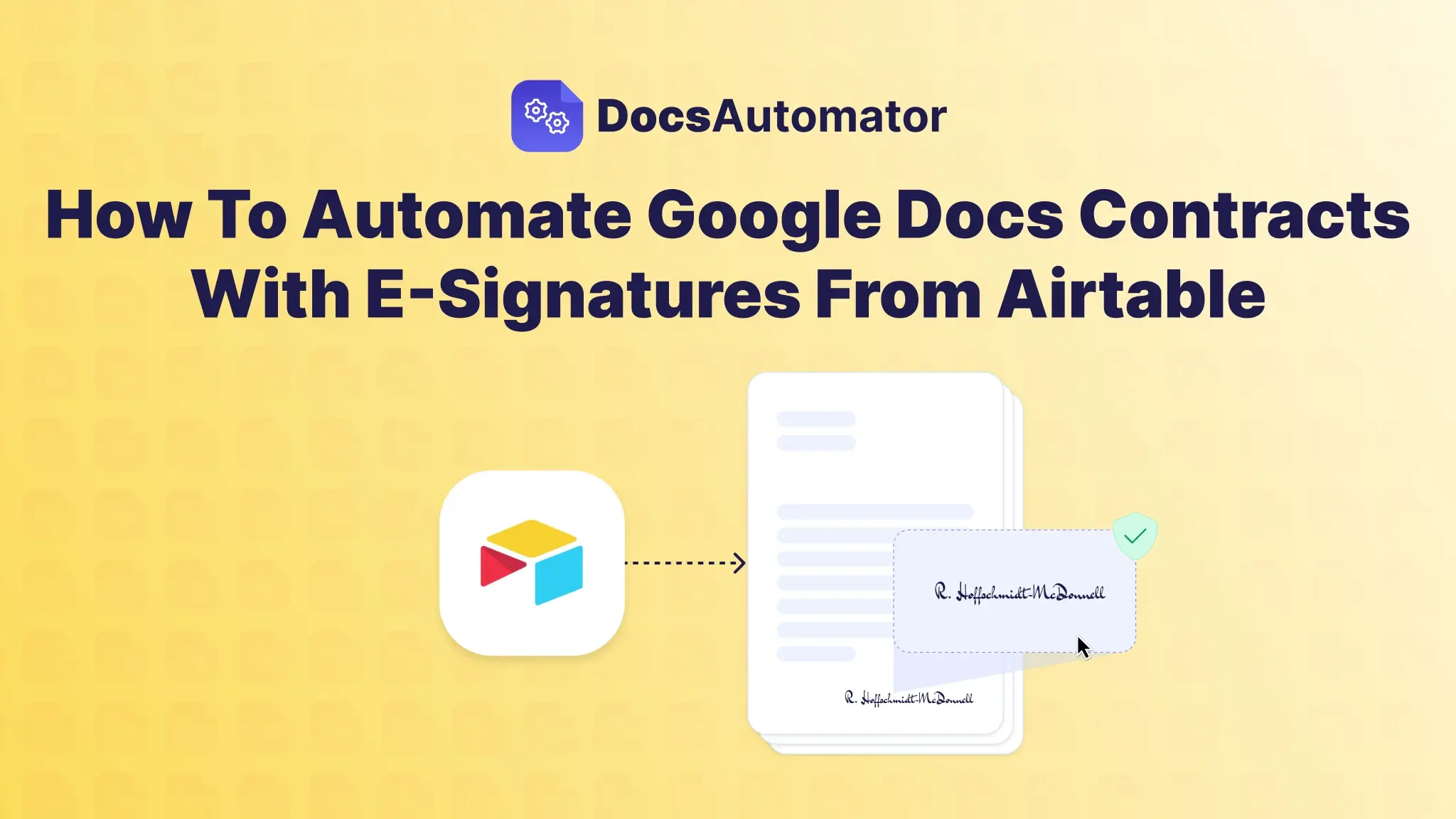
This post walks through the fix: generate the contract from the Airtable record, send it for e-signature, and save the signed PDF back to the record. Setup takes an afternoon; after that, the contract goes out, gets signed, and lands back in Airtable without a human in the loop. The same setup sends quotes and proposals that the customer accepts with one click, covered further down.
Ways to sign contracts generated from Airtable, and where each one stops
The standard tools each solve one part of the problem and break on another.
Mail merge in Word can populate a contract template from a spreadsheet export, but it can't trigger from an Airtable record, can't send the document out for signature, and can't drop the executed PDF back into the source record. You end up with the document; you don't end up with the workflow.
DocuSign or a stand-alone e-sign tool can collect a signature, but it can't generate the contract from your data in the first place. So you're still copy-pasting Airtable fields into a template before uploading it to the signing tool. The bottleneck just moved upstream.
Airtable Page Designer can generate a PDF directly from the record, until you discover the layout is rigid, it doesn't handle conditional clauses, it doesn't support multi-page contracts with dynamic line items, and it doesn't send anything for signature. You can ship a PDF; you can't run a contract workflow.
Stitching Zapier between Airtable, Google Docs, and DocuSign works for a demo. In production, the seams show: rate-limit failures with no retry logic, document IDs that drift between steps, signatures that come back attached to the wrong record, and a Zap that breaks every time someone renames a field. When the person who built it leaves, the workflow becomes a black box nobody dares touch.
Proprietary "contract automation" platforms rebuild your template inside their own editor. So now whoever maintains your template, who already had it exactly right in Google Docs, has to re-implement it in an editor with weaker typography, fewer fonts, and no real-time collaboration. Every clause change becomes a two-place edit, and the moment you outgrow the platform there's no clean export back to Google Docs.
What's actually needed is small: keep the Google Docs contract template your compliance officer already designed, keep the Airtable base your inspectors already use, and put a thin layer in between that handles the data merge, the e-signature round-trip, and the file return.
That's the gap DocsAutomator fills.
Generate contracts from Airtable and send them for e-signature in three steps
1. Build your contract template in Google Docs
Take the contract template your team already uses, or pick a starting point from the free Google Docs contracts templates. The employment contract, sales contract, and freelance services contract are common starting points; the construction contract and lease contract cover the next two most common cases.
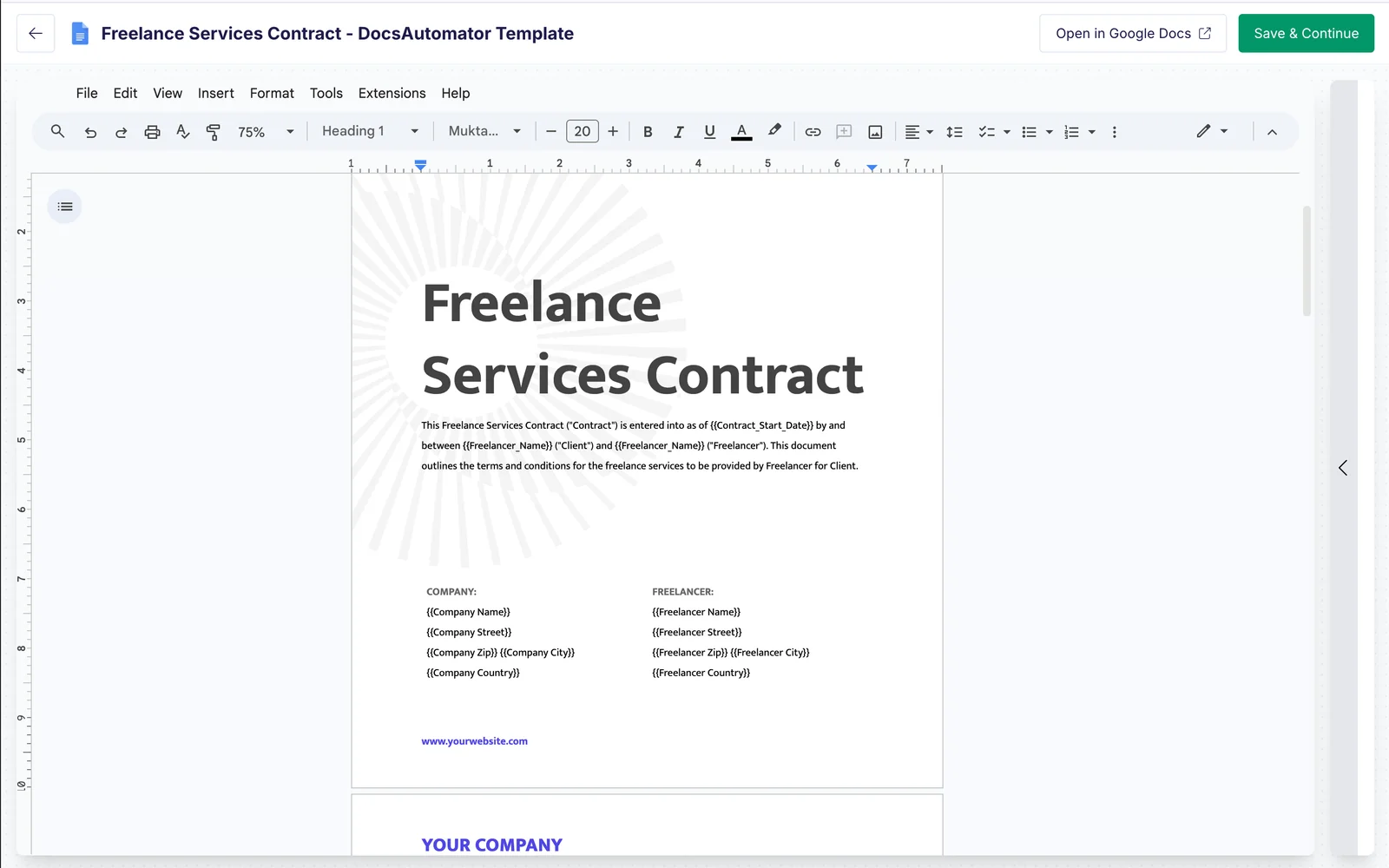
Wherever the contract has a field that varies per counterparty, replace the text with a placeholder. Placeholders are written in double curly braces:
This Service Agreement is entered into on {{contract_date}}
between {{provider_company}} ("Provider") and
{{counterparty_company}}, with registered address
{{counterparty_address}} ("Client").

Scope of work: {{scope_summary}}
Fee: {{fee_amount}}
Term: {{term_length}}, commencing {{start_date}}.
A few things worth knowing about how placeholders behave in DocsAutomator:
- They can sit anywhere the underlying Google Doc accepts text: body, header, footer, table cells, captions. Wherever the editor lets you type, a placeholder works.
- They can carry text or images. An image placeholder mapped to an Airtable attachment field gets pre-processed (resized to fit, optimized for file size) so a high-volume contract run doesn't generate multi-gigabyte PDFs.
- They support repeating blocks for line-item content (useful for contracts with itemized scopes, payment schedules, or deliverable lists) and named conditional sections that show or hide based on rules you set in DocsAutomator's section settings.
For the signature itself, drop the e-signature placeholders directly into the contract where the signature block belongs:
{{esign.signature_1}}
{{esign.date_1}}
{{esign.text_1_full_name}}
{{esign.text_1_title}}
The 1 denotes the first signer; for a two-party contract where the provider also signs, you'd add a parallel {{esign.signature_2}} block. The _full_name and _title suffixes are just labels. They let you collect arbitrary structured text from the signer alongside the signature itself.
Once the template renders correctly with one record's data filled in by hand, you're done with Step 1.
2. Connect your Airtable base
In DocsAutomator, you authenticate Airtable once via OAuth, then point the automation at the base and table that holds your contracts. Each record in that table is one contract.
DocsAutomator's mapping interface lets you connect any column to any placeholder. Your Airtable field names don't have to match the placeholder names in the template, and they probably don't, because most teams' Airtable bases predate any contract template they later design. If a column happens to share a placeholder name (e.g. a contract_date field and a {{contract_date}} placeholder), the interface auto-detects and pre-fills the mapping. Otherwise, AI field mapping suggests connections between fuzzily-named fields and placeholders, and you confirm or adjust.
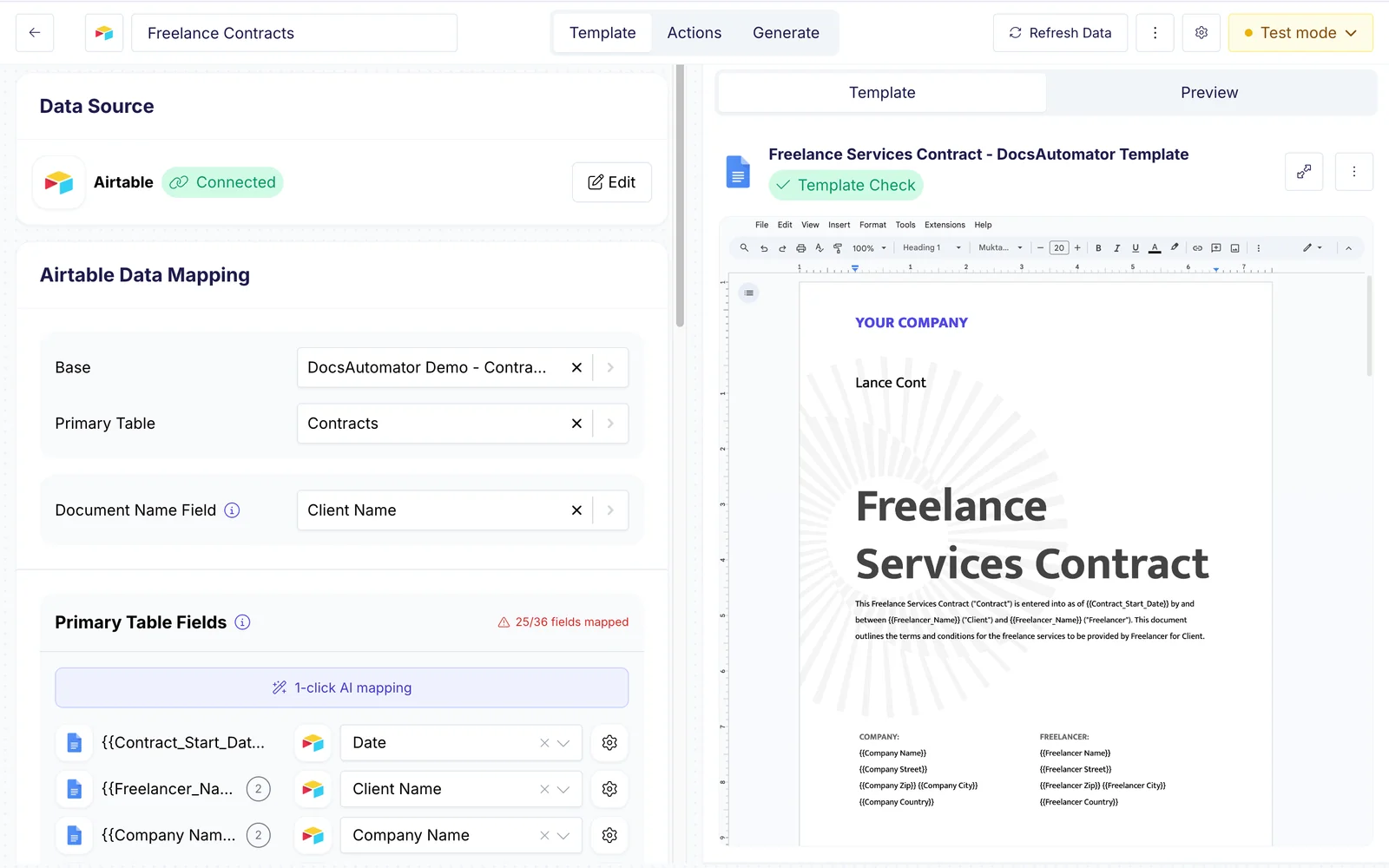
If your contract pulls itemized content, such as a scope of work with multiple deliverables or a payment schedule with multiple installments, set up a linked records table in Airtable (one row per item) and map it to a line-items block in the template. The contract then expands to as many rows as the record has, automatically. DocsAutomator supports nesting up to three levels deep, which covers contracts that break down further, for example phases containing deliverables containing tasks, each with its own pricing.
3. Set up the e-signature workflow
This is the part DocuSign-plus-Zapier would otherwise stitch together. Three things to set: who signs, what they receive in the invitation, and what happens when the signed copy comes back.
Map the signer to an Airtable field
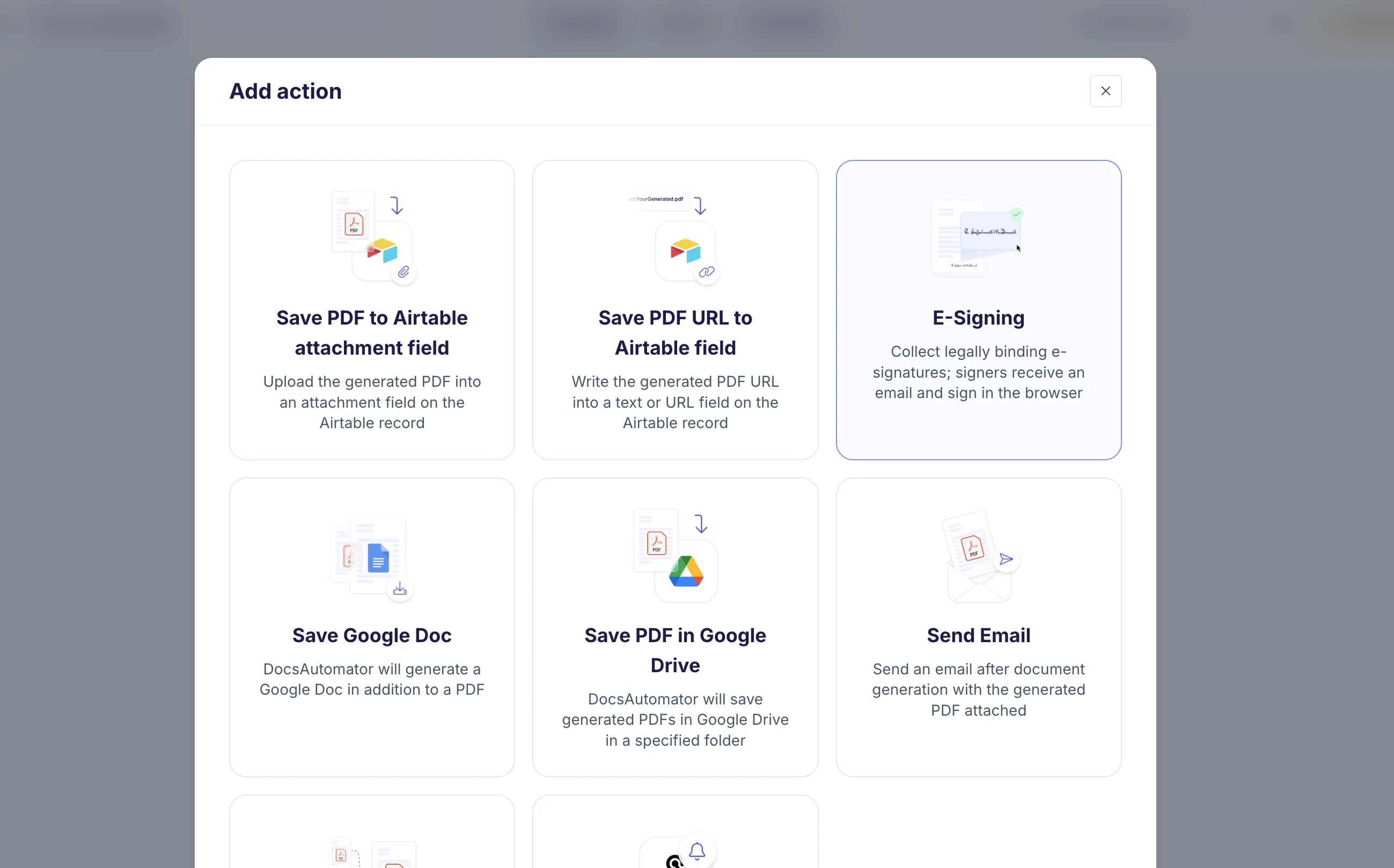
Open the automation's Actions tab and add a new action. E-Signing sits alongside the other output actions (Save PDF to Airtable, Save Google Doc, Send Email), so a single contract automation can sign, attach back to Airtable, and email the executed copy in one pass.
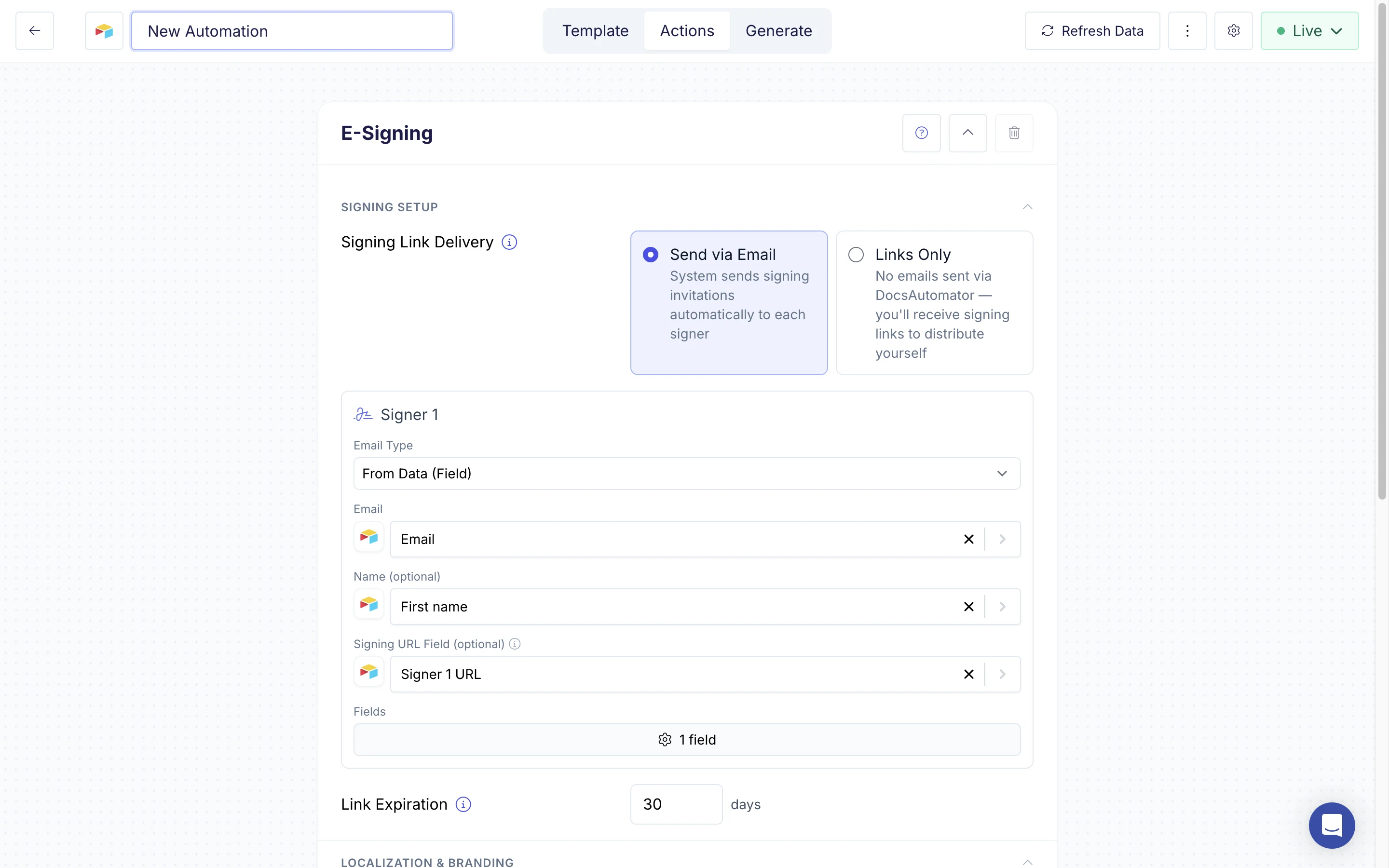
Inside the E-Signing action, choose From Data (Field) as the email source so DocsAutomator pulls the signer's email address from a column on the record (usually the counterparty's email field). Add an optional name column for the display name, set a link-expiration window (default 30 days), pick the signer's language, and you're done. The same panel lists each esign.* field DocsAutomator detected in the template, so you can verify the signature/date/text/checkbox placeholders before saving.
For two-party contracts where the provider also signs, add Signer 2 and choose whether signing is parallel (both can sign at once) or sequential (signer 2 only sees the document after signer 1 has signed).
Write the invitation, reminder, and completion emails
Three email templates ship with sensible defaults; each is fully editable per automation. The invitation goes out the moment the document is generated. Reminders are opt-in: turn them on, set the interval (default 3 days) and a maximum count (default 3), and DocsAutomator nudges the counterparty until they sign or you hit the cap. The completion email lands with the signed PDF attached when everyone has signed.
Each subject and body supports the same placeholders as the contract itself, such as {{counterparty_company}}, {{contract_date}}, so the invitation can read "Hi Acme, your Service Agreement dated March 12 is ready to sign" rather than a generic template. You can send from noreply@docsautomator.co or, if you've connected a Gmail account, from your own domain with a custom sender name. The CTA button color matches your brand. The e-signature feature page walks through every option in detail.
Pick a trigger
To kick off a contract, you have several options depending on how your team works:
- Airtable button field. Add a button to the contracts table; click it on a record and the contract goes out for signature in one action. Best when contracts are issued one at a time by a reviewer who wants to confirm each one before sending.
- Airtable formula field. A formula column that renders a clickable link per row, generated from a
=CONCATENATE(...)of the createDocument endpoint with the record ID. Equivalent to the button, with the advantage that you can conditionally hide it (e.g. only show the link once the record's status isReady to send). - Airtable automation. A native Airtable automation that fires the createDocument webhook when a record matches a condition (status changes to
Ready, new record is created, etc.). Best for fully unattended flows. - Manual button in the DocsAutomator app. Click "Generate" in DocsAutomator, pick a record, and send. Useful for one-off contracts outside the normal flow.
What the counterparty sees
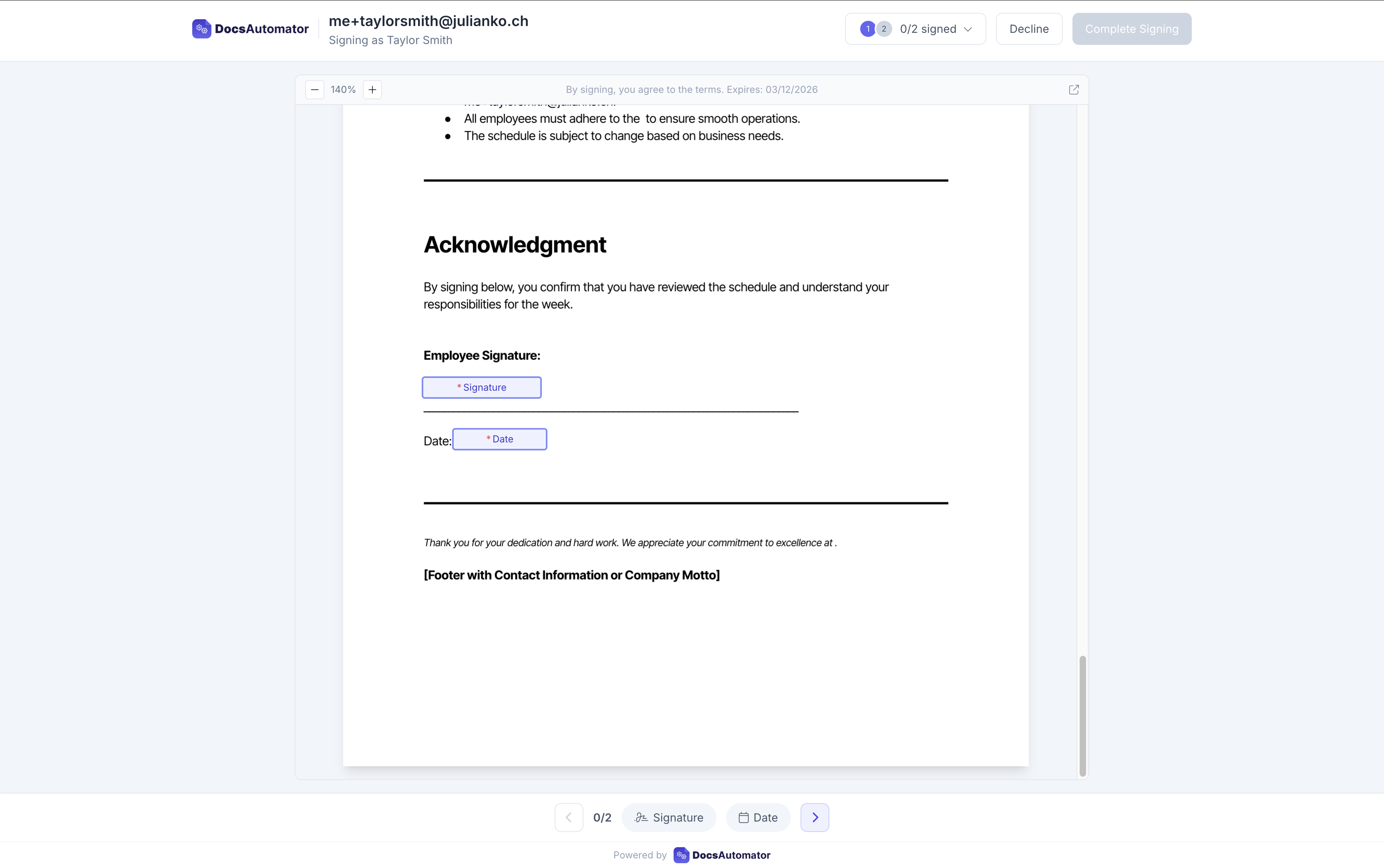
The invitation email contains a single signing link. Clicking it opens DocsAutomator's signing view with the contract rendered exactly as it will be archived (same fonts, same layout, same logo), with the signature/date/text/checkbox fields highlighted in place. The counterparty fills them in, clicks Complete Signing, and that's it. No account creation, no app install. The signing view works as smoothly on mobile as on desktop, which is why the field-inspection example earlier works: property managers sign on the inspector's phone before the inspector leaves the property.
The signed PDF goes back to the Airtable record, with the audit trail
When the last signer completes, DocsAutomator delivers the executed PDF to the Airtable attachment field you designated, posts a webhook to anywhere else you want it (Slack, a CRM, an archive), and sends the completion email with the signed PDF attached.
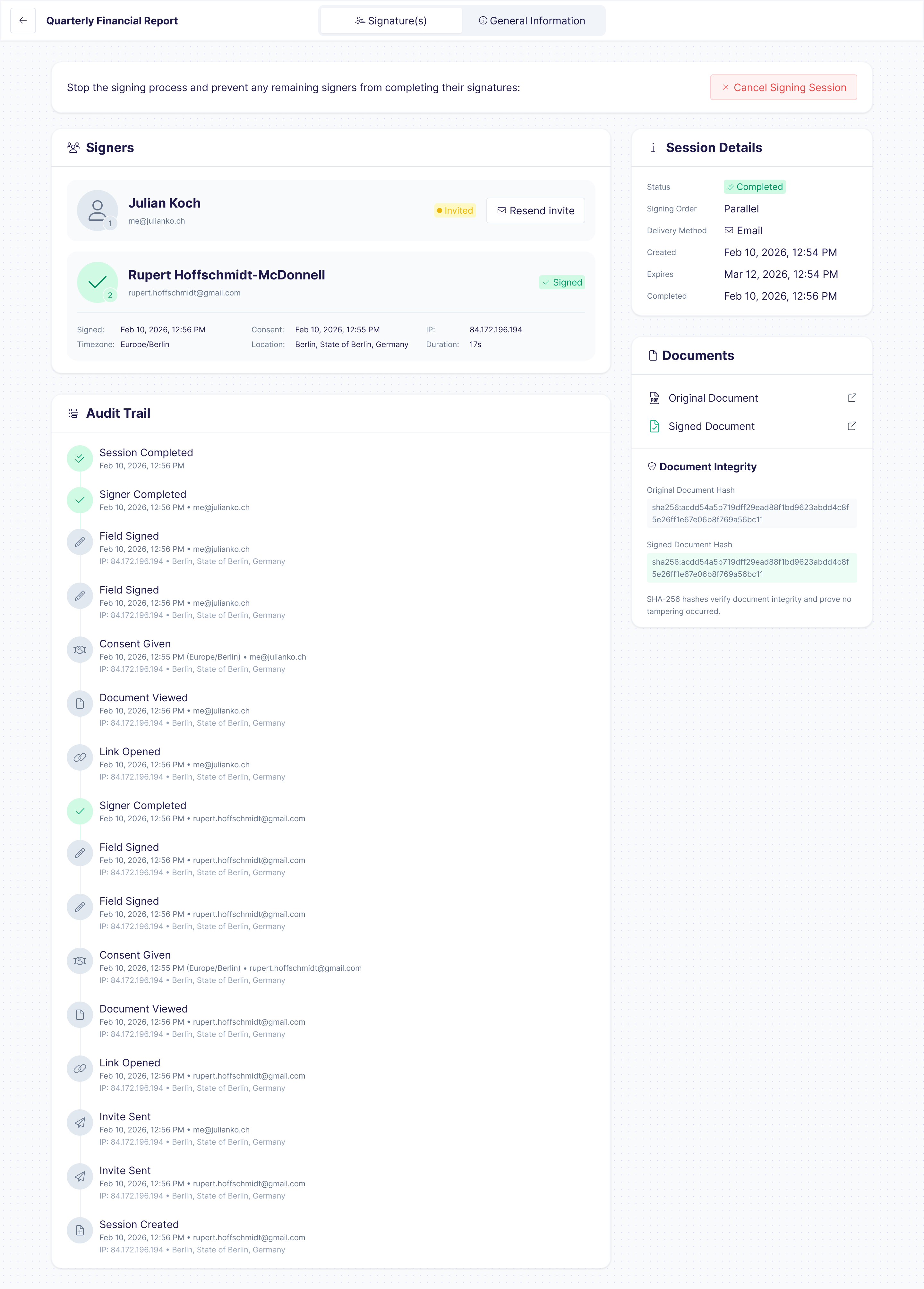
Every event in the signing session (invite sent, link opened, document viewed, consent given, each field signed, session completed) is logged with timestamp, IP, and signer email. The audit trail is embedded in the executed PDF and visible in DocsAutomator's run history, so the chain of custody follows the document instead of living in a separate signing-tool dashboard.
Quotes and proposals from Airtable: accepted with one click
Not every agreement needs a signature. A customer does not sign a quote; they read the price and say yes. For quotes, proposals, purchase orders and offers, DocsAutomator has a second way to close the document: acceptance.
The setup is the same as above. You build the quote in Google Docs, map the Airtable fields and line items, and pick a trigger. In the Signing & Acceptance settings of the automation, you choose Acceptance instead of Signature required. The template needs no esign.* fields.
- The customer opens the quote from the email on a phone or a laptop, reads it and clicks Accept. There is nothing to draw and no account to create.
- You can ask the customer to type their name before they accept. If the answer is no, they can decline and give a reason.
- The accepted PDF gets a Certificate of Acceptance on the last page. It records the time, the email address, the IP address, the device, the typed name and a fingerprint of the exact document the customer saw.
- The accepted PDF goes back to the same Airtable attachment field that a signed contract would use, so the record shows the yes next to the quote.
A common pattern is one base with both flows: the quote goes out for acceptance, and when the accepted PDF lands on the record, an Airtable automation sends the contract for signature. Acceptance and signing cost the same. The acceptance feature page compares the two in detail.
What the customer actually got out of this
The UK property safety inspection firm we work with had a back-office team manually couriering inspection contracts between inspectors, property managers, and an archive folder. After moving to this Airtable → Google Doc → PDF + e-sign flow:
- Time to issue a contract dropped from roughly two business days end-to-end (inspector returns to office, contract is prepared, emailed, chased, archived) to under an hour on the active days, and to zero touch on the unattended days.
- Signatures are collected at point of visit on the property manager's phone, which means the contract is executed before the inspector has driven to the next property.
- The signed PDF lands back on the Airtable record automatically, so finance and audit have a single source of truth without anyone manually filing anything.
- They've run this same pattern across 50+ field inspectors and thousands of visits a year, with no growth in back-office headcount.
These aren't unusual numbers. They're what you should expect when you stop forcing humans to be the bridge between a structured database and a designed contract template.
A few technical details worth knowing
Conditional clauses. A contract that needs different terms for different counterparties (a GDPR addendum for UK clients, US-specific arbitration clauses for US clients, a VIP support SLA above a deal-value threshold) can be handled with named section tags. Each tag sits in its own paragraph in the Google Doc:
{{section_gdpr_addendum}}
This addendum reflects the parties' obligations under
the UK General Data Protection Regulation...
{{/section_gdpr_addendum}}
You then configure show/hide rules for section_gdpr_addendum in DocsAutomator: show when country equals UK, for example. Six condition types are available (equals, does not equal, contains, does not contain, exists, does not exist), and a single section can stack multiple conditions for AND logic. See conditional logic in Google Docs templates for the full pattern. The result is one contract template that flexes into a dozen contract variants without forking the document.
Line items. Contracts with itemized scopes, say a freelance services contract listing five deliverables each with its own price and timeline, use a line-items block that expands per linked record in Airtable. Per-row values like quantity × unit price come from Airtable formula fields and render directly in the row. For more structured contracts (phases containing deliverables containing tasks), nested line items handle up to three levels deep.
Batch sending. For contract types that go out in waves (a renewal cycle, an onboarding batch, a vendor refresh), the batch processing engine handles concurrency and rate limits without you having to think about it. DocsAutomator caps each workspace at five active jobs and queues the rest. If a row fails (rare, usually a malformed email or missing required field), it's logged in the run history with the reason, and you can retry that one row alone.
Storage. Every generated contract is stored in the Google Drive folder you choose, with the executed PDF returned to the same folder when signing completes. The unsigned and signed copies live side by side, so finance and audit can pull either version without leaving Drive.
Pricing. Three plans: Professional ($19 a month billed yearly, or $29 monthly, 100 documents), Business ($59 yearly, or $79 monthly, 1,000 documents) and Scale ($149 yearly, or $199 monthly, 5,000 documents). E-signing and acceptance are available on every plan with no add-on subscription. They cost $0.50 per document, charged once when the first recipient opens it, however many people sign. A request that nobody opens is free, and above 500 documents in a billing month each document costs $0.35. Overage rates are $0.20, $0.10 and $0.06 per document on Professional, Business and Scale. See the pricing page for the full breakdown. Unlimited free testing in test mode means you can validate the entire workflow end to end before a single live contract counts against your plan.
Other data sources. Everything in this post applies if your contracts live in Google Sheets, SmartSuite, ClickUp, or any of the other supported sources. Same template, same placeholder syntax, just a different connector. The Airtable integration is the one we walked through here because contract workflows tend to live in Airtable when they involve linked-record structures (contracts ↔ counterparties ↔ deliverables) that flat spreadsheets handle clumsily.
Try it on your next contract or quote
If you're issuing contracts from Airtable today and either copy-pasting into a template or stitching a Zap that breaks every other week, the fix is concretely an afternoon of setup. After that, every new contract (sales, employment, compliance, vendor, lease) flows through the same Airtable → Google Doc → PDF + e-sign workflow, with the executed copy landing back on the record by the time the counterparty has put down their phone.
Start by browsing the contract templates and picking one close to your use case, or upload your own Google Doc. Connect your Airtable base, map the columns to placeholders, drop the e-signature placeholders into the signature block, and run a test contract in test mode to validate the round-trip. Once it looks right, switch the automation to live and start issuing real contracts.
If you came here from the proposal side of the world, the Airtable to PDF proposals walkthrough covers the same pattern for proposals. For a primer on the e-signing workflow itself, the e-sign launch post is the right starting point.
Move your contract design to the tool built for design: Google Docs. Keep your contract data in the tool built for data: Airtable. Use DocsAutomator to connect the two, and built-in e-signing to close the loop with a binding signature.
Try DocsAutomator. Every account gets unlimited free testing. Run the full contract → signature → archive workflow on test data as many times as you need; only live-mode contracts count against a paid plan.