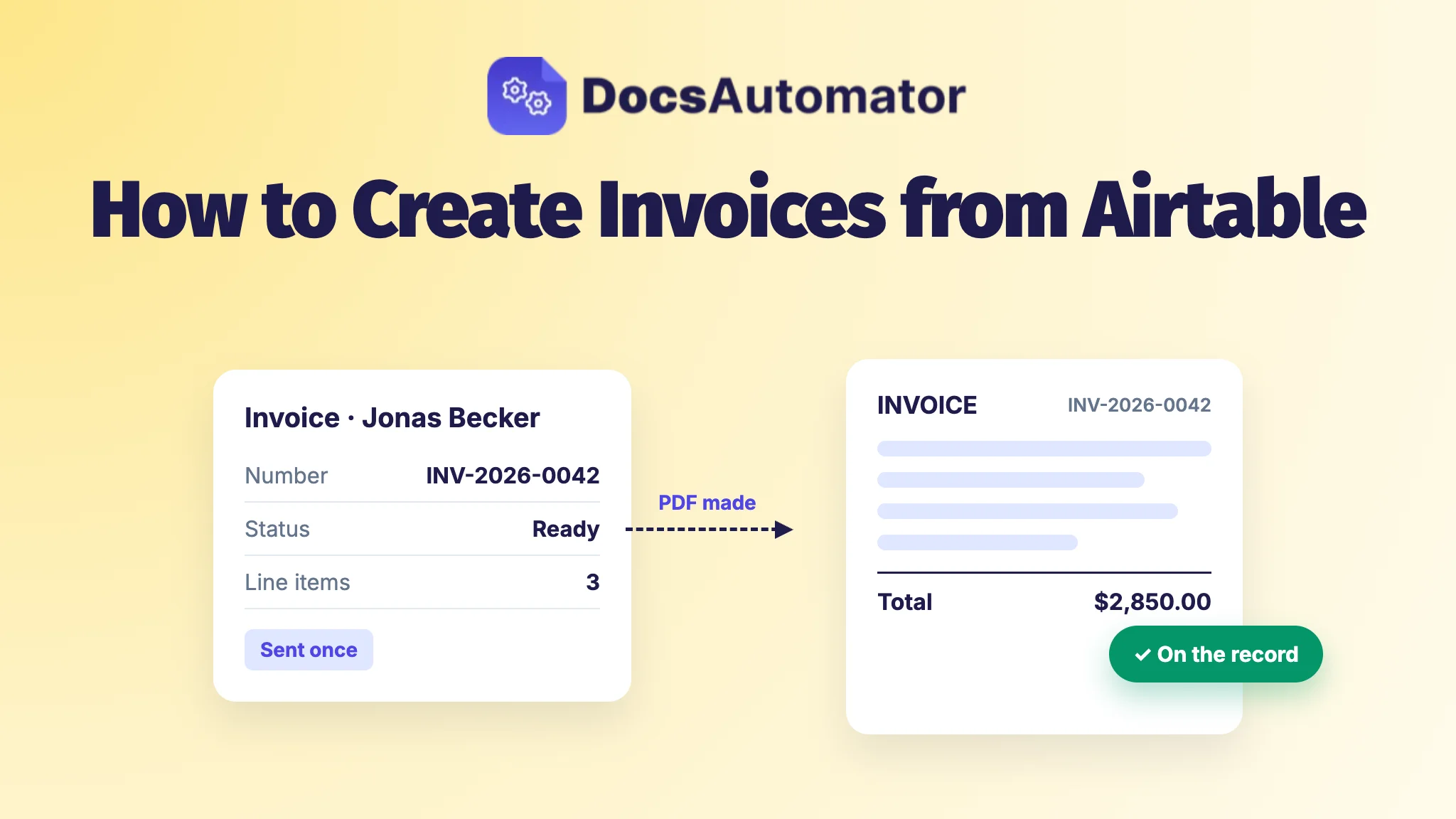
Your invoice is already sitting in your Airtable base. The client's name and address are on a Clients record, the hours or products are rows in a Line Items table, and a rollup adds them up. Turning that into a PDF takes one template and a button. What goes wrong is everything around the PDF: two invoices with the same number, the same invoice sent twice, or a corrected invoice that quietly replaces the one your client already has.
Airtable's own Page Designer extension won't do it for you: it prints one record at a time, by hand, and can't run from an automation (here's how DocsAutomator compares with Page Designer). Below, we'll build the base, make the PDF with DocsAutomator and set three rules once. After that, sending an invoice is a status change.
What tables does an Airtable invoice base need?
Three tables, linked to each other:
- Clients: name, billing address, email and payment terms.
- Invoices: a link to the client, invoice date, due date, Invoice Number, Status (Draft, Ready, Sent, Void), a rollup of the line amounts, tax, total, and an attachment field for the PDF.
- Line Items: description, quantity, unit price, an Amount formula (
{Quantity} * {Unit Price}) and a link to its invoice.
How should Airtable number your invoices?
Add an autonumber field. Airtable gives each new record a unique, automatically incremented number, so no two invoices can share it. Then show it the way you want with a formula field:
"INV-" & DATETIME_FORMAT({Invoice Date}, 'YYYY') & "-" & RIGHT("0000" & {Autonumber}, 4)
That prints INV-2026-0042. The year comes from the invoice date, and the number keeps counting from one year into the next, which is fine: it never repeats. DocsAutomator prints whatever that field holds, and the numbering stays in your base.
The catch is deleting. A deleted record takes its number with it, and a draft you start and throw away has used one up too. One Airtable community member built an invoice base around a number field with "no ghost records resulting in gaps". So make it a rule: never delete an invoice record. Set its Status to Void instead, and do the same with drafts you decide not to send.
How to create invoices from Airtable as PDFs
- Write the invoice in Google Docs or Word the way you'd send it, with a placeholder such as
{{invoice_number}}wherever a value from the record goes. For the items, make one table row that starts with{{line_items_1}}. It repeats once for each linked Line Items record. - Connect your base in DocsAutomator and pick the Invoices table.
- Map each placeholder to a field, and the line items to the Line Items link. The view you pick sets their order.
- Name the file from a field, such as a formula
"Invoice-" & {Invoice Number}. - Choose where the PDF goes: back to the attachment field on the invoice, and to Google Drive, OneDrive or Dropbox if you keep copies there. Add an email step with the client's address from the record and a subject like "Invoice #{{invoice_number}} for {{client_name}}".
Currency, number and date fields come through with their symbol and decimals. Round the tax in Airtable before it reaches the template, for example ROUND({Subtotal} * 0.19, 2). The Airtable integration page walks through the setup, and you can start from one of our invoice templates for Google Docs instead of a blank page.
Airtable invoice automation: what stops a double invoice?
A double invoice almost always comes from the trigger, not the template. Use one of these two triggers:
- A button field on the invoice record, for one invoice at a time. It asks "Generate this document?" before it runs, and a double click doesn't make two.
- Auto Creation, for a status change. DocsAutomator makes the invoice when Status changes to Ready, and it won't fire twice for the same record within 10 minutes.
Both guards stop a double click or a quick second change. They don't stop a second click next week, and every new run sends the email again. So close the loop: once the PDF is on the record, set Status to Sent, with an Airtable automation or by hand. From then on, nobody clicks that invoice's button or moves it back to Ready.
One more trap: a rule that waits for a date. Time alone never triggers a document, so "due date is today" sends nothing until someone edits the record.
How do you correct an invoice you already sent?
Don't generate it again over the old one. Your client already has that PDF, and the copy on the record should match it. You want what one Reddit commenter called a game changer for an Airtable invoice maker: "simple ways to credit note invoices". The simplest way is a new record:
- Set the original's Status to Void. Keep the record and its PDF.
- Create a new invoice record with its own number, a link to the original, and the right line items. For a credit note, add a Type field and a conditional section to the same template that shows "Credit note for INV-2026-0042" only when Type is Credit note.
- Create it as Draft, check it, then set it to Ready.
Use the Overwrite attachment setting only for drafts, where replacing the file is exactly what you want.
How do you send a month of invoices at once?
With Auto Creation on, the month-end run is a paste. Filter a view to this month's Draft invoices, check them, then paste Ready into the Status column. Each record makes its own invoice and its own email.
If you'd rather run the month from DocsAutomator, leave Auto Creation off and run that view in bulk instead. You get a ZIP, or one merged PDF of up to 100 invoices per download. Don't do both, or every invoice is made twice.
If you bill German clients, the same automation can send each one as a ZUGFeRD or XRechnung e-invoice.
Customers generated more than 12,000 invoices with DocsAutomator in September 2026. You can build all of this and test it for free, with no credit card.
Frequently asked questions
Can I make invoices from Airtable on the free Airtable plan?
Yes. The button field and Auto Creation both work on free Airtable plans. Testing DocsAutomator is free, and invoices without the trial watermark need a paid plan.
Can Airtable invoices go to QuickBooks or Xero?
Yes, through Zapier, Make or n8n: a workflow passes the invoice data on to either one.
How many invoices can I make a month?
Plans include 100, 1,000 or 5,000 documents a month, and each invoice counts as one. Test documents don't count. The plans and prices are on the pricing page.