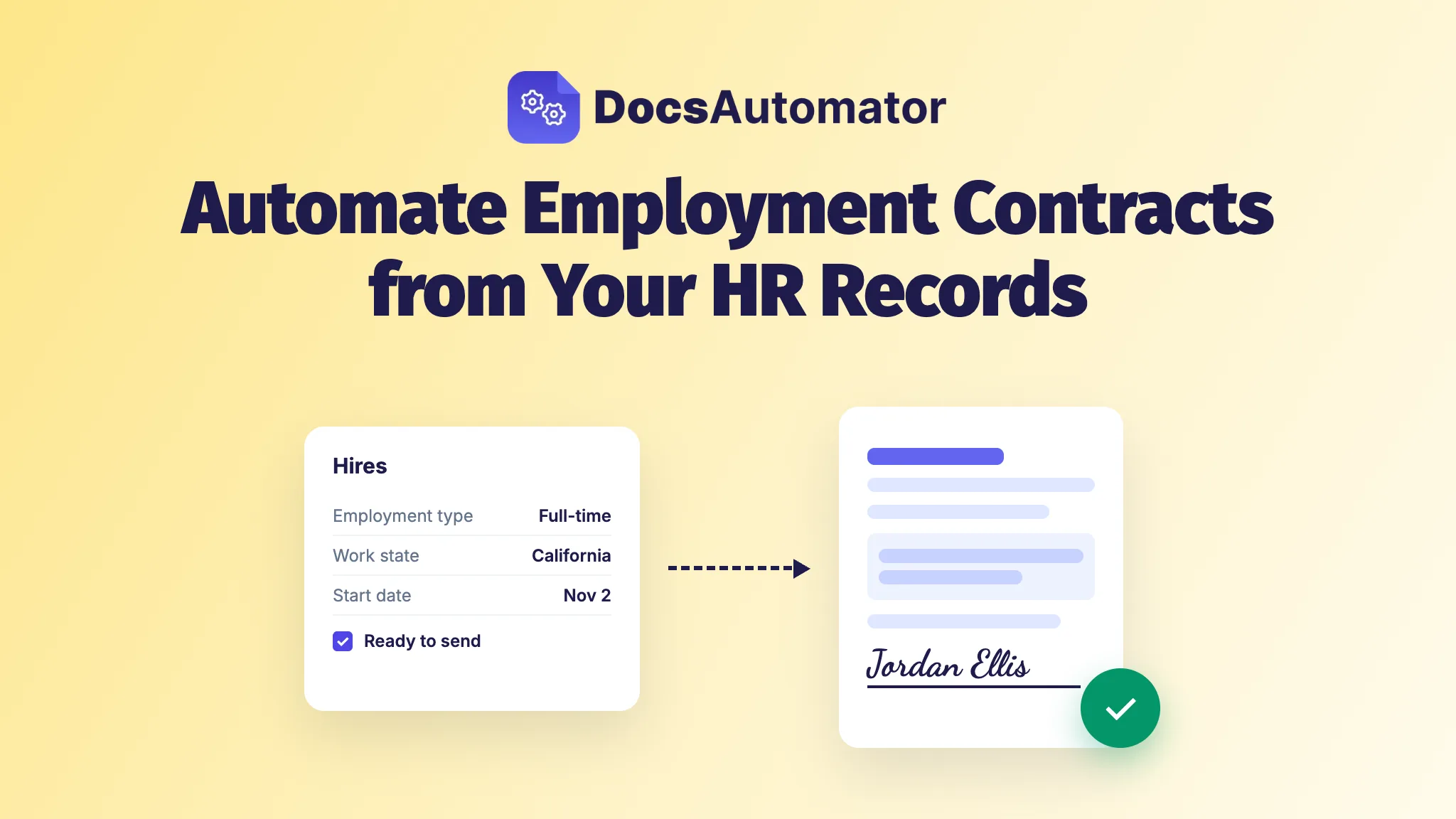
Keep one record per hire, holding the role, pay, start date, employment type and where they'll work. Build one contract template whose sections switch on those fields, send it for signature from that record, and don't call it done until the signed copy is back on the same record. Then every offer, contract and NDA comes out right without retyping.
Here's what it usually looks like at a 30-person company. A candidate says yes on Tuesday. Someone opens last month's contract, which happened to be for a contractor, swaps the name and the pay, forgets the benefits clause the full-time version needs, exports a PDF, uploads it to a signing tool, and then has to remember to save the signed copy somewhere HR can find it in a year. This guide shows how to set it up once so that none of those steps depends on someone remembering.
This guide is for teams whose hiring data lives in Airtable, a Google Sheet or Notion, or in an HR system such as BambooHR, Personio or Greenhouse that you connect to DocsAutomator through Zapier. If your HR platform already writes and signs offer letters for every role and place you hire in, you've solved this one already.
What you generate, and what you don't
Onboarding paperwork is two different piles, and only one of them belongs in a template.
- Documents you write and generate from the record: the offer letter, the employment contract or contractor agreement, the NDA, and acknowledgments of the handbook and your policies. These carry your wording and the hire's details.
- Government forms you don't generate: Form I-9 and Form W-4 in the US. They come with their own rules and deadlines (the new hire's part of the I-9 is due no later than their first day of employment), so keep them in your payroll or HR system.
The contract needs a signature. A handbook or policy acknowledgment only needs a yes, so you can send it with one-click Acceptance instead of asking for a drawn signature. The rest of this guide walks through the contract, because it has the most moving parts. An NDA or an acknowledgment is the same setup with its own template, sent from the same record.
Start with one record per hire
Everything below runs off one table. In Airtable it's a Hires table, in Google Sheets it's one row per hire, and in Notion it's a database. These are the fields we'd give it:
| Field | Type | Example |
|---|---|---|
| Name | Text | Jordan Ellis |
| jordan.ellis@example.com | ||
| Role | Text | Customer Success Lead |
| Employment type | Single select | Full-time, Part-time or Contractor |
| Work state | Single select | California |
| Pay | Text or currency | $72,000 a year |
| Start date | Date | November 2, 2026 |
| Hiring manager and their email | Text and email | Dana Whitfield |
| Ready to send | Checkbox | Ticked, which sends the contract |
| Signed contract | Attachment | Filled in for you after signing |
All names here are made up. Pay and personal details sit in this table, so share it only with the people who need to see them.
If the record lives in an HR system instead, Zapier is the bridge. BambooHR's Zapier app starts a Zap on New Employee or Updated Employee, Personio's on New Employee, and Greenhouse's on Candidate Hired. The next step is DocsAutomator's Create Document action, with the employee's fields mapped to the template. The Zapier setup works the same for any app.
One template instead of twenty
Most teams end up with a folder of near-copies: full-time, part-time, contractor, one per state, and an old one nobody dares to delete. Each copy is a place for a stale clause to hide. Start from your own contract, or from our free employment contract template, and turn it into one Word or Google Docs file that changes itself.
The details go in as placeholders, such as {{name}}, {{role}}, {{pay}} and {{start_date}}. The parts that differ by hire go between section tags:
{{section_fulltime}}
Benefits. You're eligible for the company health plan from your start date ...
{{/section_fulltime}}

{{section_contractor}}
Invoicing. You'll invoice monthly for the services in Schedule A ...
{{/section_contractor}}

{{section_california}}
[The clauses your lawyer wrote for people working in California]
{{/section_california}}
In the automation you then give each section its rule. fulltime shows when Employment type equals Full-time, contractor when it equals Contractor, and california when Work state equals California. Rules can check text, numbers, dates and checkboxes, and you can combine several, so a clause can show only for full-time hires above a set salary. The conditional logic page lists every operator.
Sections handle signers too. Every signer gets numbered tags, such as {{esign.signature_1}} for the new hire. Say the hiring manager signs full-time contracts only. Put their block, {{esign.signature_2}}, inside the fulltime section. On a contractor agreement that section is hidden, so the manager drops out of the signing session and never gets an invitation or a link. HR signs every contract as signer 3, with the block outside any section.
This isn't theory. Brand Activators, a Belgian brand-activation company with a workforce of students and flexi-job workers, had Quivvy Solutions, an Airtable partner in Ghent, build the switching part on Airtable. One template, one employment status field: a student gets the legal text for student employment, a flexi-job worker gets the flexi conditions, and the PDF is linked back to the worker's Airtable record. The rules are Belgian, the setup is the same.
A word on the wording itself. Generating the contract is our job, but what it says is a lawyer's. An employment lawyer quoted by SHRM warns that a written offer can support the argument that a contract of employment exists. And for remote staff, employers have to follow the laws where the person physically works, which is why the table has a Work state field and not your office address. Have an employment lawyer approve each variant of the template once, and the automation repeats exactly that text from then on.
Some state rules don't belong in the contract at all. California employers must give most non-exempt employees a pay notice at hire under Labor Code 2810.5, and it has to be its own form. That's a second template, sent from the same record.
Send it for signature from the record
Connect the table to DocsAutomator, map the placeholders to fields, and turn on signing. Our guide to contracts from Airtable with e-signatures walks through those clicks, so here are only the parts that matter for hiring.
The trigger. In Airtable, turn on Auto Creation and have it watch the Ready to send checkbox. Only that field counts: editing the pay or the start date after the box is ticked doesn't make a second contract. That's what you want, but it also means a typo fixed after you tick the box never reaches the contract you already sent. So tick it last, once someone has read the pay and the start date. Google Sheets works differently: DocsAutomator checks for new rows every 5 minutes. It reacts to new rows, not to edits, so a checkbox there starts nothing. Add the hire's row only when the details are final. In Notion, a property value or a button on the row can start it.
The signers. Map each signer's name and email to fields, so the new hire's come from the Email column and the manager's from their email field. If the order matters to you, choose sequential signing. The order follows the signer numbers that appear in the document. The new hire signs on a phone or a computer without an account.
The follow-up. Reminders go out every 3 days, up to 3 times, and a signing link stays valid for 30 days unless you change it. The wait tends to be short: a typical DocsAutomator customer got a document signed 7.4 hours after sending it in September 2026 (the median across 55 workspaces and every kind of document, not only hiring paperwork). On the Business and Scale plans you can add an approval step, so HR or finance approves each contract before anything is sent.
File the signed copy back on the record
This is the step people forget, and the one that matters a year later when someone asks what the hire actually signed. When the last person signs, DocsAutomator seals the PDF and adds a certificate page recording who signed, when, and from which IP address and browser. Under Save Signed PDF To you pick where it lands: the Signed contract attachment field in Airtable, a Files property in Notion, or a link in a column of the Google Sheet. It can go to a Google Drive or Dropbox folder as well.
The new hire can also fill in values while they sign. Add {{esign.date_1}} to the offer letter and they can pick their start date on the signing page. Save Field Values To then writes it into the record, so nobody copies it over by hand.
If the record lives in BambooHR or Personio, the signed copy can go back there too. DocsAutomator sends a notification with the link to the signed PDF to a web address you choose, once everyone has signed. Catch it with a second Zap that starts with Webhooks by Zapier and ends with BambooHR's Upload Employee File or Personio's Upload File to Employee. Put the employee ID in the document name, such as Employment contract {{employee_id}}, so the second Zap knows whose file it is. Webhooks need a paid Zapier plan. Greenhouse's Zapier app has no action that uploads a file, so a contract started from Greenhouse keeps its signed copy in your Drive folder or your HR base.
What it costs
DocuSign prices by the person who sends: its Standard plan lists $30 per user per month on an annual commitment, with 100 envelopes per user per year. That buys the signing.
Our price covers making the contract and signing it, and it's per document, not per seat. Every plan has unlimited team members, and a signed contract counts as one document, however many people sign it. Professional is $19 a month billed yearly, or $29 monthly, for 100 documents a month. Give each hire an offer letter, a contract, an NDA and a handbook acknowledgment, and that's room for 25 hires a month. You can test everything with free previews first, with no credit card.
Where to start
Take the contract you send most often, or our free employment contract or NDA template, and wrap the parts that differ by hire in sections. Connect your hires table, then generate one preview for a full-time hire and one for a contractor. If both read right, your next hire signs the right paperwork before day one, and the signed copy is already on their record when they start.