To see the full preview, please revisit this page on your desktop device.
Conference Schedule Template
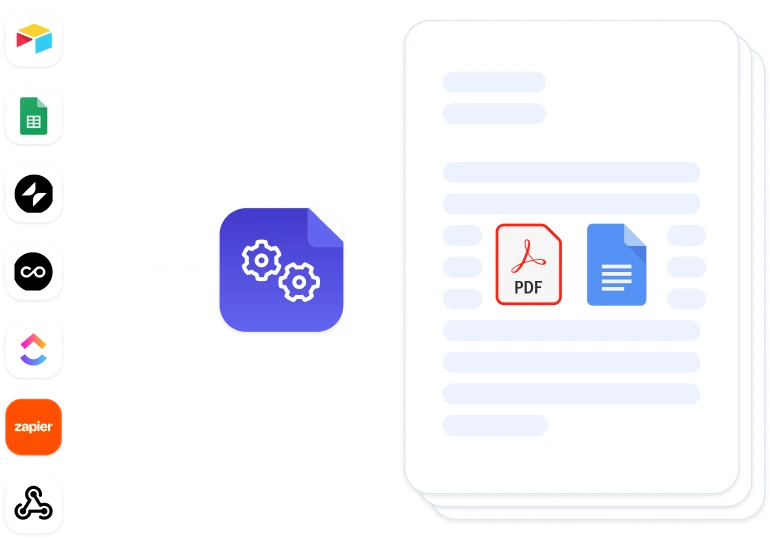
Want to automate this template?
- 1Start with this template, placeholders included
- 2Map data from your data source
- 3Generate documents automatically
How do I make a 2- or 3-day conference schedule in Word?
The file holds one day, starting at the Day line under the introduction. Copy everything from that line down to the closing remarks, paste it once for each extra day, then type in each day's date and sessions.
Two things to add while you're at it. Each session has a start time only, so type the end time next to it, such as 9:00 to 9:45, and nobody has to guess when the next talk starts. For a session held online, put the join link on its Location line. When the program is final, save it as a PDF to print or send.
How do I show sessions that run at the same time?
The file lists sessions one after another, which works while there's one room. Once two talks share a time slot, a grid reads better: a time column, one column per room and one row per time slot. A keynote or a break that everyone attends spans all the room columns as one merged cell. In Word that means replacing the session list with a table, which is real rework, not a quick edit.
| Time | Main hall | Room B |
|---|---|---|
| 9:00 to 9:45 | Opening remarks and keynote | |
| 10:00 to 11:00 | Workshop: Planning the budget | Workshop: Working with sponsors |
| 11:00 to 11:15 | Break | |
| 11:15 to 12:15 | Breakout: Speaker prep | Breakout: Volunteer briefing |
What do I do when a session moves?
Every copy you've already sent is out of date, from the PDF in each speaker's inbox to the printed program. With one Word file, each change means editing it by hand and sending it again. That's fine once. By the third change in the week before the event, it isn't.
The fix is to edit the sessions, not the document. If your sessions live in Airtable or Notion as records linked to the event, make the schedule from them. Put {{line_items_1}} above one session block in the template (its time, title, speaker, room and description) and {{/line_items_1}} below it. DocsAutomator then repeats that block once for every linked session, in the file's own layout, and saves the schedule as a PDF or Word file. When a talk moves, change its record and generate the schedule again. Email Automation can send the new PDF to your attendees and speakers.
Two talks at the same time come out as two blocks with the same time and different rooms. Link each speaker's record to their sessions, and every speaker can get a schedule of just their own talks.