SharePoint Lists Agreements & E-Signature
Powerful Document Automation & Signing for SharePoint Lists
SharePoint list items turned into agreements with an electronic signature









Works through Zapier or Make. DocsAutomator has no native SharePoint Lists connection; this page shows only the routes that run today.
Some of the teams / institutions automating and signing their documents with DocsAutomator:







Contracts and agreements, created and signed with DocsAutomator
Some examples of our customers and the documents they automate and sign daily

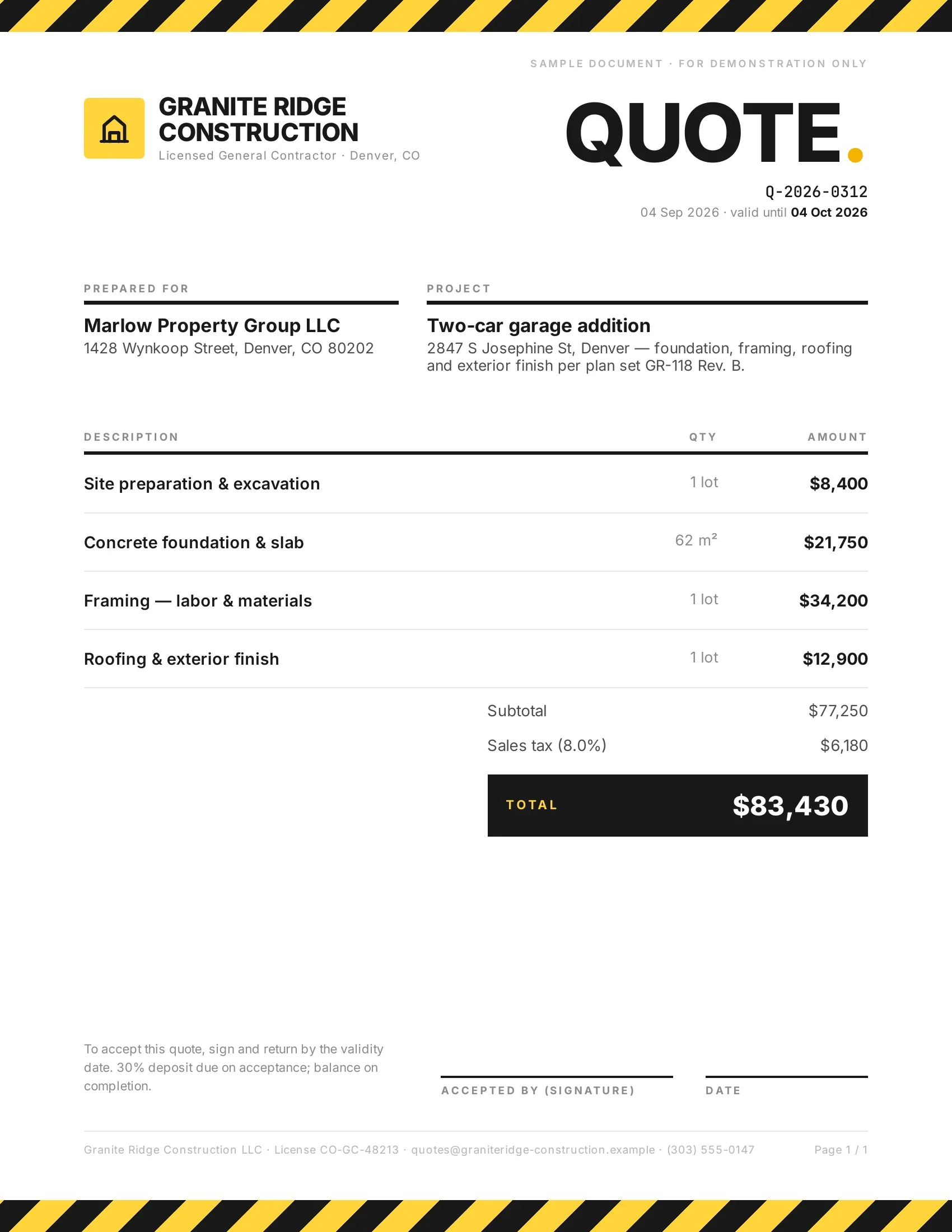 Accepted
Customers accept quotes and change orders in one tap, so work starts sooner.
Quotes · Estimates · Order confirmations · Change orders

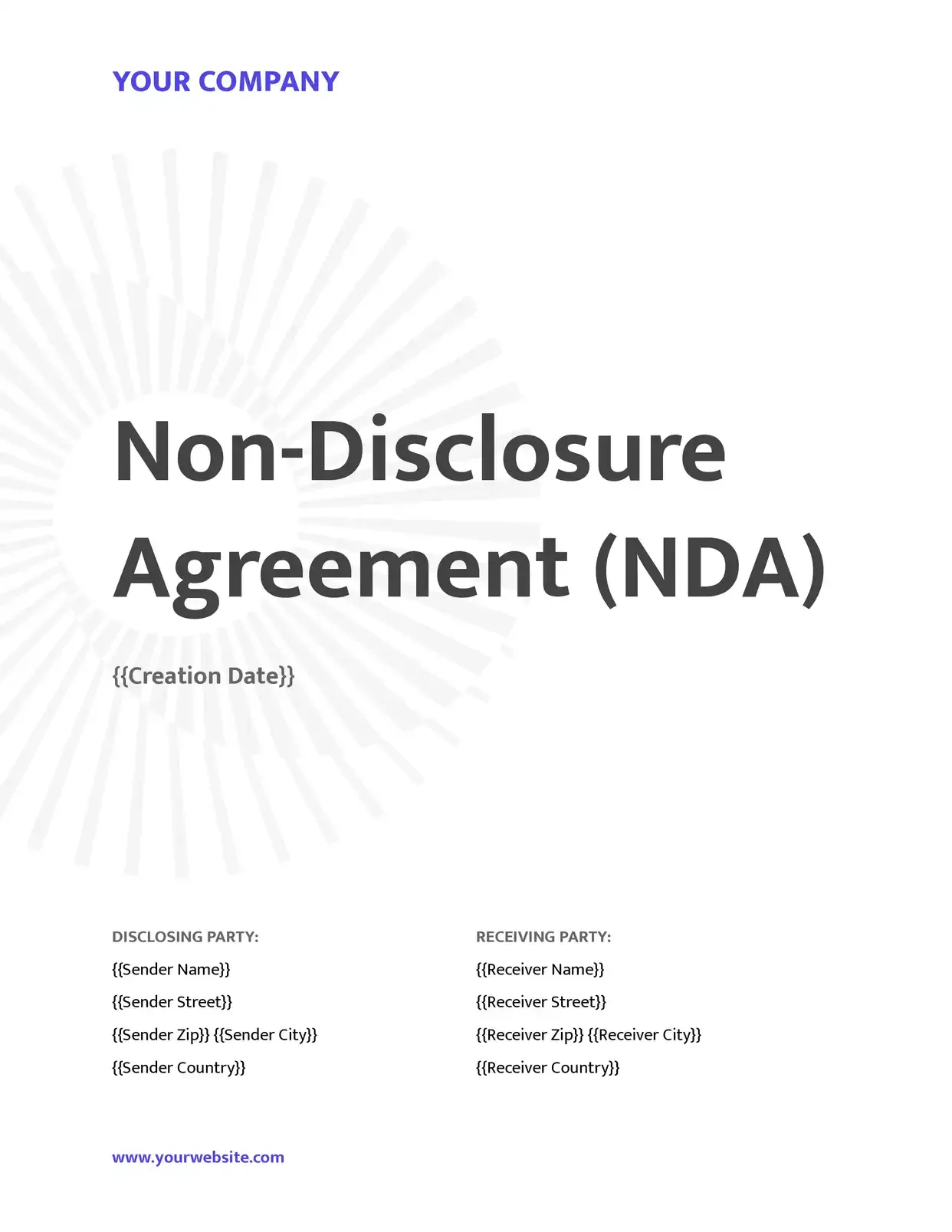 Signed
Agreements go out from your records and come back signed.
Service agreements · Leases · NDAs · Engagement letters

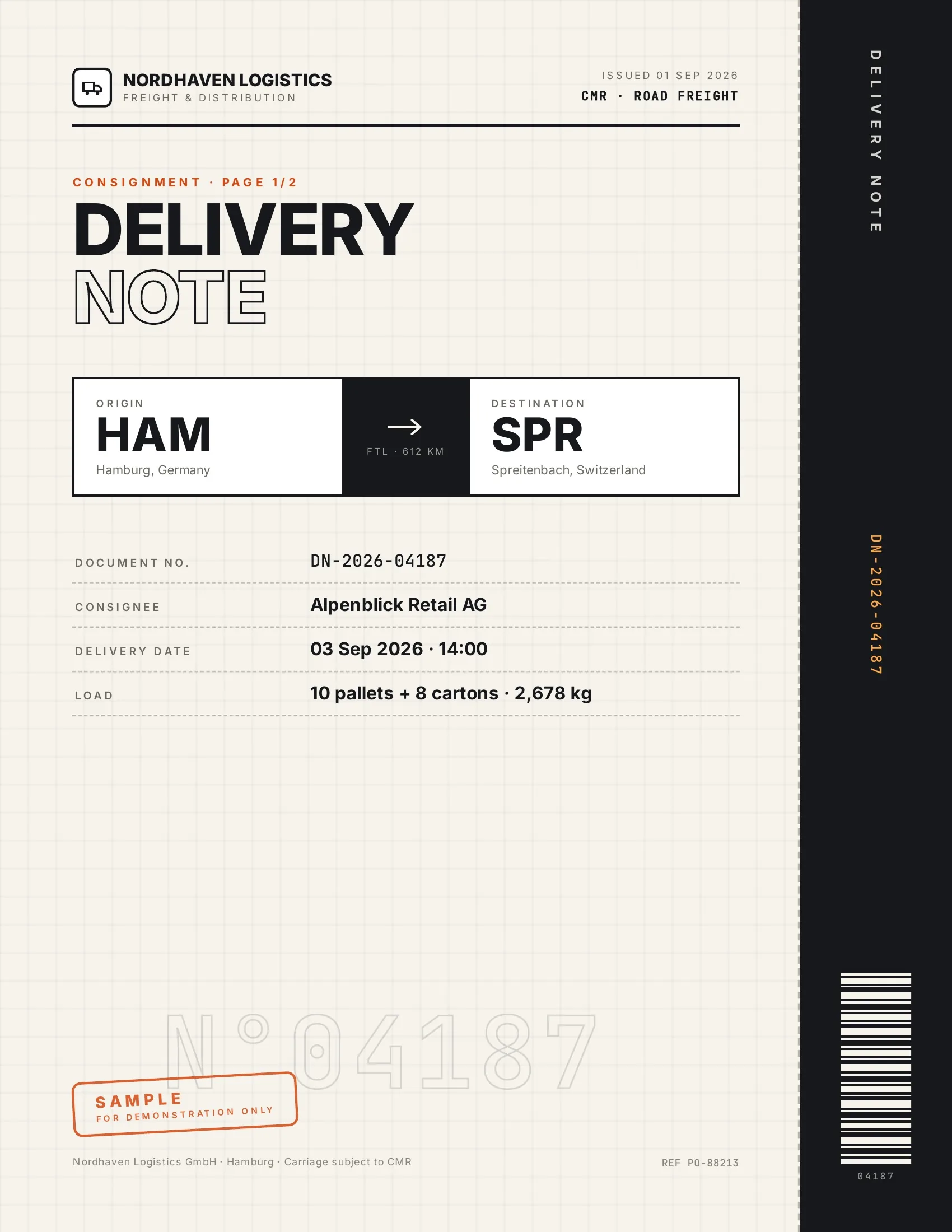 Accepted
Customers accept finished work and deliveries on their phone, on the spot.
Work orders · Delivery notes · Inspection reports · Purchase orders

 Signed
New hires, clients and students sign their paperwork before day one.
Employment contracts · Offer letters · Enrollment forms · Letters of authority
Strong reasons for choosing DocsAutomator to automate & sign your SharePoint Lists documents
All you need to effortlessly automate and sign your documents
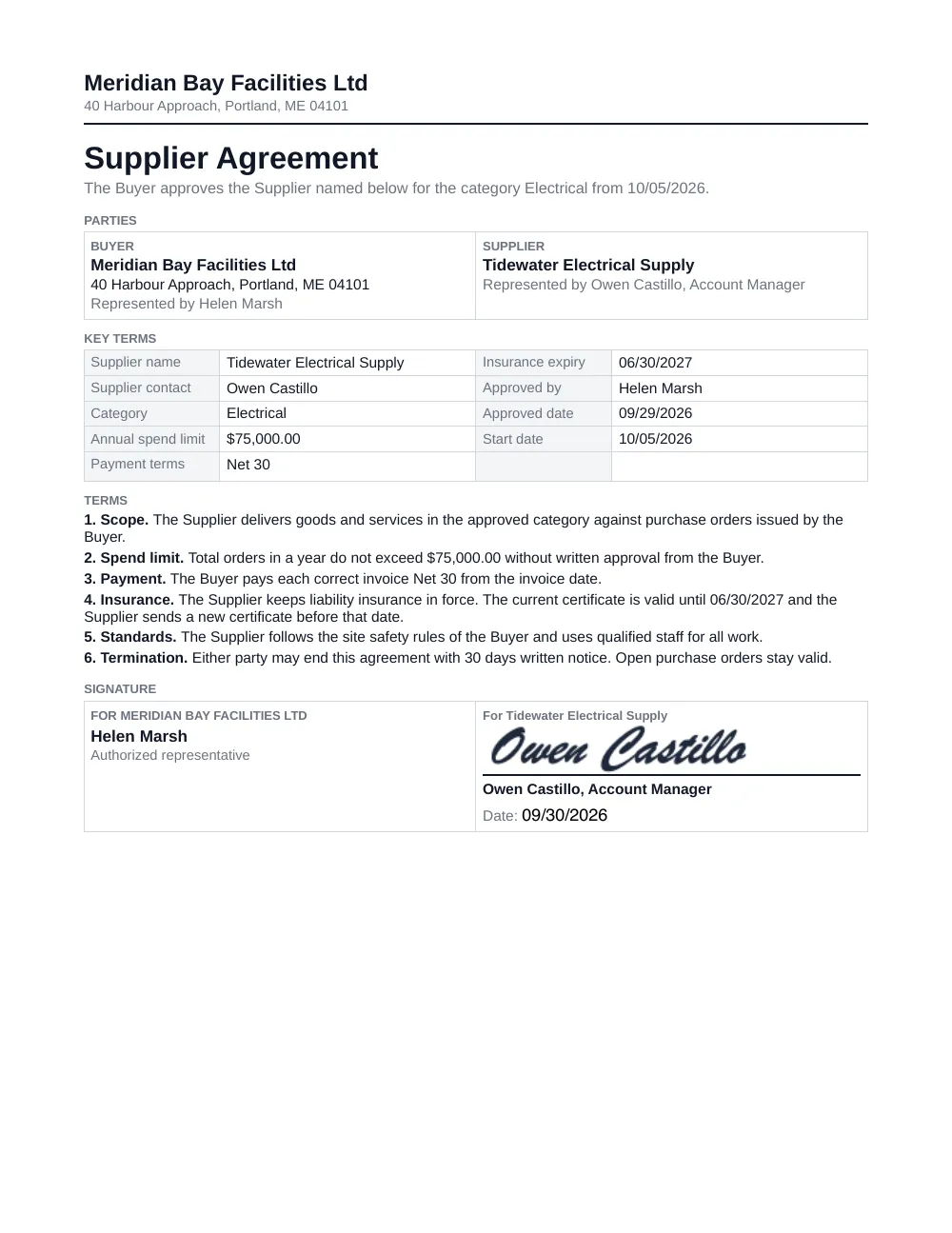

The agreement after a list item is approved
When that status changes to your value for approved, a document has to go to someone outside the company: the supplier agreement, the client agreement or the terms to sign. Today someone copies the columns into a Word file and sends a PDF by email.
This page covers that one job. The list item fills your Word template, the other side signs on any device without a Microsoft account, and the signed PDF is saved to a document library on the same site.

Describe it, the AI agent builds it
Tell it what you need. It drafts the template, connects your data, sets up signing and runs a test. No setup screens.

Bring your own AI agent
Connect Claude, ChatGPT, or your own agent. It creates and sends documents within the limits and approvals you set.
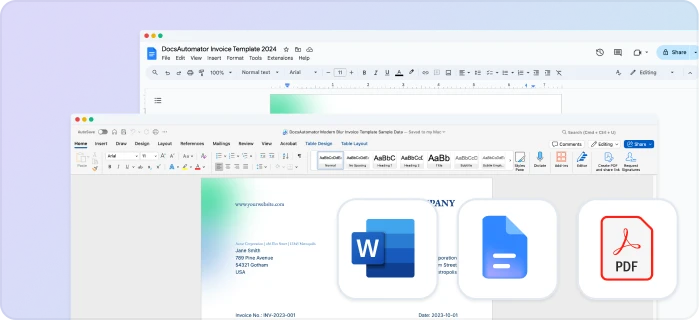
Your own Google Docs, Word or PDF templates
Keep writing your documents where you write them. DocsAutomator fills the placeholders.
Line items and nested tables
Invoices, quotes and any itemized list, straight from your data.

Conditional content
Sections, styling and images that show or hide based on the data.

Preview mode
Unlimited previews until you're happy – no wasted credits on testing.
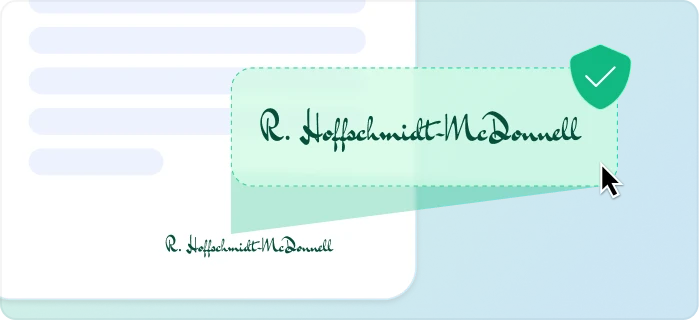
E-signatures, sent automatically
Legally binding, with a full audit trail. Nobody chases anyone.

One-click acceptance for quotes
Your client accepts with one click. Recorded, no signature ceremony.
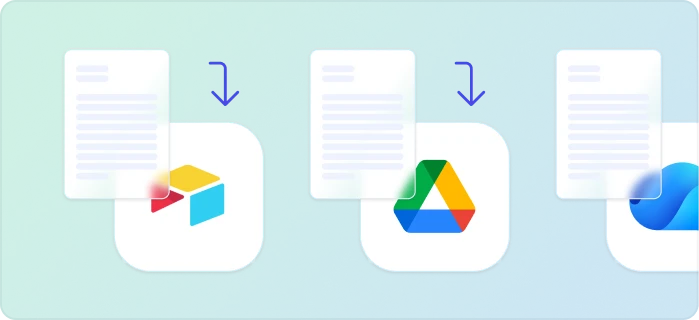
Signed or accepted copies delivered and filed automatically
Every finished document is emailed and saved back to your Airtable, Notion, sheet, or Drive folder.
Start automating & signing in minutes!
Set up in minutes, save weeks of work
Three steps from your list item to a signed document
Create a Google Docs or Word template
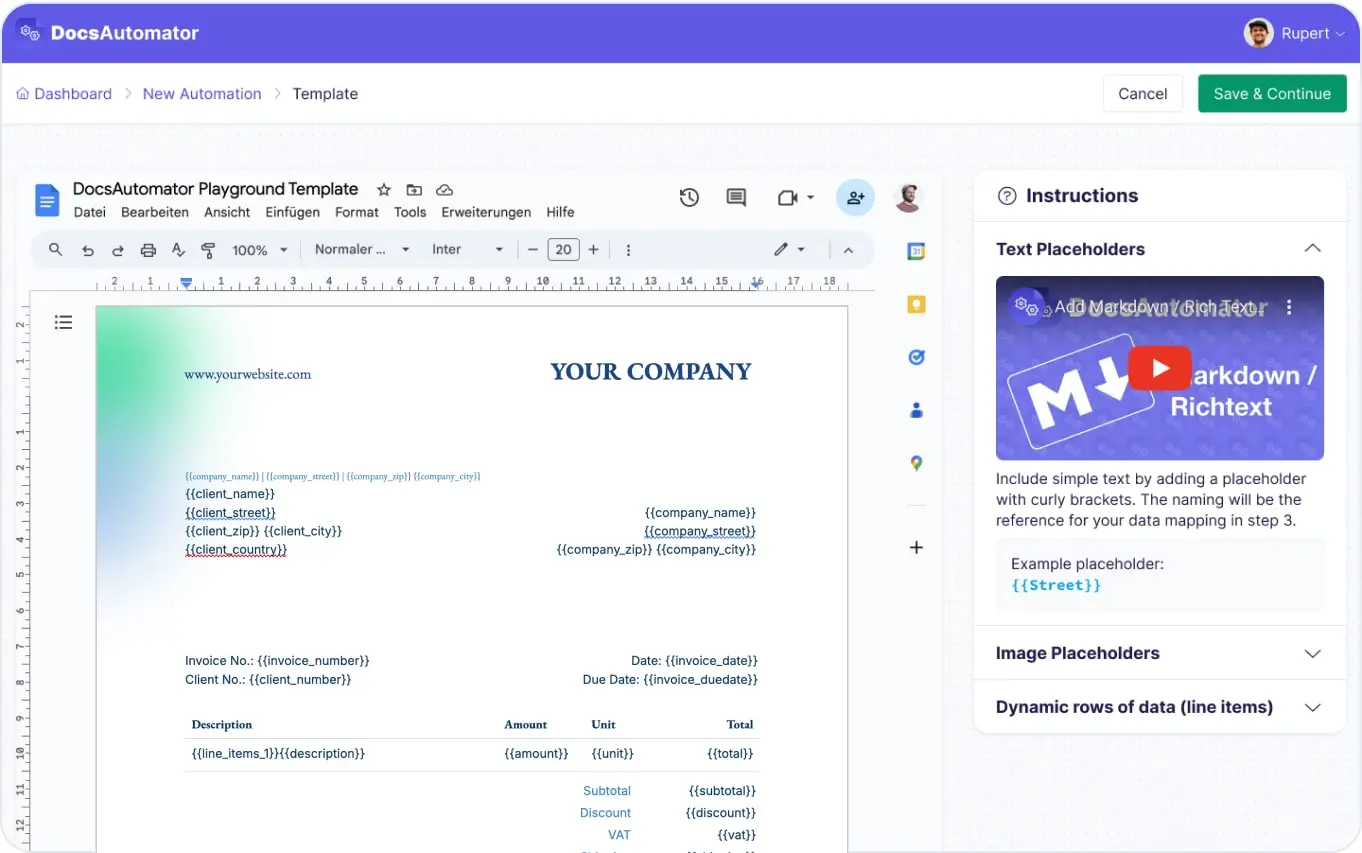
Map Data & Preview
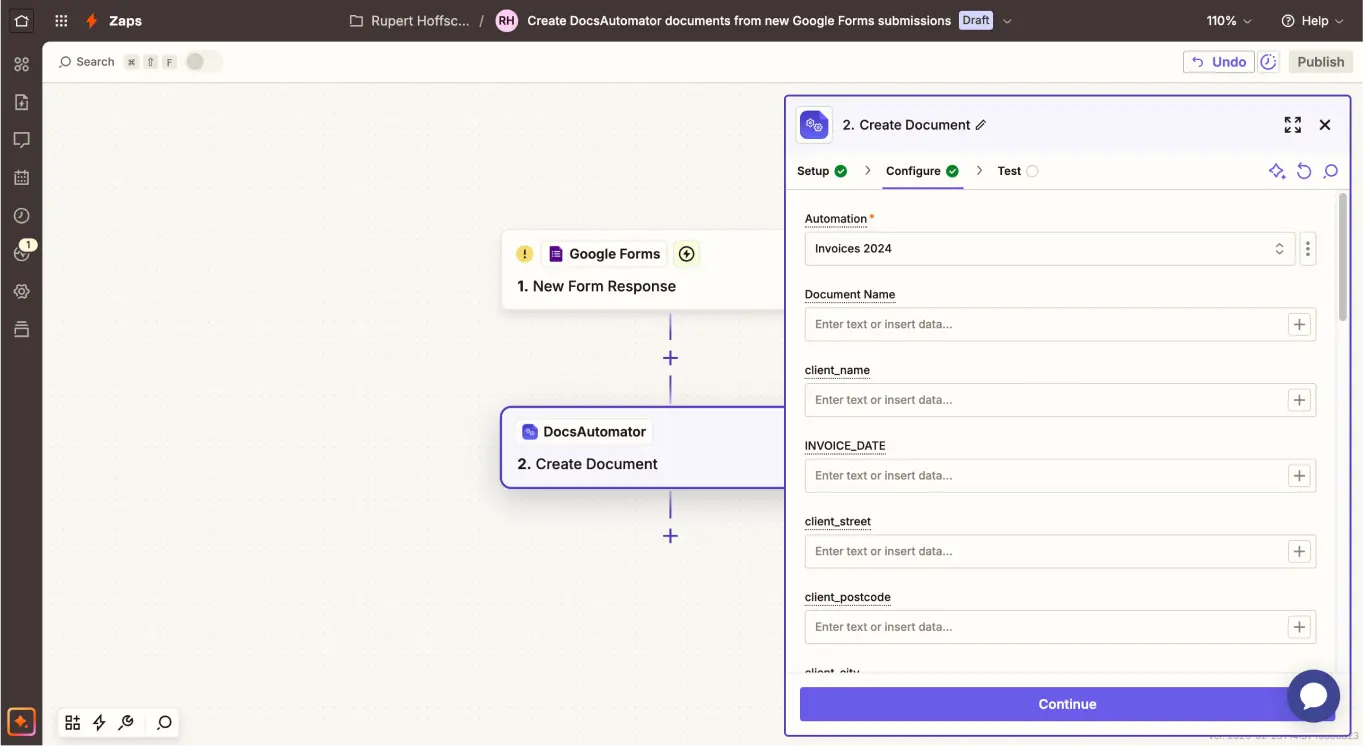
Connect SharePoint Lists
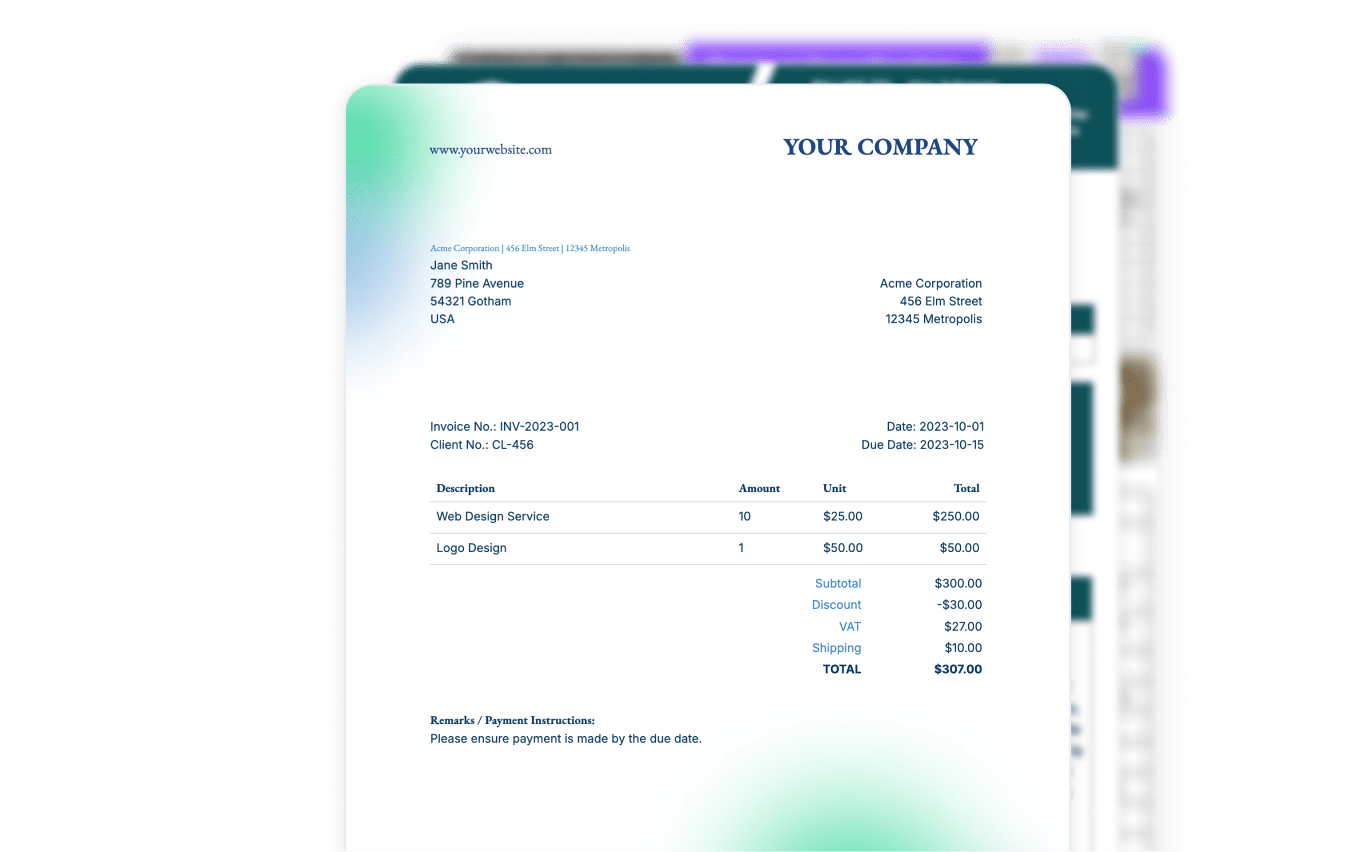
Step by Step Implementation Guide
Start automating & signing in minutes!
One list item, one template, one signed agreement
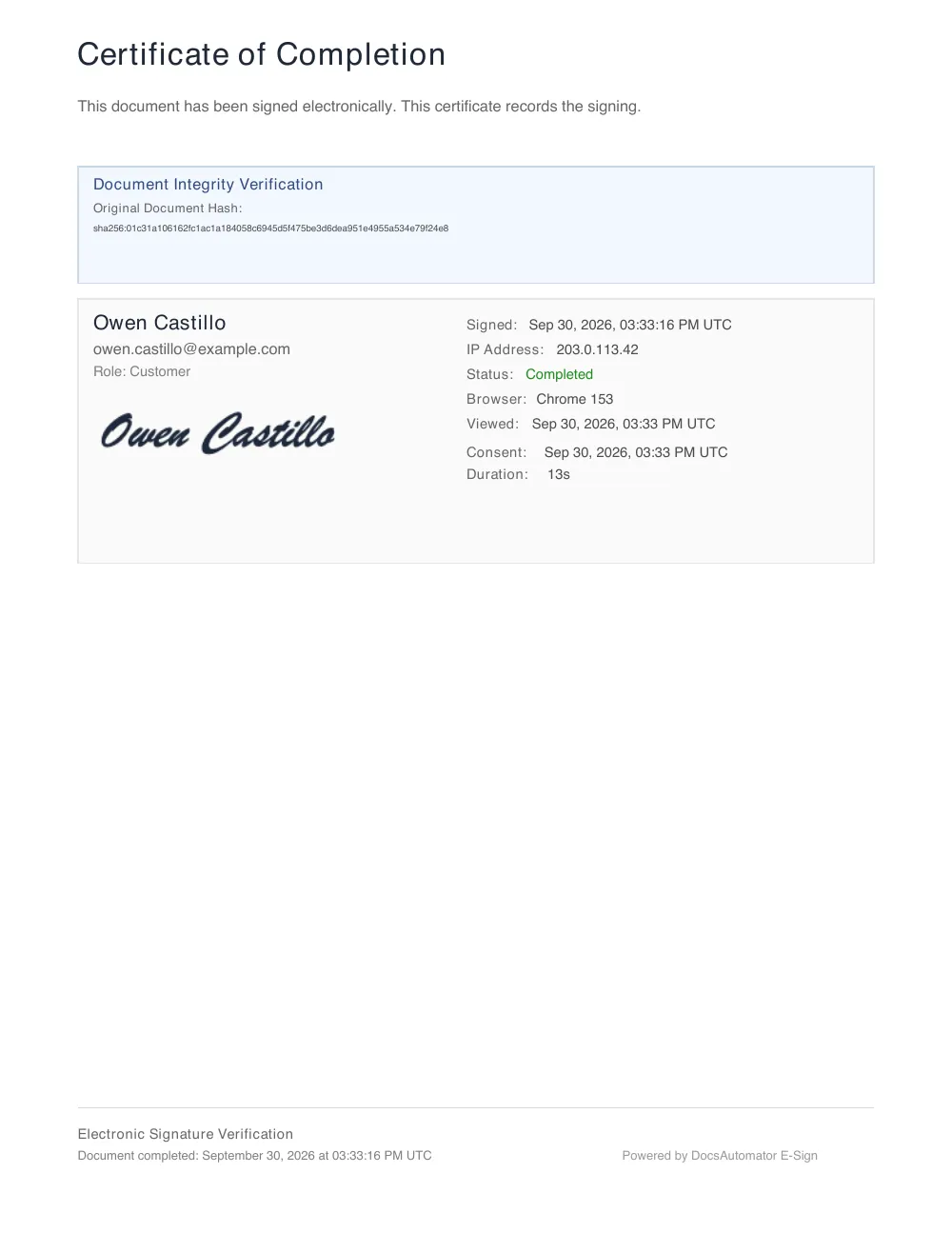
The supplier agreement below was created by DocsAutomator from the example list item and signed on a test page. All names and amounts are fictional.
1. The list item in SharePoint Lists
- Requested
- In review
- Approved
- List
- Supplier onboarding
- Supplier contact
- Owen Castillo
- Category
- Electrical
- Annual spend limit
- $75,000.00
- Payment terms
- Net 30
- Insurance expiry
- 06/30/2027
- Approved by
- Helen Marsh
- Agreement link
- Empty until the agreement is signed
2. Your template
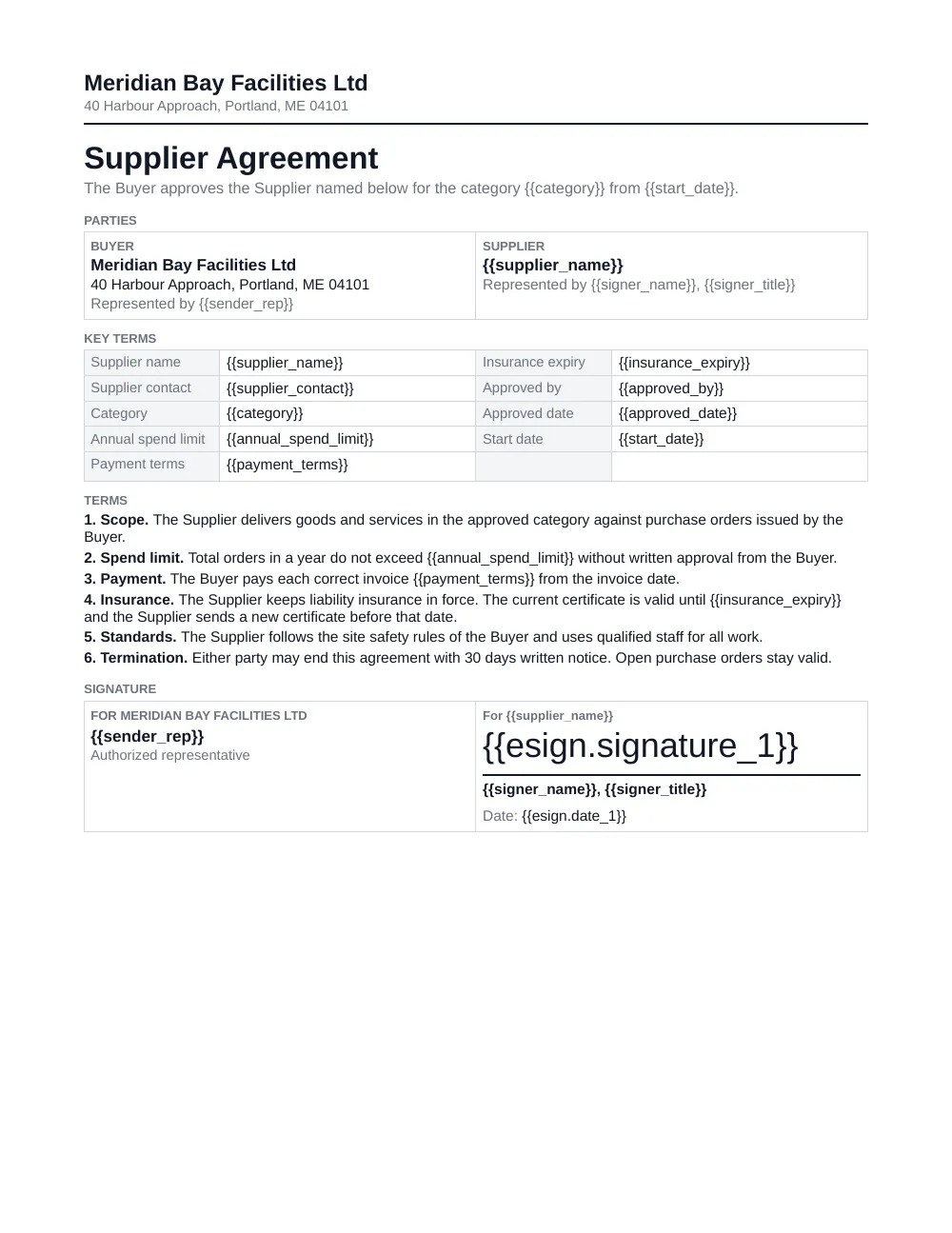
3. The signed document
Two ways to connect SharePoint Lists today
Works through Zapier or Make

Zapier
The status change starts the agreement without a click.
- In DocsAutomator, create an automation with your Word template and turn on signing. Set the signer's email to a placeholder such as {{supplier_email}}.
- In Zapier, use the Microsoft SharePoint trigger "New or Updated List Item" and choose the site and the list.
- Add a filter so that only items with your approved status continue.
- Add the DocsAutomator action "Create Document" and map the columns to the placeholders.
Microsoft SharePoint is a premium app on Zapier, so the Zap needs a paid Zapier plan. The trigger checks the list at intervals, so the agreement starts some minutes after the status change.

Make
The same flow as a Make scenario.
- Start the scenario with the Microsoft SharePoint Online module "Watch Items".
- Let only items with your approved status continue.
- Add the DocsAutomator module that creates the document and map the columns.
- For the way back, use "Upload a File" for the signed PDF and "Update an Item" for the link and the status.
"Watch Items" returns an item each time it is created or updated, so the check for the status is required.
The signed PDF in a document library
When the other side has signed, DocsAutomator seals the PDF, adds a certificate page with the audit trail, and sends a completion email with a link to the PDF.
DocsAutomator also sends a notification with the link to the signed PDF to a web address you choose. To know which list item a finished document belongs to, put the list item ID into the document name (for example Supplier Agreement {{item_id}}); the completion webhook returns that name. A second Zap or Make scenario receives it, saves the PDF to a document library with "Upload File", and writes the link and a status such as Signed into the list item with "Update List Item".
Within a single Zap or scenario you need no webhook for the generated PDF: the DocsAutomator step returns its link, so the next step can update the list item from the trigger step.
Receiving that notification in Zapier needs a paid Zapier plan.
What to know before you start
Zapier and Make cannot attach a file to a list item. The signed PDF is saved to a document library, and the list item gets the link.
Both triggers fire on every change of an item. Without the status check, each edit of an approved item would start another agreement. A Yes/No column such as Agreement sent, set by the flow, prevents that.
There is no AI assistant route for list items today. The Microsoft 365 connector for Claude searches documents in SharePoint; it does not list tools for list items.
What it costs
Questions about SharePoint Lists and DocsAutomator
Start automating & signing in minutes!
Customer Voices
Don't take our word for it. Here's what our customers say about us:
DocsAutomator is a life saver for my business. I have been using automations for years with Zapier but recently I discovered DocsAutomator and it totally changed the way we work, reducing the admin time we spend on document creation and modification.

Julie Tchao
This is the best value for money app for creating template. Easy to use, easy to set up, and we like to support small businesses. Keep going!
Aris Zagklis
Found DocsAutomator at the perfect time. Excited to see the ways that it saves me, and our company, time. Super simple to set up and use. Customer service was PROMPT, thorough, and helpful when I ran into some issues.
Cody Nailor
I find this tool really great! Very rich, and so easy to use! the parameters are numerous and very well detailed. Preview mode allows you to immediately see our changes. [...] Not to mention the very fast and top-notch support!

Fred de Artistepro
DocsAutomator is a great service & I've been using it for around 6-months now. Automating document creation is quick, simple & highly effective, for both myself & for my clients.

Vivek Kuvelker
Docsautomator give us the perfect solution for our needs. and the most important - they have GREAT support.
Isaac Eran
More integrations

Airtable
Airtable combines spreadsheet and database features for data organization and collaboration.
Notion
Notion is the connected workspace where better, faster work happens. Build wikis, manage projects, and run your business.
Google Sheets
Google Sheets is a cloud-based spreadsheet app for real-time collaboration.
Google Forms
Google Forms is a free online tool to create forms to collect and organize data efficiently.

Glide
Glide makes it easy to build custom business software powered by your data - without code.

Softr
Turn your siloed data and workflows into powerful custom software for your business, with AI built in.

SmartSuite
SmartSuite replaces disconnected point solutions with a modern platform that scales across functions.

Noloco
The fastest way to create custom internal tools, client portals, CRMs and other business tools.

ClickUp
Glide makes it easy to build custom business software powered by your data - without code.
Zapier
You can automate a simple task or build an entire automated system - all on Zapier.

n8n
Flexible AI workflow automation for technical teams.
Make
AI automation you can visually build and orchestrate in real time.

API
Use our API to build connect your custom app and use the power of DocsAutomator.
Start automating & signing in minutes!
Ready to automate & sign your SharePoint Lists documents?
Join 7,500+ businesses saving hours on document creation
Unlimited testing, no credit card required