Salesforce Contracts & E-Signature
Powerful Document Automation & Signing for Salesforce
Salesforce contracts, created and sent for signing when an opportunity is Closed Won








Works through Zapier, Make, n8n or your AI assistant. DocsAutomator has no native Salesforce connection; this page shows only the routes that run today.
Some of the teams / institutions automating and signing their documents with DocsAutomator:







Contracts and agreements, created and signed with DocsAutomator
Some examples of our customers and the documents they automate and sign daily

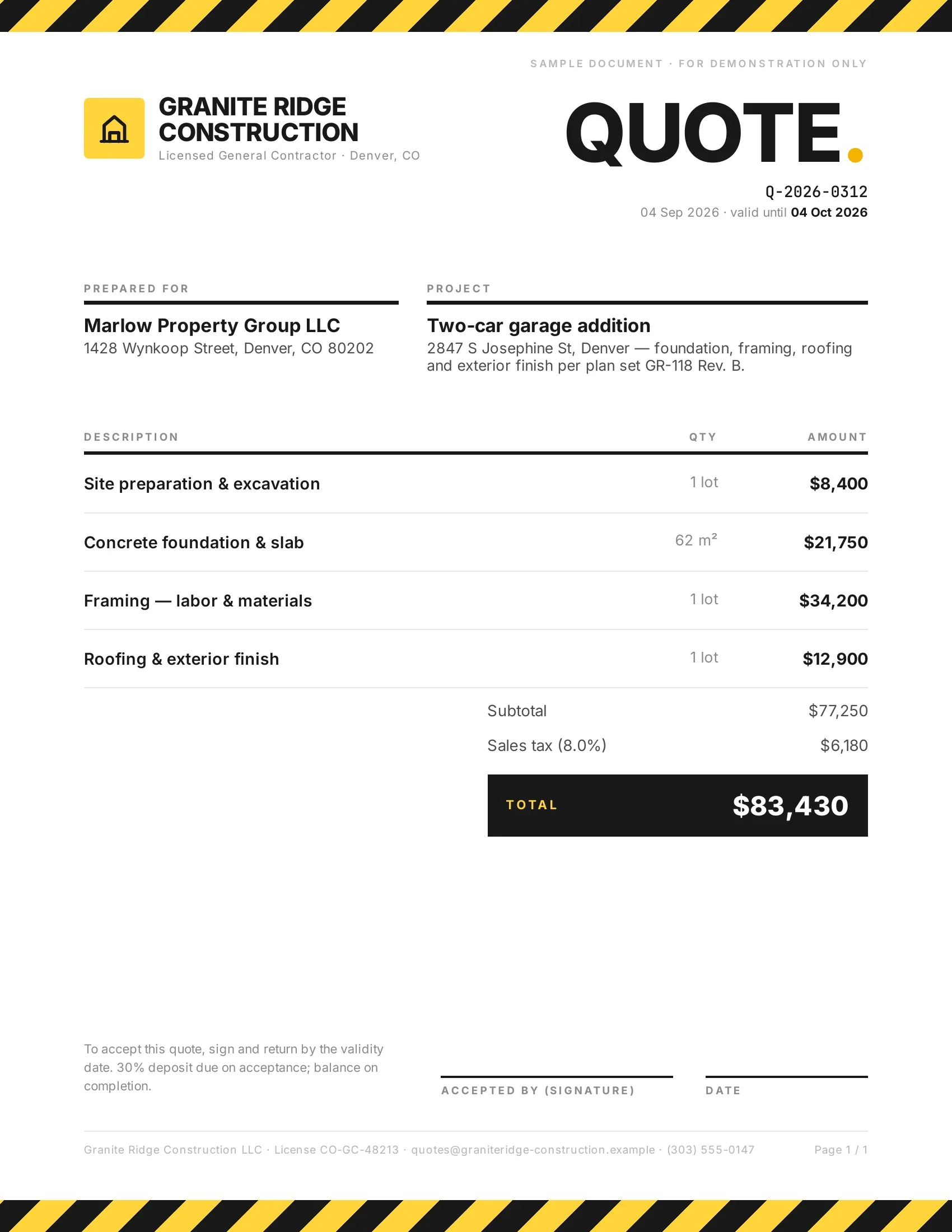 Accepted
Customers accept quotes and change orders in one tap, so work starts sooner.
Quotes · Estimates · Order confirmations · Change orders

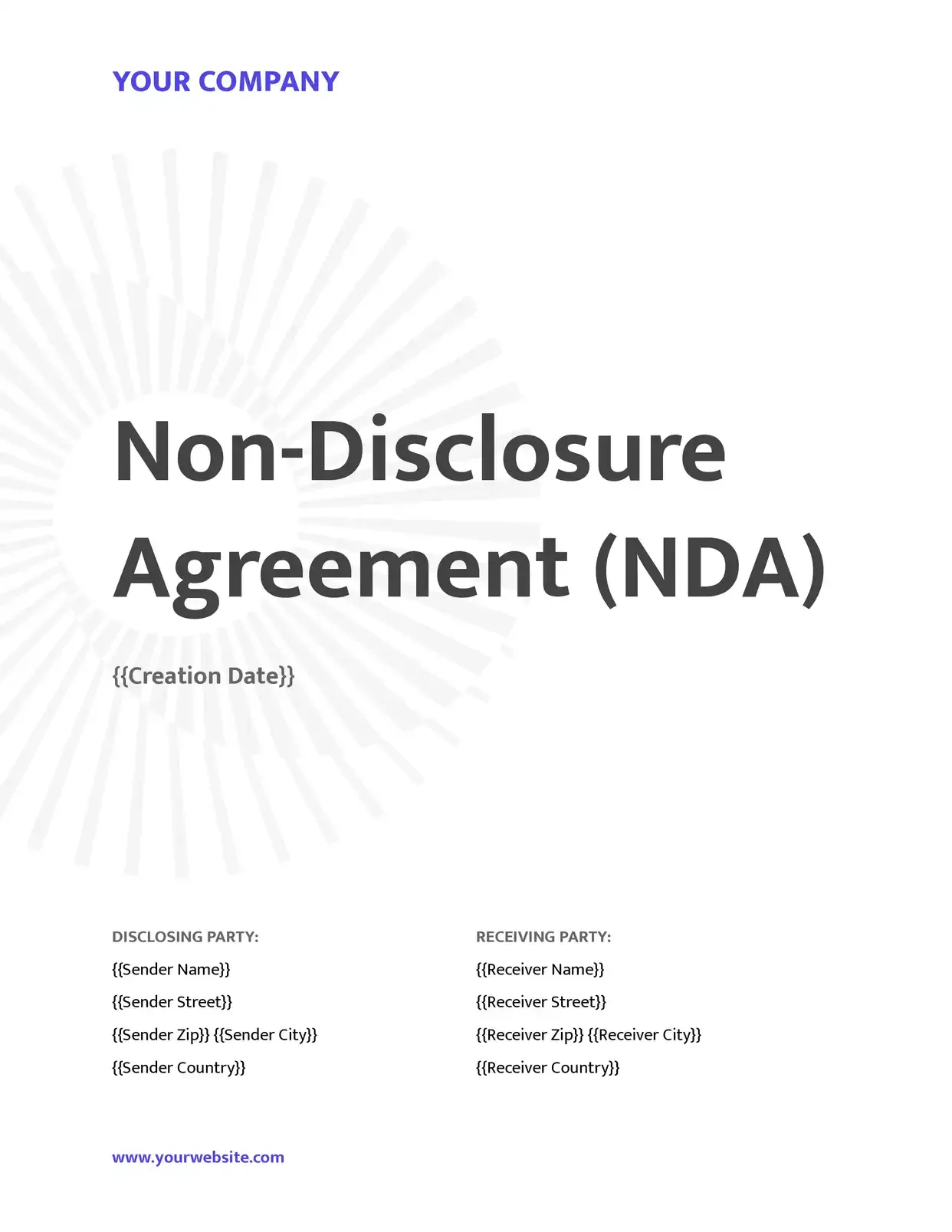 Signed
Agreements go out from your records and come back signed.
Service agreements · Leases · NDAs · Engagement letters

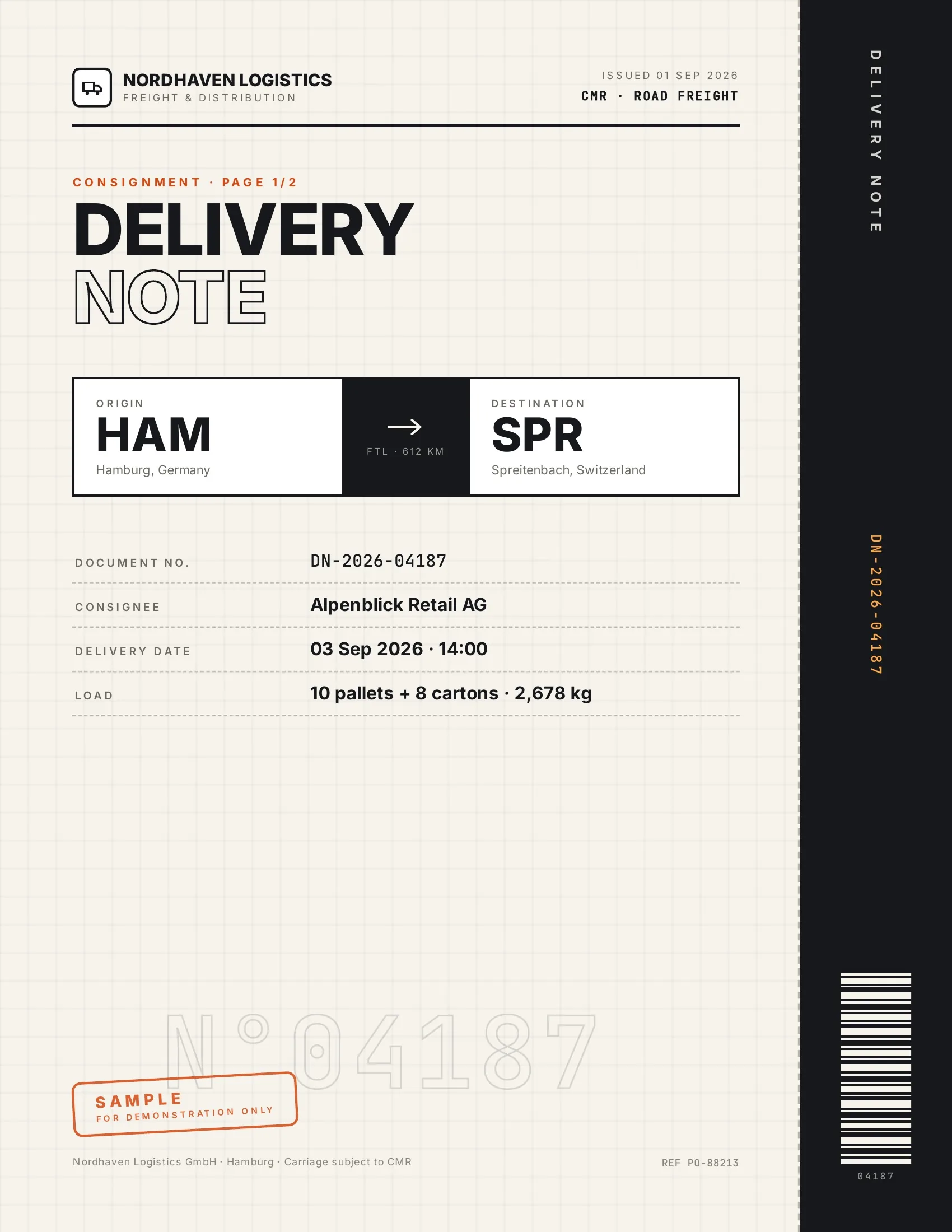 Accepted
Customers accept finished work and deliveries on their phone, on the spot.
Work orders · Delivery notes · Inspection reports · Purchase orders

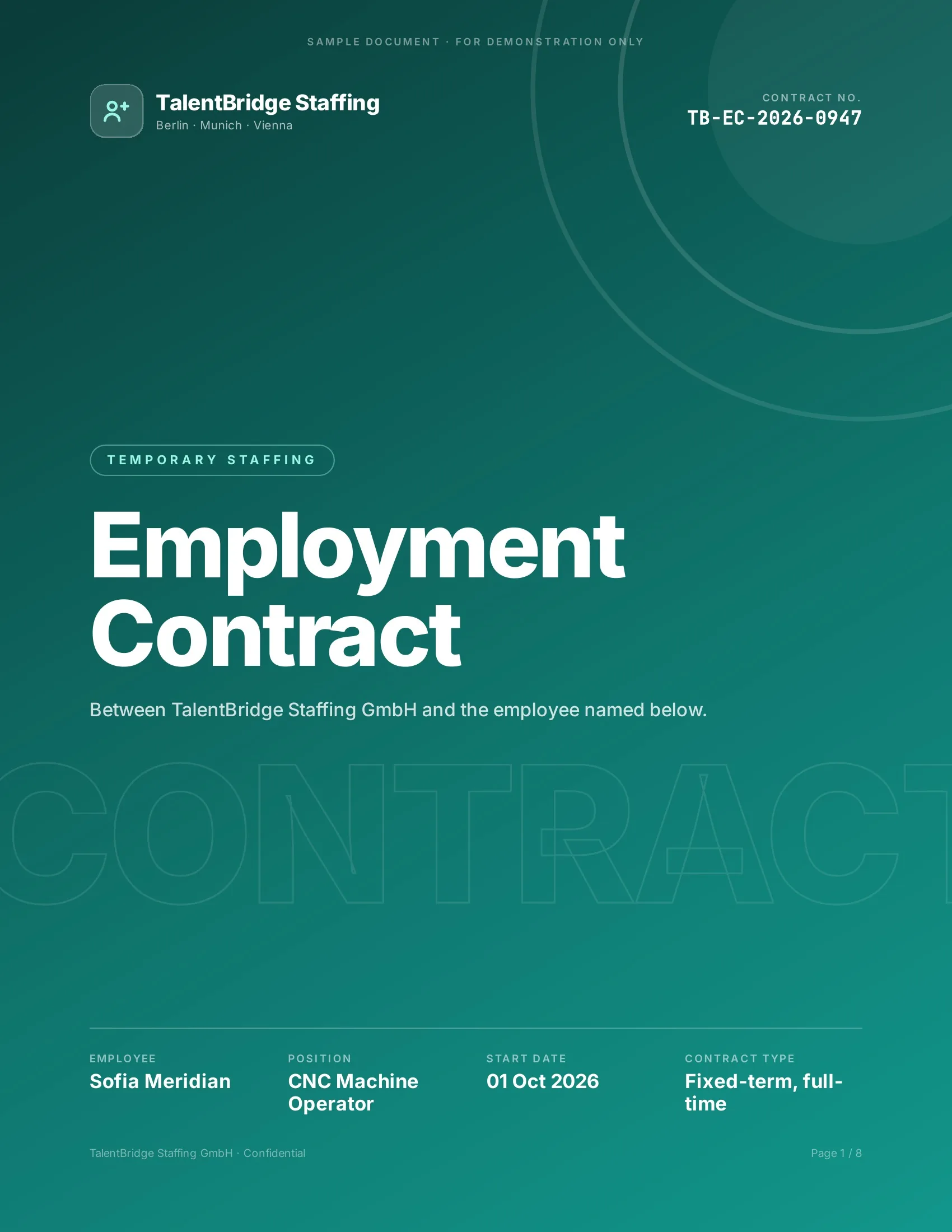 Signed
New hires, clients and students sign their paperwork before day one.
Employment contracts · Offer letters · Enrollment forms · Letters of authority
Strong reasons for choosing DocsAutomator to automate & sign your Salesforce documents
All you need to effortlessly automate and sign your documents

The document after the opportunity is won
This page covers that one job. The stage change starts the document, the fields of the opportunity fill your own template, the contact gets a signing link, and the signed PDF is stored as a file on the opportunity.
Your template stays a normal Word or Google Docs file. The person who approves the wording edits it there and needs no Salesforce licence and no login to a new tool.

Describe it, the AI agent builds it
Tell it what you need. It drafts the template, connects your data, sets up signing and runs a test. No setup screens.

Bring your own AI agent
Connect Claude, ChatGPT, or your own agent. It creates and sends documents within the limits and approvals you set.
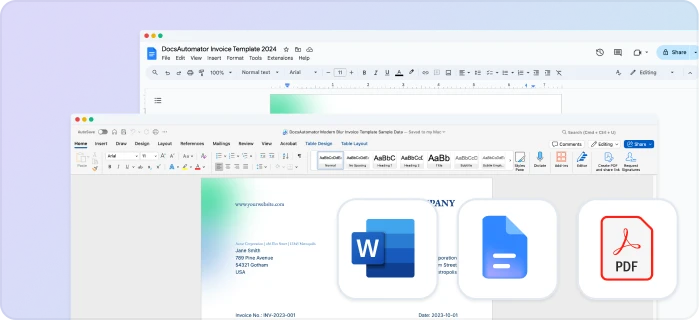
Your own Google Docs, Word or PDF templates
Keep writing your documents where you write them. DocsAutomator fills the placeholders.

Line items and nested tables
Invoices, quotes and any itemized list, straight from your data.

Conditional content
Sections, styling and images that show or hide based on the data.

Preview mode
Unlimited previews until you're happy – no wasted credits on testing.
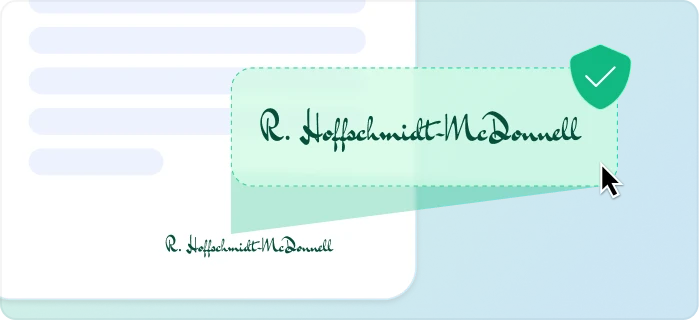
E-signatures, sent automatically
Legally binding, with a full audit trail. Nobody chases anyone.
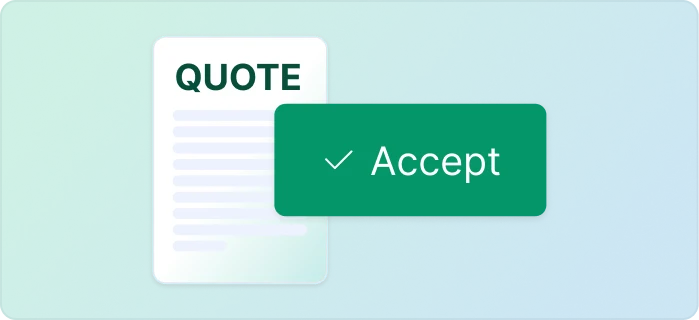
One-click acceptance for quotes
Your client accepts with one click. Recorded, no signature ceremony.
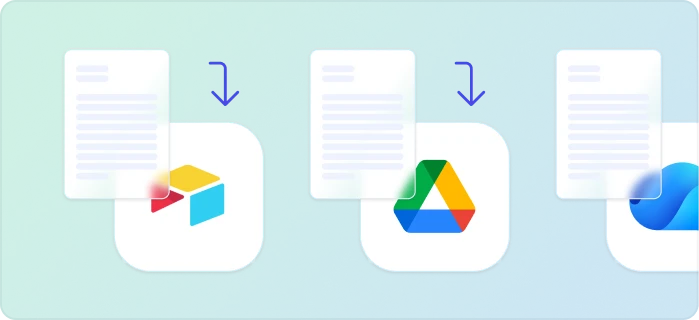
Signed or accepted copies delivered and filed automatically
Every finished document is emailed and saved back to your Airtable, Notion, sheet, or Drive folder.
Start automating & signing in minutes!
Set up in minutes, save weeks of work
Three steps from your opportunity to a signed document
Create a Google Docs or Word template
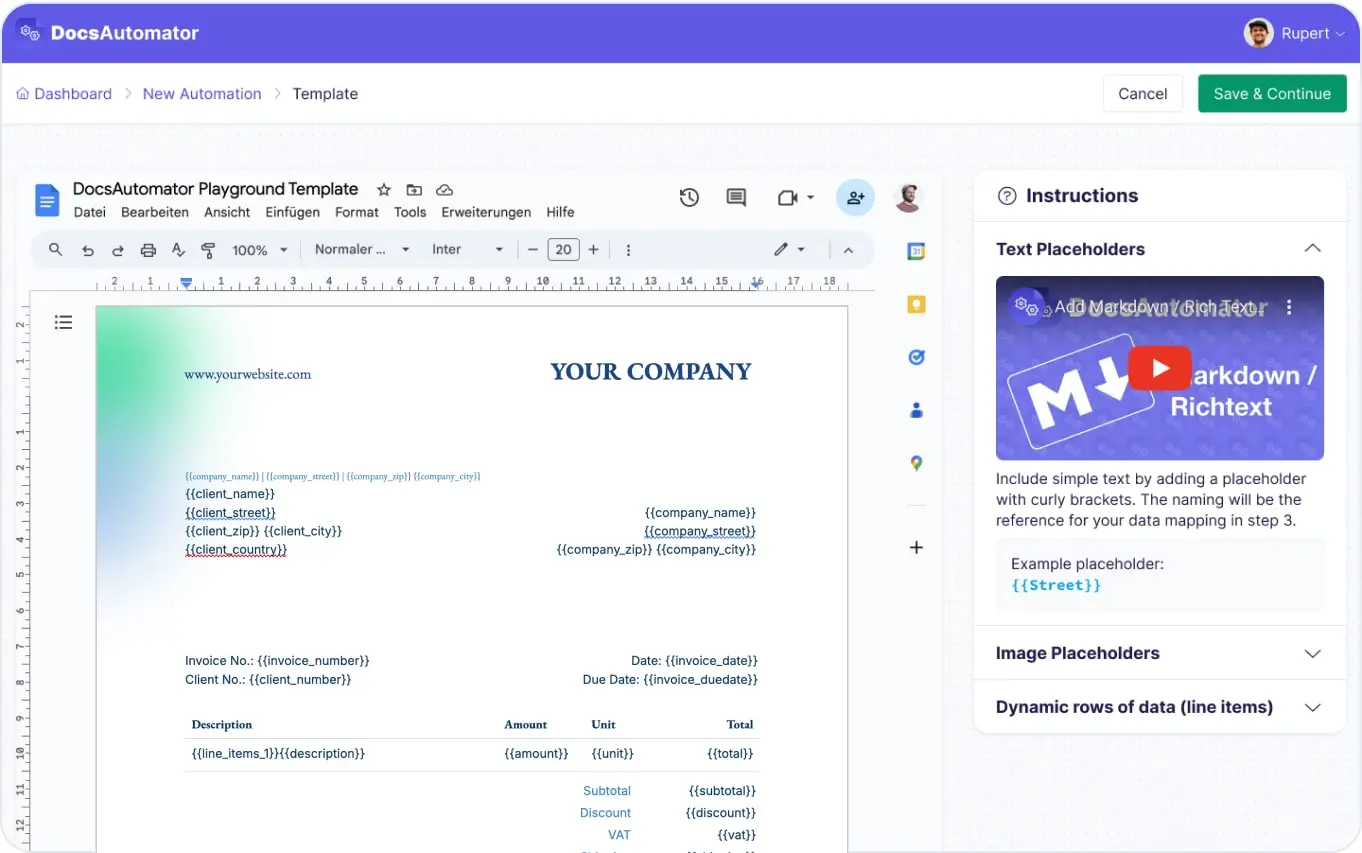
Map Data & Preview
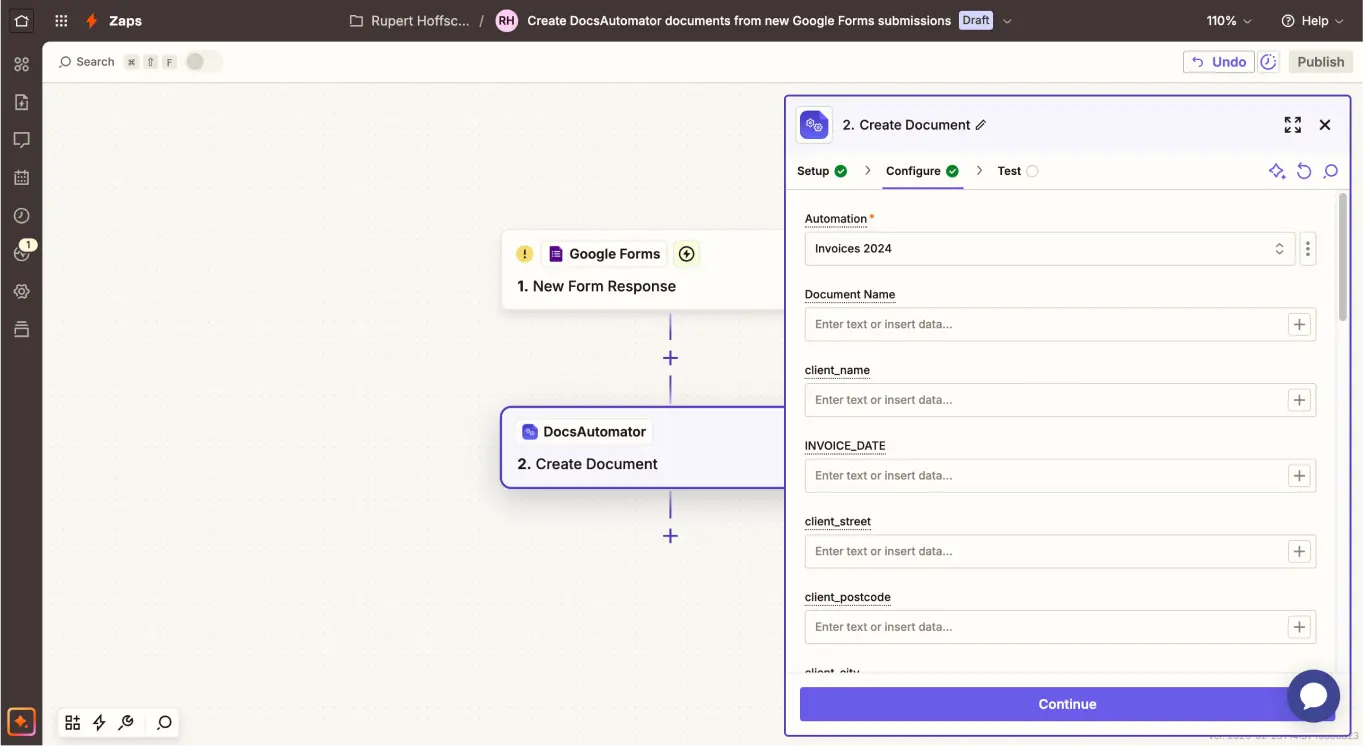
Connect Salesforce
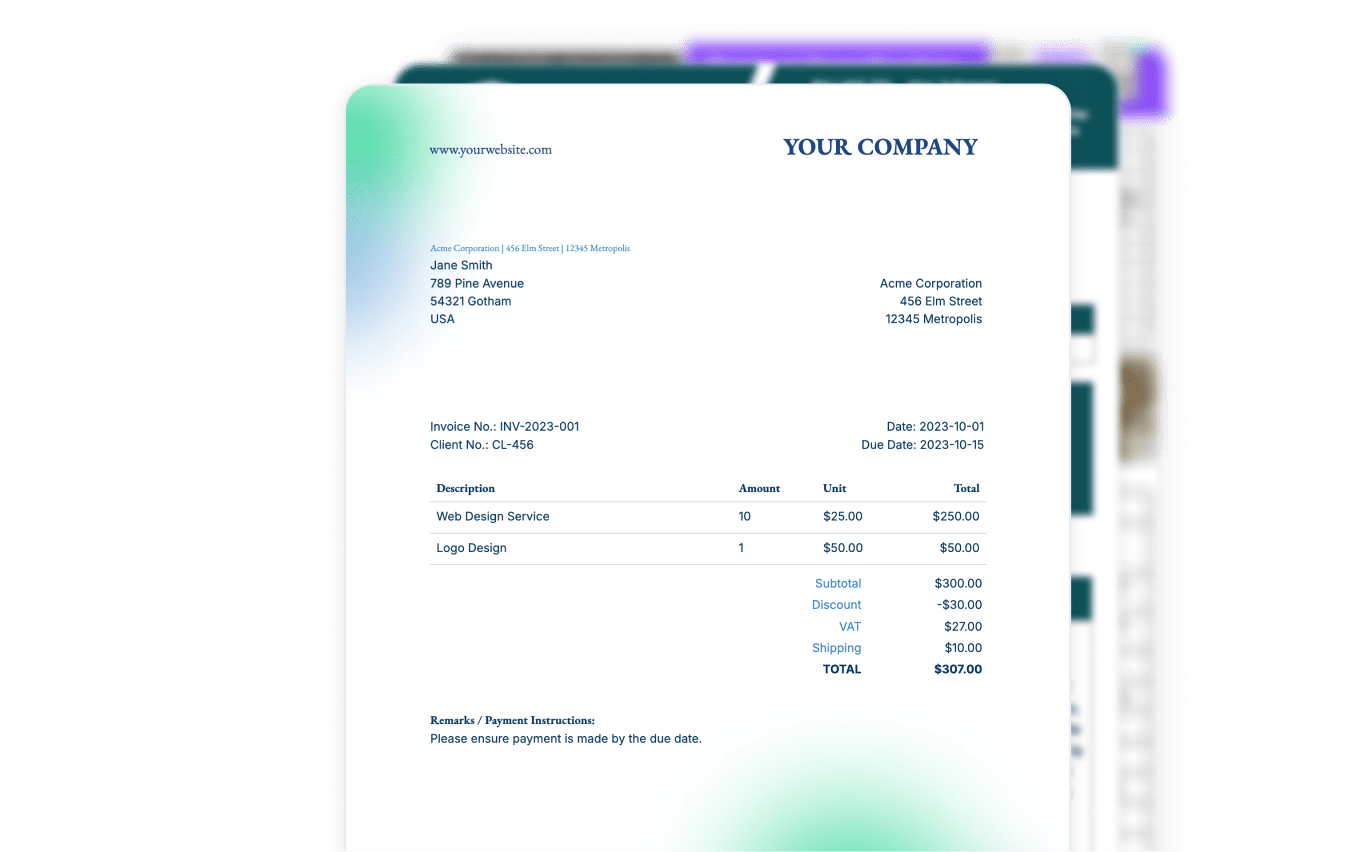
Step by Step Implementation Guide
Start automating & signing in minutes!
One opportunity, one template, one signed agreement
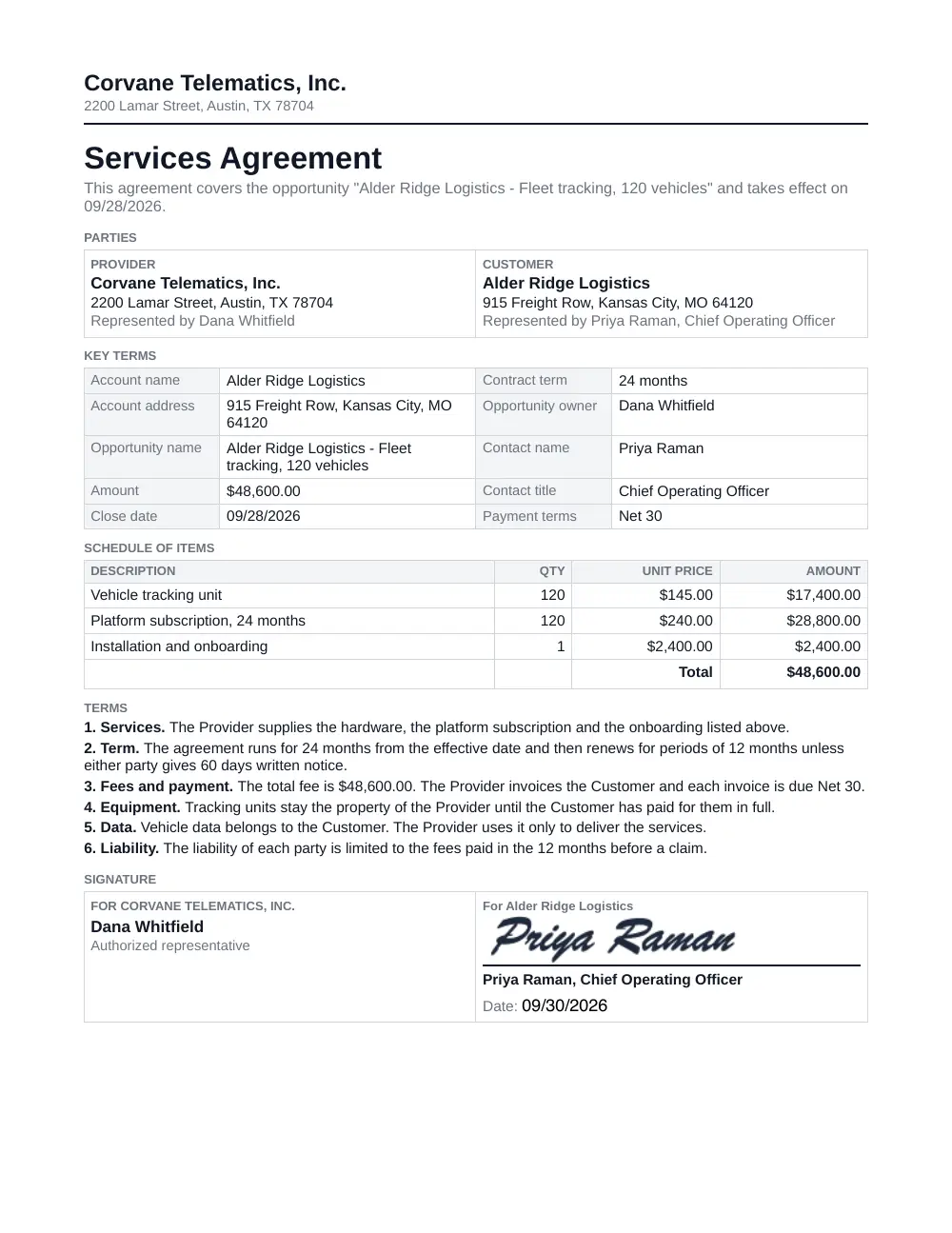
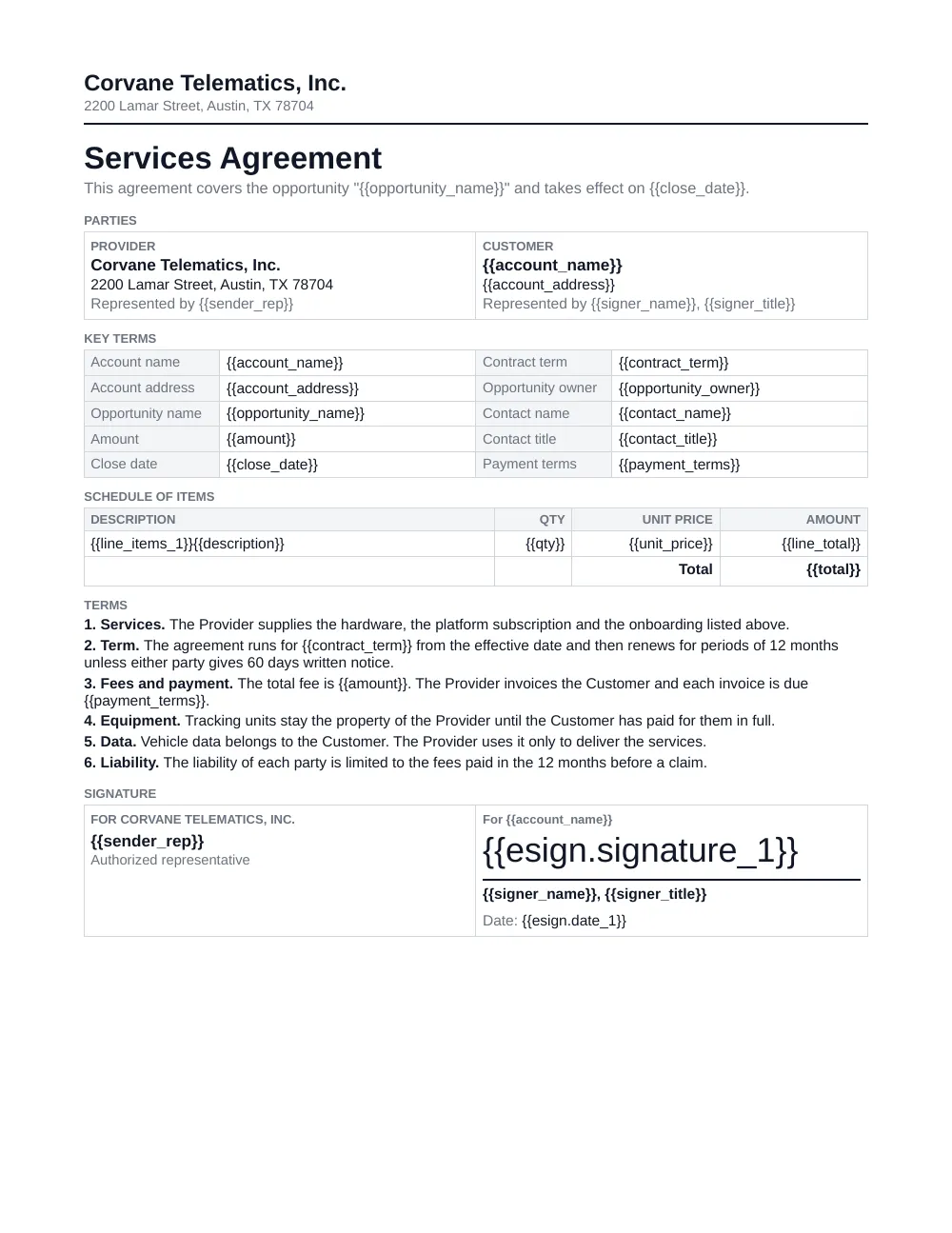
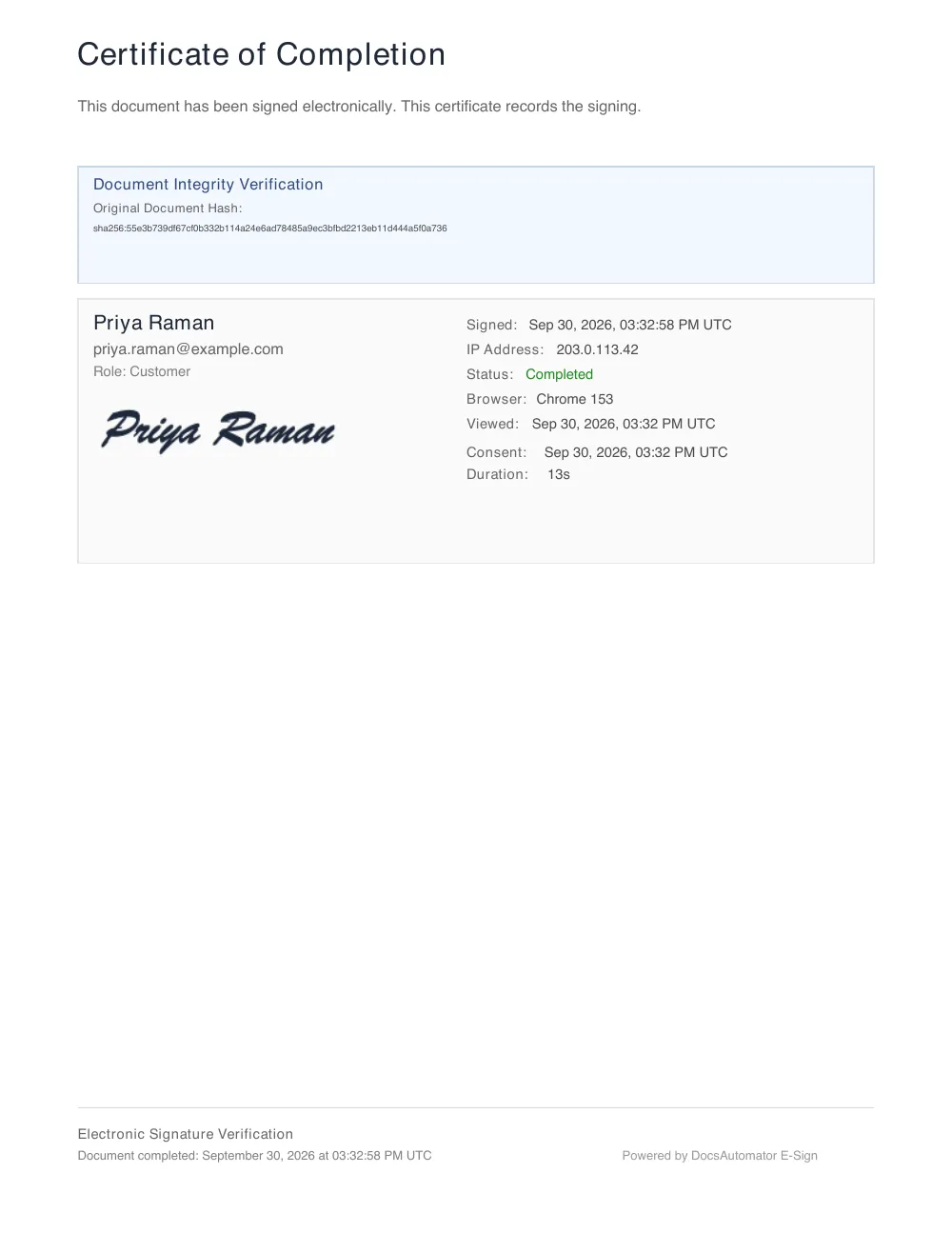
The services agreement below was created by DocsAutomator from the example opportunity and signed on a test page. All names and amounts are fictional.
1. The opportunity in Salesforce
- Earlier stages
- Closed Won
- Closed Lost
- Account Name
- Alder Ridge Logistics
- Amount
- $48,600.00
- Close Date
- 09/28/2026
- Opportunity Owner
- Dana Whitfield
- Contact (Contact Role)
- Priya Raman, Chief Operating Officer
- Contract term
- 24 months
| Product | Quantity | Sales Price | Total Price |
|---|---|---|---|
| Vehicle tracking unit | 120 | $145.00 | $17,400.00 |
| Platform subscription, 24 months | 120 | $240.00 | $28,800.00 |
| Installation and onboarding | 1 | $2,400.00 | $2,400.00 |
| Amount | $48,600.00 | ||
2. Your template
3. The signed document
Four ways to connect Salesforce today
Works through Zapier, Make, n8n or your AI assistant

Zapier
The stage change starts the contract without a click.
- In DocsAutomator, create an automation with your contract template and turn on signing. Set the signer's email to a placeholder such as {{contact_email}}.
- In Zapier, use the Salesforce trigger "Updated Field on Record" with the object Opportunity and the field Stage.
- Add a filter so that only the stage Closed Won continues.
- Add the DocsAutomator action "Create Document" and map the opportunity, account and contact fields to the placeholders.
Salesforce is a premium app on Zapier, so the Zap needs a paid Zapier plan. The trigger checks Salesforce at intervals, so the contract starts some minutes after the stage change.

Make
The same flow as a Make scenario.
- Start the scenario with the Salesforce module "Watch record fields" on the opportunity stage.
- Let only Closed Won continue.
- Add the DocsAutomator module that creates the document and map the fields.
Make has no Salesforce module that uploads a file. In Make, the signed PDF goes back with "Create a record" or "Make an API Call".

n8n
The same flow as an n8n workflow, self-hosted or on n8n Cloud.
- Start the workflow with the Salesforce Trigger node and the event "On Opportunity Updated".
- Let only the stage Closed Won continue.
- Add the DocsAutomator node with the operation Document, Create, and map the fields to the placeholders.
- For the way back, catch DocsAutomator's completion message with a Webhook node and use the Salesforce node: Attachment, Create, or "Add note to an opportunity".
The Salesforce node and trigger connect through a connected app in your org, like Zapier and Make.


Claude or ChatGPT
You ask for the contract in a chat, and the assistant reads the opportunity and sends the document.
- A Salesforce admin enables the Salesforce Hosted MCP Servers for your org.
- Connect Salesforce and DocsAutomator to your assistant. The DocsAutomator address is https://mcp.docsautomator.co/mcp.
- Ask: "Create the services agreement for the Alder Ridge opportunity and send it to the primary contact for signing."
- The assistant reads the opportunity, fills the template and starts the signing request. You can ask it for the status later.
This route starts when you ask, not when the stage changes. Salesforce offers the Hosted MCP Servers for Enterprise Edition and above, and for Developer Edition.
The signed PDF on the opportunity
When the last signer has signed, DocsAutomator seals the PDF, adds a certificate page with the audit trail, and sends a completion email with a link to the PDF.
DocsAutomator also sends a notification with the link to the signed PDF to a web address you choose. To know which opportunity a finished document belongs to, put the opportunity ID into the document name (for example Services Agreement {{opportunity_id}}); the completion webhook returns that name. A second Zap receives it and uses the Salesforce action "Create File" or "Add File to Record" to store the PDF on the opportunity. The action "Update Record" can set a field such as Contract signed.
Within a single Zap, scenario or workflow you need no webhook for the generated PDF: the DocsAutomator step returns its link, so the next step can update the opportunity from the trigger step.
With an AI assistant, the link to the signed PDF goes into a field or a note. The Salesforce MCP tools do not document a file upload.
Receiving that notification in Zapier needs a paid Zapier plan.
What to know before you start
The Salesforce edition must have API access. Salesforce enables it by default in Enterprise, Performance, Unlimited and Developer Edition. Professional Edition needs the API as an add-on.
There is no trigger that fires only on Closed Won. Every route watches the stage field and filters for the value.
A Salesforce admin must approve Zapier, Make or n8n as a connected app, and must enable the MCP servers for the AI assistant route.
What it costs
Questions about Salesforce and DocsAutomator
Start automating & signing in minutes!
Customer Voices
Don't take our word for it. Here's what our customers say about us:
I absolutely would recommend DocsAutomator to a colleague, it makes your life easier for your team. The support is awsome too.

Stefano Gualtieri
DocsAutomator is everything the Page Designer in Airtbale should have been. It is a powerful automation platform that allows me to pull complex data from Airtable and apply a design that I have full control over!
Dustin
I haven't used a ton of them document generators. The built-in one in SmartSuite is painful to use. I've tried to integrate Adobe but sheesh... Then you showed up in Glide and I thought I'd give it a try.
Randall Nichols
This is the best value for money app for creating template. Easy to use, easy to set up, and we like to support small businesses. Keep going!
Aris Zagklis
Great effort and promising product.
Yasin Hassanien
DocsAutomator has helped our company tremendously with invoice issuing automation. We use Airtable and built-in extensions there have many limitations that prevented us from creating beautiful informative invoices.

Viktor Ivanov
CEO, ViktorLaw
More integrations

Airtable
Airtable combines spreadsheet and database features for data organization and collaboration.
Notion
Notion is the connected workspace where better, faster work happens. Build wikis, manage projects, and run your business.
Google Sheets
Google Sheets is a cloud-based spreadsheet app for real-time collaboration.
Google Forms
Google Forms is a free online tool to create forms to collect and organize data efficiently.

Glide
Glide makes it easy to build custom business software powered by your data - without code.

Softr
Turn your siloed data and workflows into powerful custom software for your business, with AI built in.

SmartSuite
SmartSuite replaces disconnected point solutions with a modern platform that scales across functions.

Noloco
The fastest way to create custom internal tools, client portals, CRMs and other business tools.

ClickUp
Glide makes it easy to build custom business software powered by your data - without code.
Zapier
You can automate a simple task or build an entire automated system - all on Zapier.
n8n
Flexible AI workflow automation for technical teams.
Make
AI automation you can visually build and orchestrate in real time.

API
Use our API to build connect your custom app and use the power of DocsAutomator.
Start automating & signing in minutes!
Ready to automate & sign your Salesforce documents?
Join 7,500+ businesses saving hours on document creation
Unlimited testing, no credit card required