HubSpot Contracts & E-Signature
Powerful Document Automation & Signing for HubSpot
HubSpot contracts: the whole deal goes in, the sealed PDF comes back






Works through Zapier, Make, n8n or your AI assistant. DocsAutomator has no native HubSpot connection; this page shows only the routes that run today.
Some of the teams / institutions automating and signing their documents with DocsAutomator:







Contracts and agreements, created and signed with DocsAutomator
Some examples of our customers and the documents they automate and sign daily

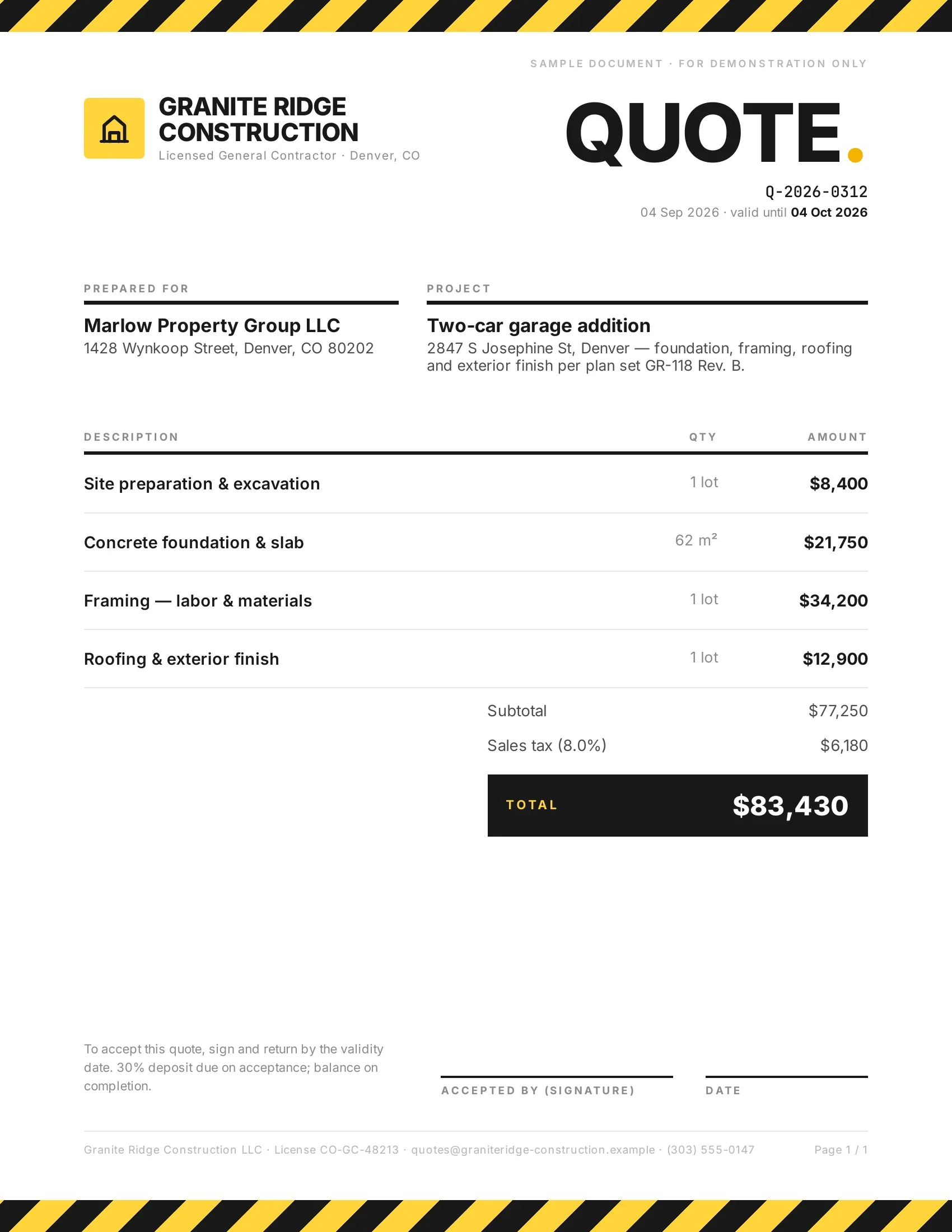 Accepted
Customers accept quotes and change orders in one tap, so work starts sooner.
Quotes · Estimates · Order confirmations · Change orders

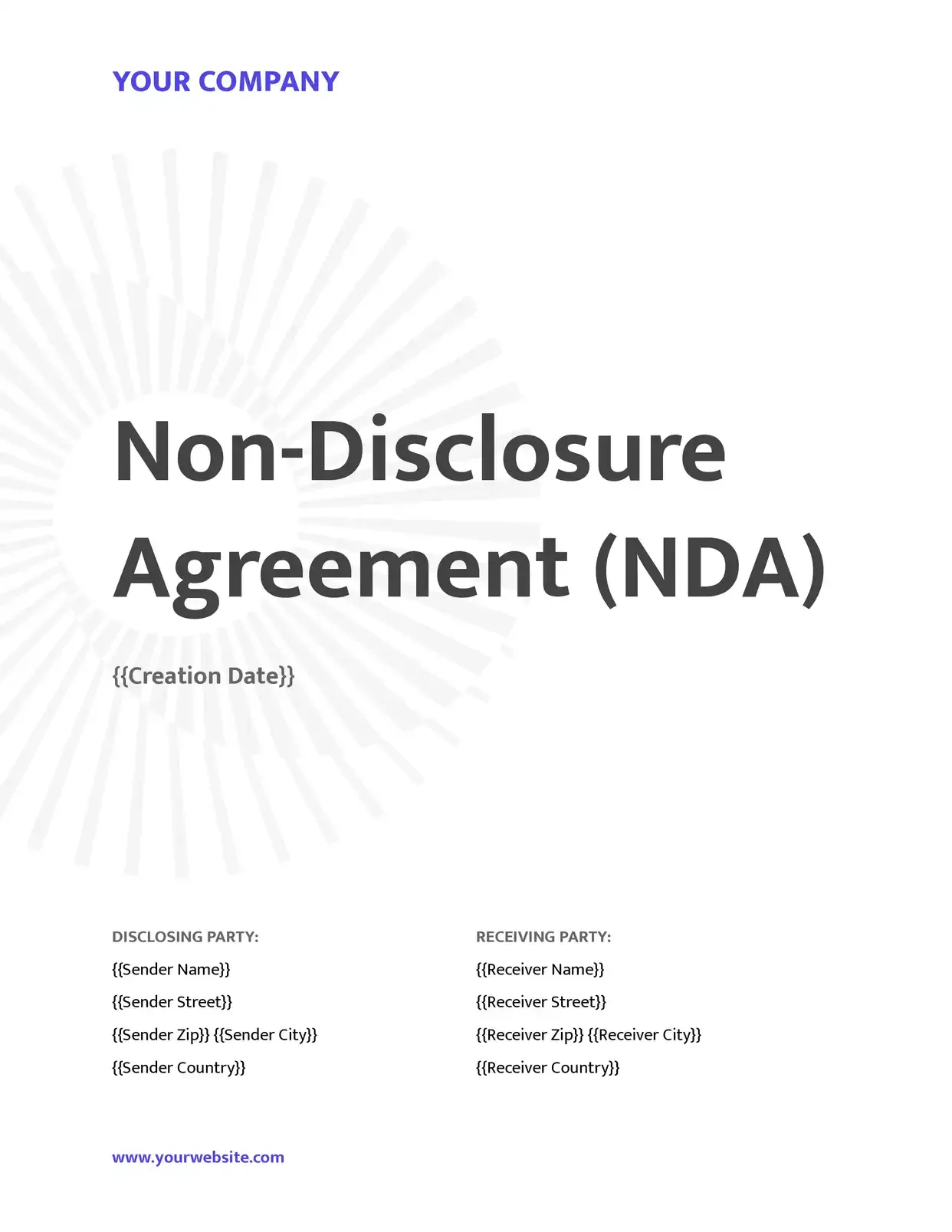 Signed
Agreements go out from your records and come back signed.
Service agreements · Leases · NDAs · Engagement letters

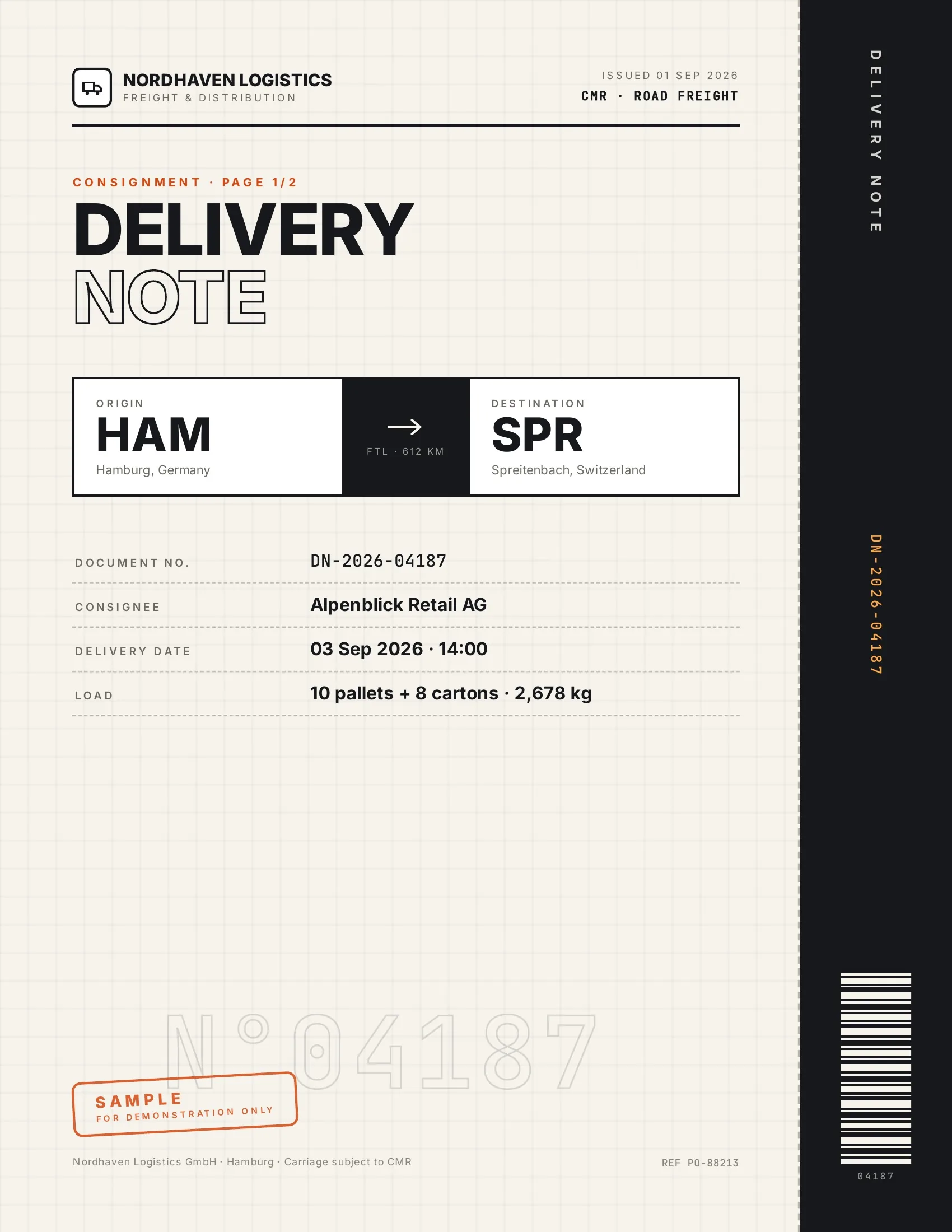 Accepted
Customers accept finished work and deliveries on their phone, on the spot.
Work orders · Delivery notes · Inspection reports · Purchase orders

 Signed
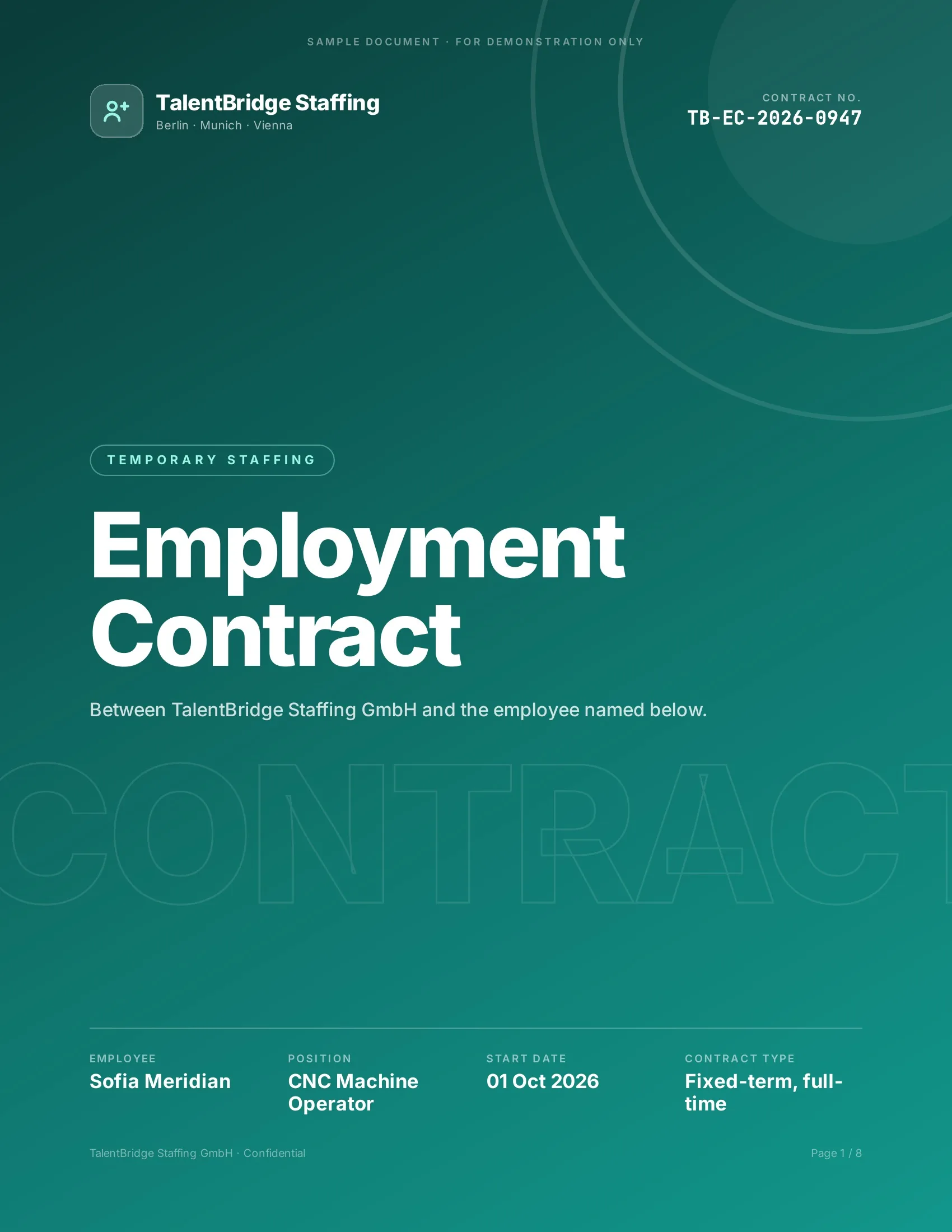
New hires, clients and students sign their paperwork before day one.
Employment contracts · Offer letters · Enrollment forms · Letters of authority
Strong reasons for choosing DocsAutomator to automate & sign your HubSpot documents
All you need to effortlessly automate and sign your documents

The documents after the deal is won
These documents are longer than a quote and their wording belongs to someone outside sales. With DocsAutomator they stay in your own Word or Google Docs template. The deal, the company, the contact and the line items fill the placeholders.
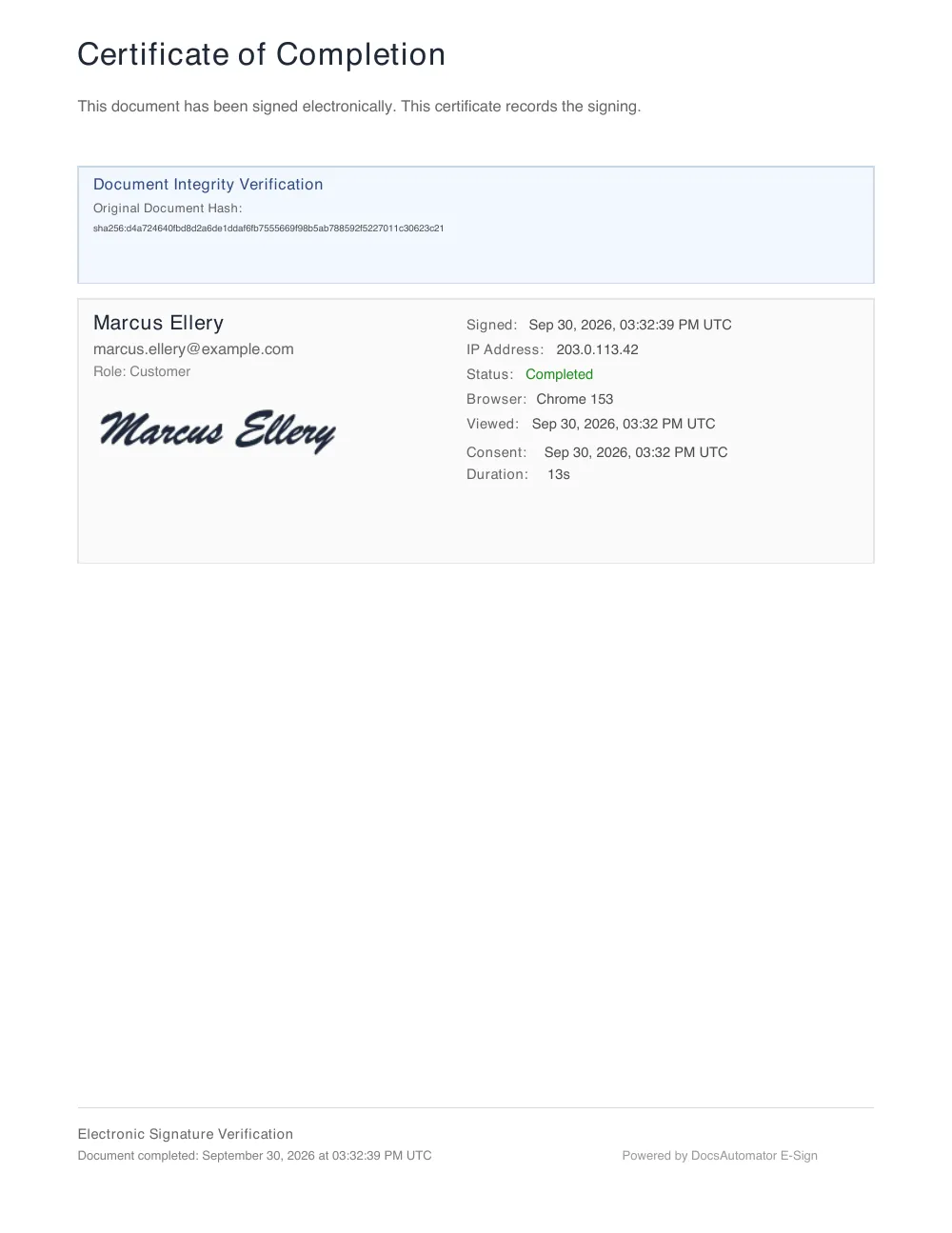
The customer signs on a phone or a computer without an account. The sealed PDF and its certificate come back to HubSpot as an attachment on a note on the deal.

Describe it, the AI agent builds it
Tell it what you need. It drafts the template, connects your data, sets up signing and runs a test. No setup screens.

Bring your own AI agent
Connect Claude, ChatGPT, or your own agent. It creates and sends documents within the limits and approvals you set.
Your own Google Docs, Word or PDF templates
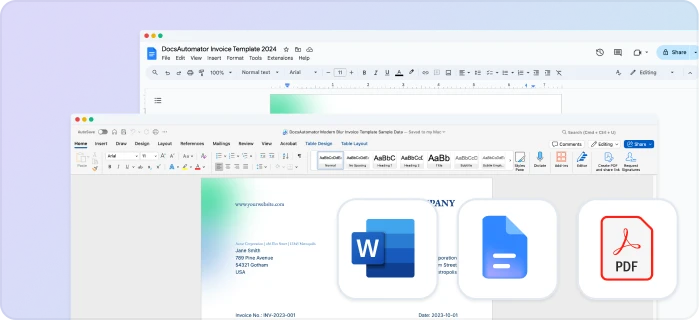
Keep writing your documents where you write them. DocsAutomator fills the placeholders.
Line items and nested tables
Invoices, quotes and any itemized list, straight from your data.
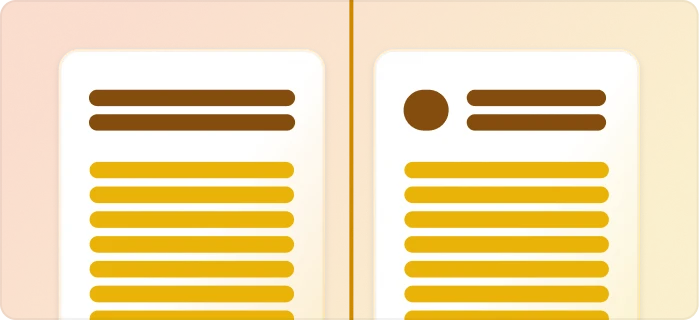
Conditional content
Sections, styling and images that show or hide based on the data.

Preview mode
Unlimited previews until you're happy – no wasted credits on testing.
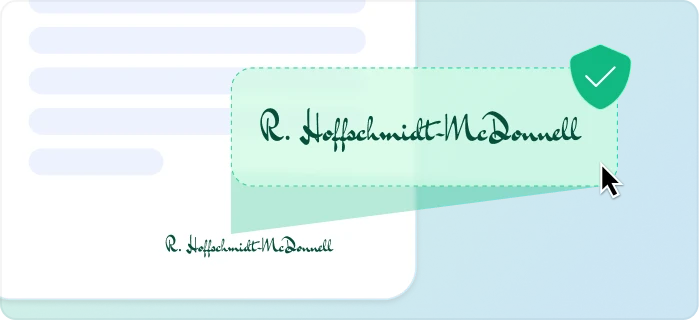
E-signatures, sent automatically
Legally binding, with a full audit trail. Nobody chases anyone.
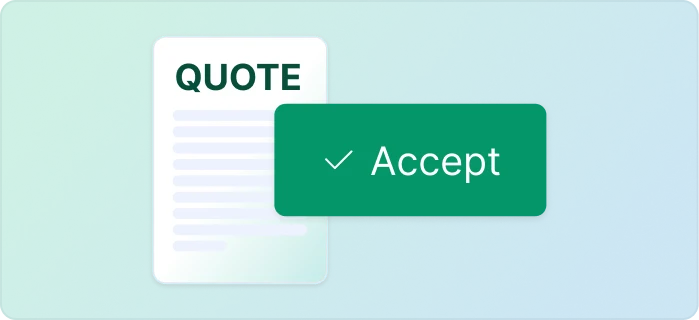
One-click acceptance for quotes
Your client accepts with one click. Recorded, no signature ceremony.
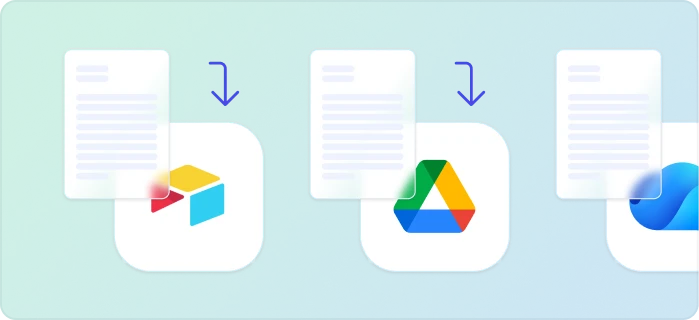
Signed or accepted copies delivered and filed automatically
Every finished document is emailed and saved back to your Airtable, Notion, sheet, or Drive folder.
Start automating & signing in minutes!
Set up in minutes, save weeks of work
Three steps from your deal to a signed document
Create a Google Docs or Word template
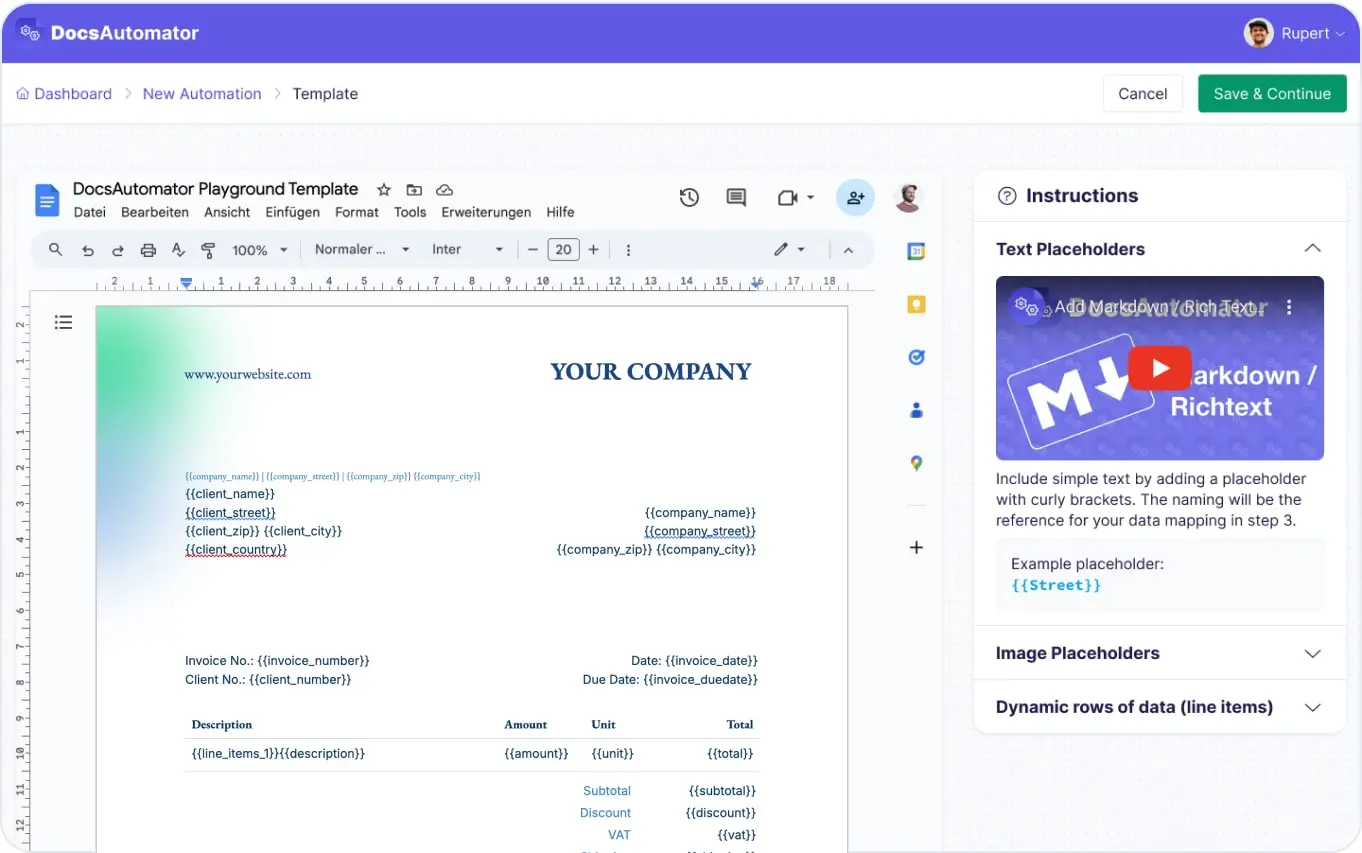
Map Data & Preview
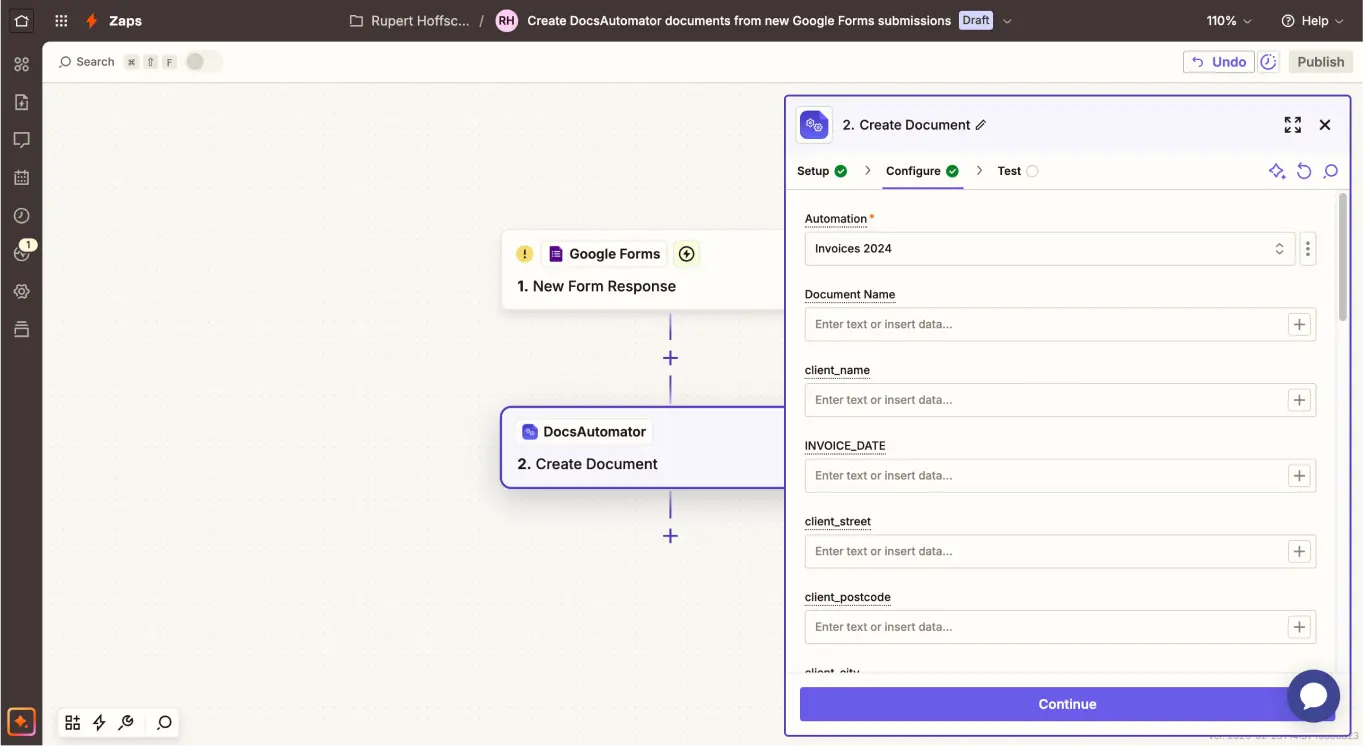
Connect HubSpot
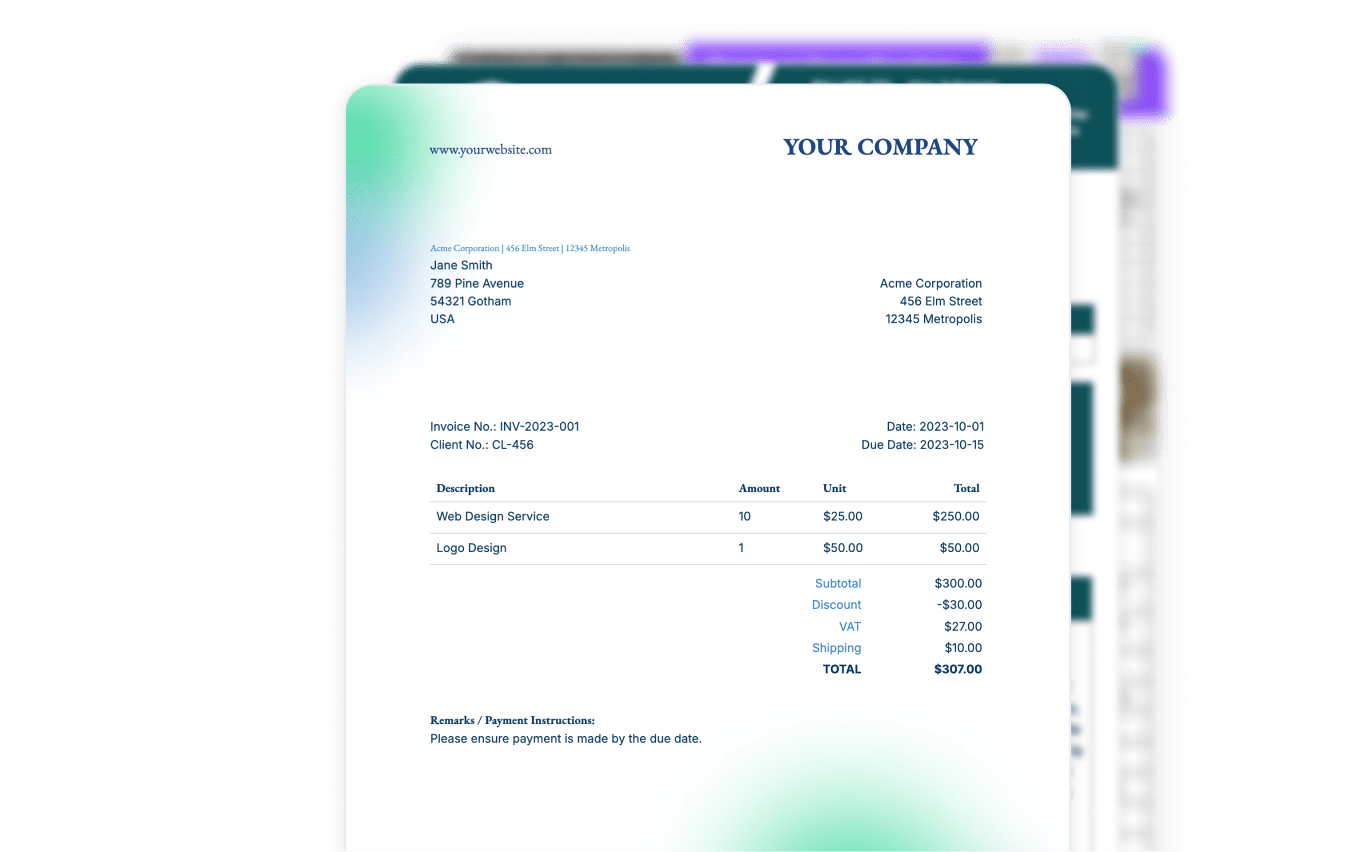
Step by Step Implementation Guide
Start automating & signing in minutes!
One deal, one template, one signed contract
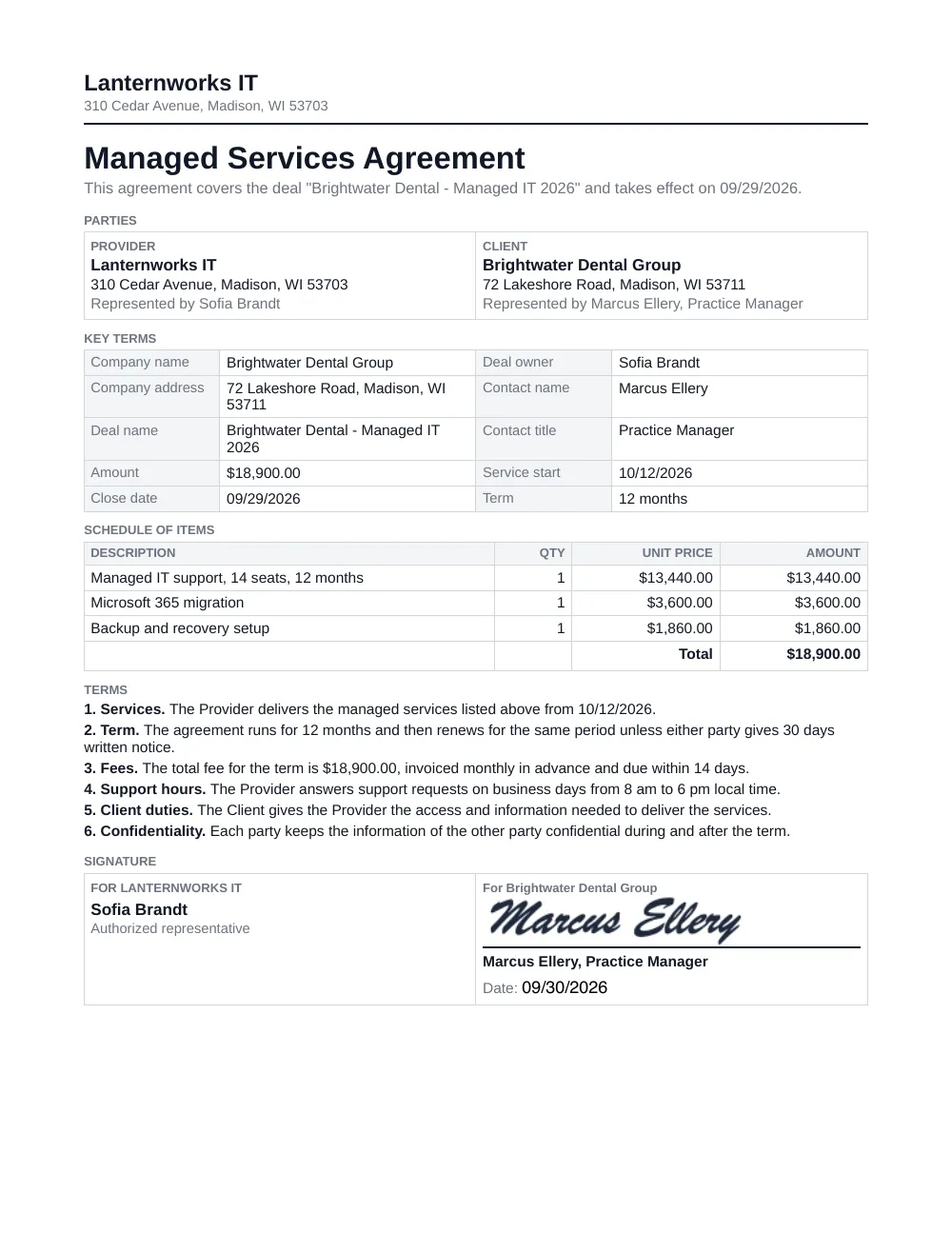
The managed services agreement below was created by DocsAutomator from the example deal and signed on a test page. All names and amounts are fictional.
1. The deal in HubSpot
- Appointment scheduled
- Qualified to buy
- Presentation scheduled
- Decision maker bought-in
- Contract sent
- Closed won
- Amount
- $18,900.00
- Close date
- 09/29/2026
- Deal owner
- Sofia Brandt
- Company
- Brightwater Dental Group
- Contact
- Marcus Ellery, Practice Manager
- Pipeline
- Sales pipeline
| Name | Quantity | Unit price | Net price |
|---|---|---|---|
| Managed IT support, 14 seats, 12 months | 1 | $13,440.00 | $13,440.00 |
| Microsoft 365 migration | 1 | $3,600.00 | $3,600.00 |
| Backup and recovery setup | 1 | $1,860.00 | $1,860.00 |
| Amount | $18,900.00 | ||
2. Your template
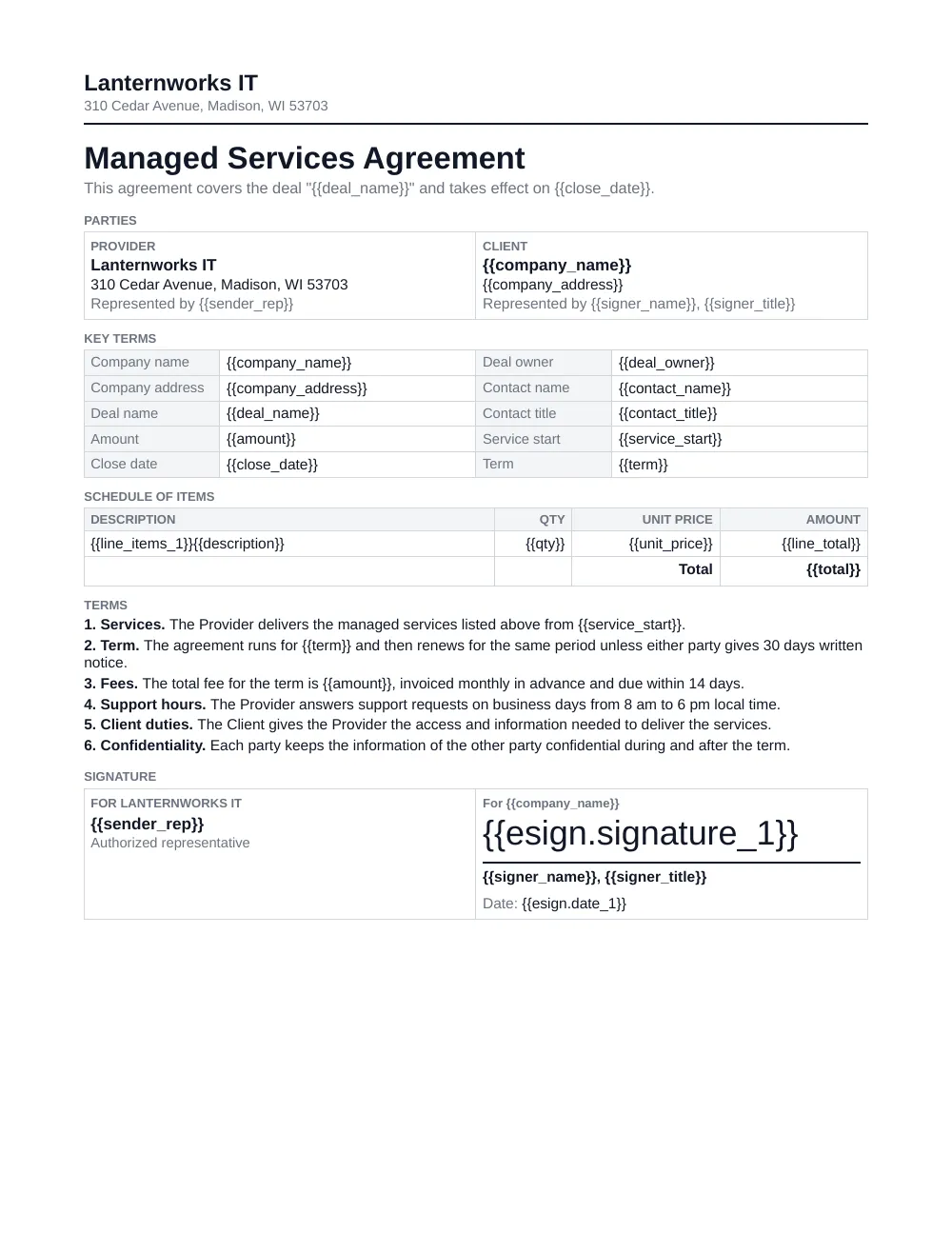
3. The signed document
Four ways to connect HubSpot today
Works through Zapier, Make, n8n or your AI assistant

Zapier
The deal stage starts the contract without a click.
- In DocsAutomator, create an automation with your contract template and turn on signing. Set the signer's email to a placeholder such as {{contact_email}}.
- In Zapier, use the HubSpot trigger "Updated Deal Stage" and choose the stage Closed won.
- Add the DocsAutomator action "Create Document" and map the deal, company and contact properties to the placeholders.
- Turn the Zap on. The contact gets the signing link by email.
"Updated Deal Stage" checks HubSpot at intervals. For an immediate start, use the trigger "Deal Property Change" on the deal stage and let only Closed won continue. The Zap with "Updated Deal Stage" has two steps, so it runs on a free Zapier account and with a free HubSpot account. A Super Admin must connect HubSpot.

Make
The same flow as a Make scenario.
- Start the scenario with the HubSpot CRM module "Watch Deals".
- Let only deals in the stage Closed won continue.
- Add the DocsAutomator module that creates the document and map the properties.
- For the way back, use "Upload a File" and then "Create a Note" on the deal.

n8n
The same flow as an n8n workflow, self-hosted or on n8n Cloud.
- Start the workflow with the HubSpot Trigger node and the deal event "Property changed" on the deal stage.
- Let only the stage Closed won continue.
- Add the DocsAutomator node with the operation Document, Create, and map the fields to the placeholders.
- For the way back, catch DocsAutomator's completion message with a Webhook node and use the HubSpot node to update the deal or create an engagement with the link to the signed PDF.
The HubSpot Trigger node needs a HubSpot developer account with a public app, and HubSpot allows one such webhook at a time. The HubSpot node has no file upload, so the PDF goes back as a link.


Claude or ChatGPT
You ask for the contract in a chat. The assistant reads the deal with its line items and sends the document.
- Connect the HubSpot connector for Claude or for ChatGPT. It is available on all HubSpot plans, including the free one.
- Connect DocsAutomator to the same assistant. The address is https://mcp.docsautomator.co/mcp.
- Ask: "Create the managed services agreement for the Brightwater Dental deal and send it to Marcus Ellery for signing."
- The assistant reads the deal, the company, the contact and the line items, fills the template and starts the signing request.
This route starts when you ask, not when the stage changes. The HubSpot connector can log a note with the link to the signed PDF. It does not upload files. For your own agents, HubSpot also has a remote HubSpot MCP server.
The sealed PDF back on the deal
When the contact has signed, DocsAutomator seals the PDF, adds a certificate page with the audit trail, and sends a completion email with a link to the PDF.
DocsAutomator also sends a notification with the link to the signed PDF to a web address you choose. To know which deal a finished document belongs to, put the deal ID into the document name (for example Contract {{deal_id}}); the completion webhook returns that name. In Make, a second scenario receives it, uploads the PDF with "Upload a File" and attaches it to the deal with "Create a Note". In Zapier, a second Zap stores the PDF in HubSpot with "Upload File" and writes the link into a deal property with "Update Deal".
Within a single Zap, scenario or workflow you need no webhook for the generated PDF: the DocsAutomator step returns its link, so the next step can update the deal from the trigger step.
HubSpot does not link a file to a deal directly. The file always sits on a note that belongs to the deal.
Receiving that notification in Zapier needs a paid Zapier plan.
What to know before you start
There is no native HubSpot app from DocsAutomator. Without Zapier, Make or an AI assistant, HubSpot can only start the contract with the workflow action "Send a webhook", and that action needs Data Hub Professional.
HubSpot quotes have their own e-signatures on Revenue Hub Professional and Enterprise. If a signed quote is all you need, that feature covers it. DocsAutomator is for the longer documents after the deal, from your own Word or Google Docs file, on any HubSpot plan.
What it costs
Questions about HubSpot and DocsAutomator
Start automating & signing in minutes!
Customer Voices
Don't take our word for it. Here's what our customers say about us:
It's incredible how easily we can connect it to other systems. [...] No similar software was found. It should be made mandatory. Docautomator has been our best choice so far! Always reliable! Thank you very much for making my day and work easier.

Ágota dr. Czirják-Nagy
We absolutely love using DocsAutomator! The service has been a game changer for our company. We're in the process of moving all our document workflows to DocsAutomator. The functionality is spot-on, and it saves us countless hours.

Xaver
This is the best value for money app for creating template. Easy to use, easy to set up, and we like to support small businesses. Keep going!
Aris Zagklis
DocsAutomator is great to generate on the fly PDF documents. We use it for several applications. it's easy to implement and great to use. I can highly recommend it.
Samuel
I wonder why I lost so much time using page designer on Airtable. This is the best solution for regarding functionality, ease of use and price. I definitely recommend is. It s a no brainer - really! He also offers precise and super fast support!

Florence Bouchat
DocsAutomator has proven to be an invaluable asset for our business, streamlining the automation of emails and documents in a seamless and efficient manner. It has significantly simplified tedious tasks, making our workflow more efficient.

Thembinkosi Malefo
More integrations

Airtable
Airtable combines spreadsheet and database features for data organization and collaboration.
Notion
Notion is the connected workspace where better, faster work happens. Build wikis, manage projects, and run your business.
Google Sheets
Google Sheets is a cloud-based spreadsheet app for real-time collaboration.
Google Forms
Google Forms is a free online tool to create forms to collect and organize data efficiently.

Glide
Glide makes it easy to build custom business software powered by your data - without code.

Softr
Turn your siloed data and workflows into powerful custom software for your business, with AI built in.

SmartSuite
SmartSuite replaces disconnected point solutions with a modern platform that scales across functions.

Noloco
The fastest way to create custom internal tools, client portals, CRMs and other business tools.

ClickUp
Glide makes it easy to build custom business software powered by your data - without code.
Zapier
You can automate a simple task or build an entire automated system - all on Zapier.
n8n
Flexible AI workflow automation for technical teams.
Make
AI automation you can visually build and orchestrate in real time.

API
Use our API to build connect your custom app and use the power of DocsAutomator.
Start automating & signing in minutes!
Ready to automate & sign your HubSpot documents?
Join 7,500+ businesses saving hours on document creation
Unlimited testing, no credit card required