It’s the end of the month. For a modern marketing agency, this means one thing: client reporting.
Your entire operation lives in Airtable. It's your agency's central nervous system—a sophisticated "spreadsheet-database hybrid" that flawlessly connects clients to projects, projects to campaigns, and campaigns to individual tasks and deliverables. All your performance metrics, creative assets, and client data are perfectly organized. Airtable is, without a doubt, your single source of truth.
But now comes the hard part.
This pristine, structured, relational data must be translated into a polished, multi-page, narrative-driven PDF report for your client. This is the ‘last mile’ of your data workflow, and it's where the entire system feels loose.
Suddenly, your high-tech operation becomes a frantic, manual scramble, and your Account Managers are:
- Copy-pasting charts
- Manually writing executive summaries
- Fighting with formatting
- Struggling to export dozens of individual reports
As one Airtable user puts it perfectly:
“I have a large base that is used to process reports that come in from forms. Each record is an individual report, which I can build into a printable pdf using the page designer. But the only way to share these is to download each individual PDF and then send it by email. I would like to be able to automate this process, i.e. once a report is complete, the document generated by the page designer is automatically shared with a given recipient.” — JonathanB [Source: Airtable Forum]
At DocsAutomator, we understand this scalability issue with Airtable documentation and have solved it.
This repetitive manual task is a massive bottleneck, costing your agency valuable, billable hours every single month. With DocsAutomator, you can fix this for free.
In this blog, we will show you a free Airtable to Google Docs workflow using DocsAutomator that you can use today — and how it overcomes your document automation issues with Airtable.
First, let’s understand why existing solutions to create client reports from Airtable don’t work.
Why Airtable to Google Sheets Doesn’t Work for Client Reporting
Faced with this bottleneck, the first ‘logical’ step for many marketing agencies is to move their data from one grid (Airtable) to another (Google Sheets). This seems to make sense—it’s just moving rows and columns, right?
This is a reporting trap. This workflow is a ‘false start’ that creates more problems than it solves, for two critical reasons.
Problem 1: The Brittle, Clunky Sync
First, just getting your data from Airtable to Google Sheets is a nightmare.
- The Manual Method: You download a CSV from Airtable and re-upload it to Sheets is universally described as "clunky, slow, and prone to errors". It's a non-starter for any agency that needs to report on time.
- The ‘Automated’ Method: Even Airtable's native automation for Google Sheets is deeply flawed for this purpose. It’s often just a one-way "Append row" action. It doesn't update existing data; it just creates a new, disconnected log of information at the bottom of your sheet. This isn't a ‘sync’; it's just a data-dump that creates a second, out-of-date source of truth.
Problem 2: The Real Failure (The ‘Category Error’)
Even if a perfect, real-time sync existed, this workflow would still be a failure.
Why?
Because Google Sheets is the wrong destination.
This is a fundamental ‘category error.’ Google Sheets is a calculator, not a publisher. It’s a powerful spreadsheet tool built for ‘simple math’ and ‘number crunching,’ not narrative storytelling or professional design.
- It Fails on Professionalism: Google Sheets offers ‘limited formatting flexibility’. You cannot easily create a beautifully branded, multi-page report with a proper cover page, executive summary, and clear visual hierarchy.
- It Fails on Narrative: A client report needs to tell a story. You need to provide context, analysis, and a narrative flow. A spreadsheet ‘can't handle the big picture’ and doesn't ‘give you context’. It's just a grid of data, leaving the client to figure out the ‘so what.’ For this, you can anyway use Airtable’s dashboarding capabilities.
- It Creates an Extra Step: Ultimately, you’ll end up doing what you were trying to avoid: copy-pasting your data and charts from Google Sheets into a Google Doc to actually write the report. This ‘solution’ has doubled your work and introduced a new point of failure.
Why Airtable's Own Tools (Interface and Page Designer) Are a Dead End
Frustrated with spreadsheets, the next logical trap is to stay inside the Airtable ecosystem. Airtable does offer a powerful Interface Designer that allows building flexible layouts and custom dashboards for collaborators to ‘take action directly in the interface’.
But it’s the wrong tool for the job.
The Dashboard Trap:
Interface Designer's primary purpose is to create live-refreshing dashboards or surfaces for collaboration.
It simplifies information for stakeholders within your organization. An agency's client report is the exact opposite: a static, "point-in-time" PDF report designed for external delivery.
Here’s a forum post that highlights the issue with Airtable Interface Designer for reporting use cases:
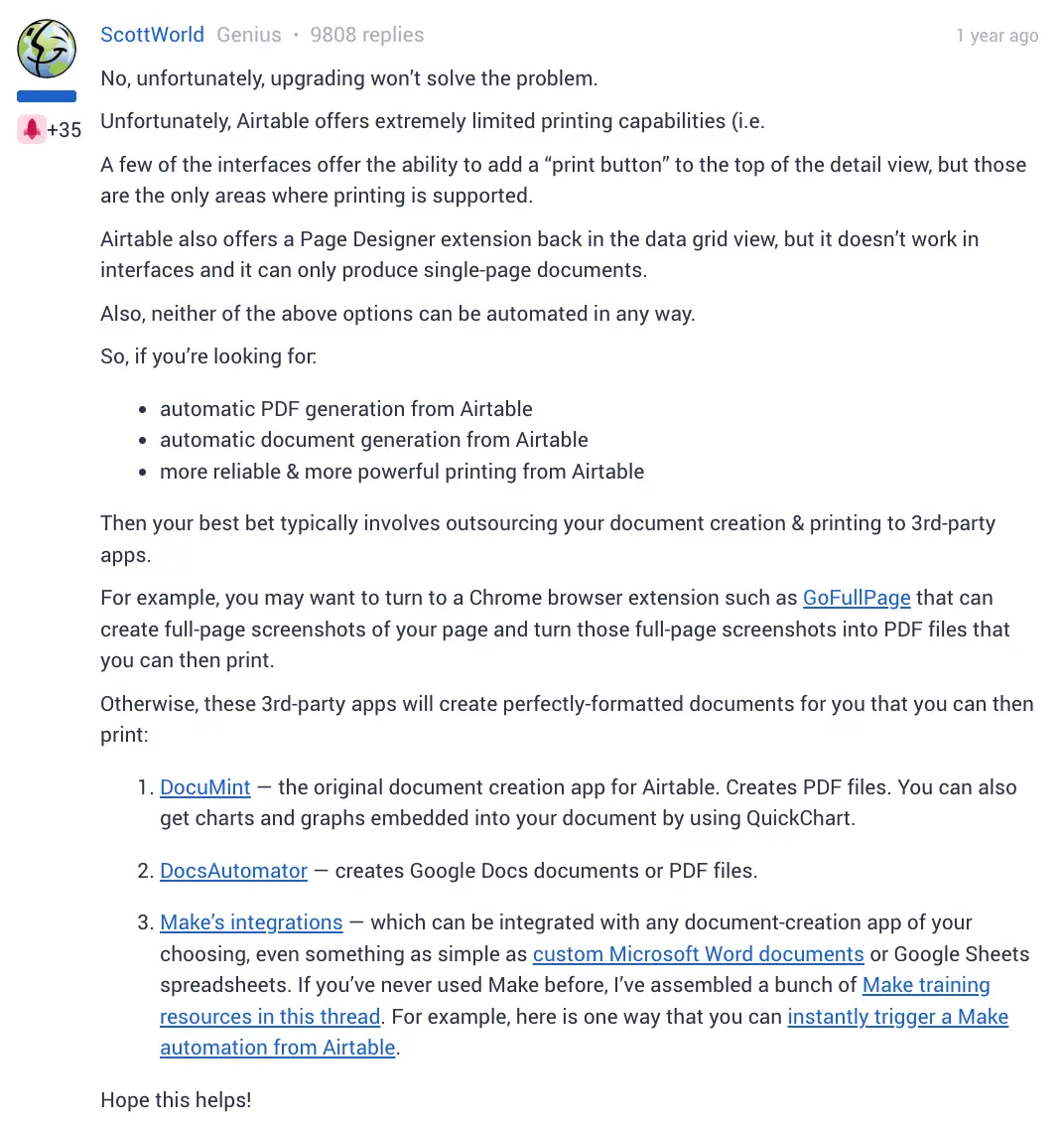
The ‘print’ function built into Interfaces is not a true reporting engine. It allows users to save a dashboard page or ‘up to 100 record detail pages’ as a PDF. But this is a static snapshot of an interactive view, not a dynamic, narrative, multi-page document. Users quickly find themselves frustrated, asking how to get simple tables to ‘expand across pages on print’ without a scroll box. It's a manual ‘print screen’ function, not an automation engine.
The Legacy Trap: Page Designer
This dashboard-centric frustration often leads users to dig for Airtable's older, seemingly more-specific app: Page Designer. It is described by the community as ‘pretty much garbage’ because it fails on two critical, non-negotiable points:
- Limitation #1: The Single-Page Limit – This is the immediate deal-breaker. Page Designer ‘only supports single-page templates’. This is useless for a marketing agency's multi-page monthly performance report or even a simple invoice with a variable list of line items.
- Limitation #2: The Automation Dead End – If the single-page limit is its design failure, this is its workflow failure. Page Designer ‘cannot be automated in any way’. You still cannot trigger a report when a ‘Status’ field changes. You still have to manually open the app, click your browser's ‘Print’ button, and ‘Save as PDF’. This is a manual task, not a scalable workflow.
- Limitation #3: No Dynamic Logic – Page Designer is static and cannot handle the dynamic, conditional nature of agency data. Airtable's native forms famously lack conditional logic , and Page Designer is no different. You can't set simple rules like, “Show this 'Top Performer' badge only if the KPI is 'Good'” or “Show this 'OVERDUE' stamp only if the task status is 'Late'.”
These tools fail because they are being misapplied. Interface Designer is a dashboard. Page Designer is a visual asset creator for individual records, like a business card or real estate brief.
Neither is a document automation engine capable of handling a real marketing agency's client reporting needs.
The Airtable → DocsAutomator → Google Docs/PDF workflow for your marketing agency client reporting
Stop looking for one tool that does everything poorly.
The professional, scalable, and automated solution lies in a ‘best-of-breed’ stack, where each component is the absolute best at its specific job.
This is the winning workflow: Airtable -> DocsAutomator -> Google Docs
- Airtable: Your Data Hub – Your ‘spreadsheet-database hybrid’ continues to be your single source of truth. Its job is to store and structure your complex, relational data.
- Google Docs: Your Narrative and Design Tool – The undisputed, best-in-class tool for creating collaborative, beautifully formatted, multi-page documents. It's built for narrative, branding, and layout.
- DocsAutomator: Your Intelligent Automation Bridge – This is the missing link. DocsAutomator is the purpose-built engine that runs inside your Airtable automations. It intelligently pulls data from your Airtable base and merges it into your Google Doc template, turning it into a polished PDF or an editable Google Doc. It’s like ‘an upgrade to your entire workflow’.
This stack is superior because it leverages the native strengths of each platform, giving you the database power of Airtable, the design power of Google Docs, and the automation power of DocsAutomator.
How to Build Your Branded Automated Reporting Engine
The process is simple, powerful, and requires no coding.
Step 1: Create Your Branded Template in Google Docs
You start in a tool you and your team already know and love. Create your beautiful, multi-page monthly report template in Google Docs. You have absolute freedom to set up your agency's logo, fonts, cover page, and executive summary sections.
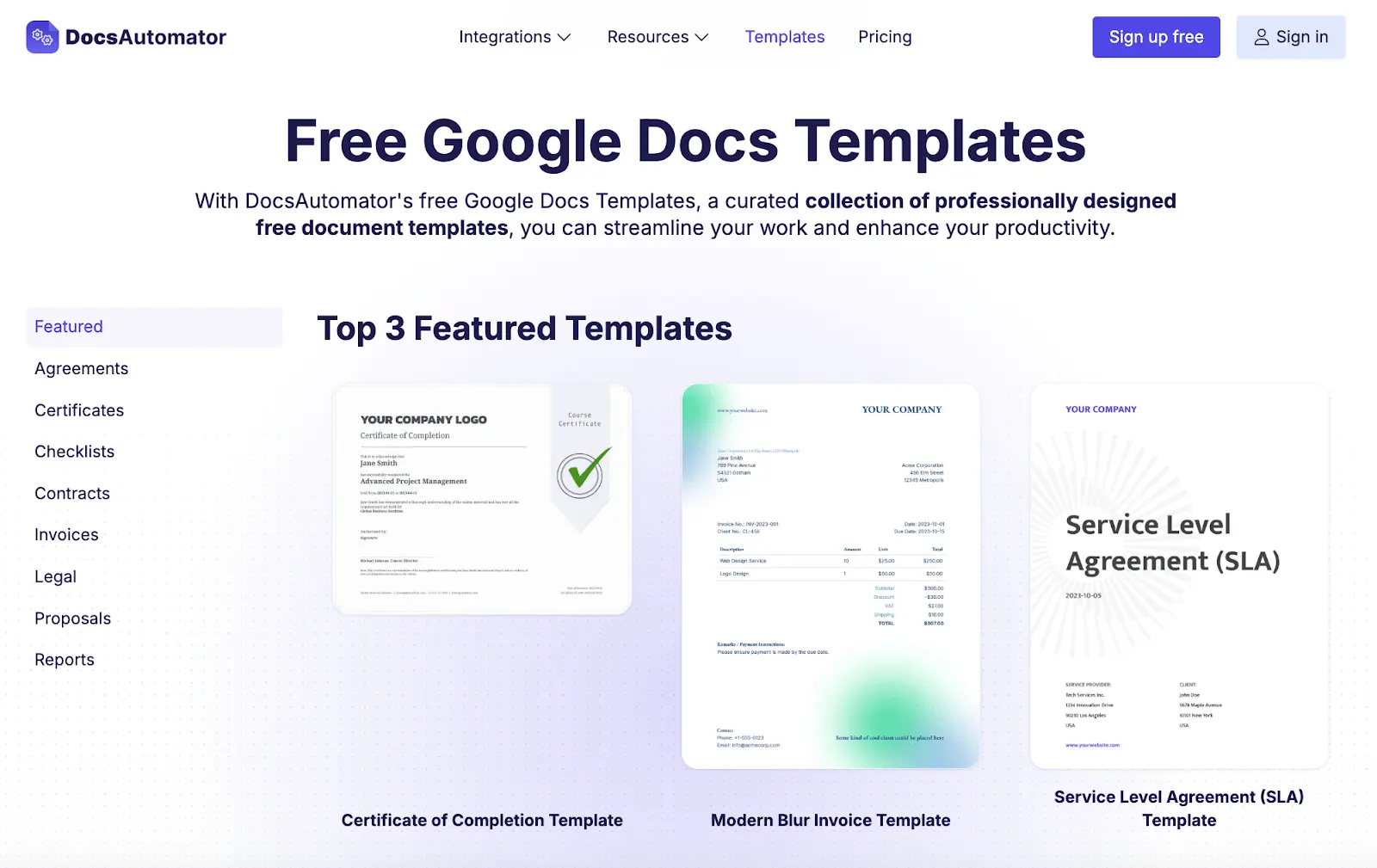
You can also explore our ready-to-use DocsAutomator templates — use our free plan to create 20 lifetime free documents to test it out.
Step 2: Add Dynamic DocsAutomator Placeholders
This is where you tell DocsAutomator where to put the data. The syntax is simple and human-readable, using curly brackets {{...}}.
Simple Text:
For your client's name or a project summary, you just write {{client_name}} or {{executive_summary}}.
Learn more about adding markdown or rich text to Google Doc templates:
Dynamic Images:
DocsAutomator supports dynamic images — this helps pull in campaign creative or charts, you use the {{image_...}} tag, like {{image_top_ad_creative}}. DocsAutomator even pre-processes these images, letting you set quality and max-width parameters to keep file sizes small and professional.
Here’s a tutorial on adding multiple images as it will help you for preparing useful client reports:
Solving the Page Designer Flaw: Add Line Items
This is the direct solution to Page Designer's single-page, static-list problem. It's built for any data that is variable in length.
Think of your list of campaign results, ad-by-ad performance, monthly deliverables, or invoice items.
In your Google Doc template, you create a table. In the first cell of the row you want to repeat, you simply write {{line_items_1}}. In the following cells, you put your placeholders like {{task_name}}, {{task_status}}, and {{task_due_date}}.
When the automation runs, DocsAutomator iterates over your list and ‘creates a single row for every item’. It doesn't matter if there are 3 items or 300—it can handle hundreds to thousands of items, automatically creating new rows and flowing perfectly onto new pages.
Here’s a tutorial on adding/removing line items, including with conditional logic for your document template via Airtable:
Create a Smart Client Report using Conditional Logic
This is how you move beyond a simple ‘mail merge’ and create intelligent reports. DocsAutomator lets you apply conditional logic directly to your line items.
You want to send a report but only show the deliverables that are ‘Completed.’ You can set a "Conditionally Show / Hide Rows" rule to only show the row if the {{task_status}} field in Airtable equals ‘Completed’.
This is applicable for sections too — learn more about dynamic sections:
You want to highlight at-risk tasks in an internal report. You can use ‘Conditional Styling of Text / Rows’ to set a rule: If {{task_status}} equals ‘At Risk,’ set the ‘row background color’ to light red.
DocsAutomator Closes Document Automation Loop: What Happens After Document Generation?
The ‘automation dead end’ of Airtable Page Designer forces you into a 9-step manual download-and-send process.
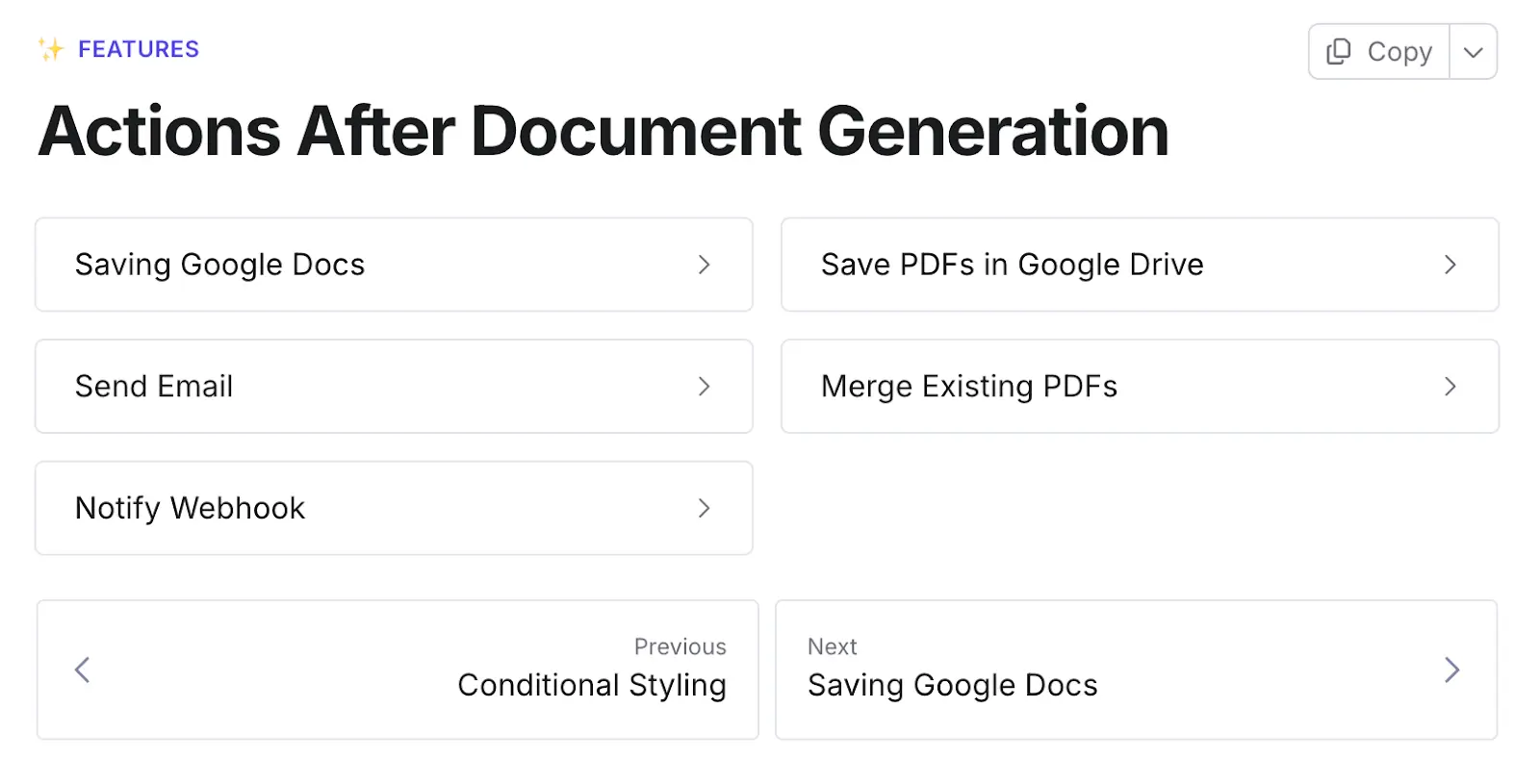
The DocsAutomator workflow is a ‘Closed Loop’ system. It doesn't just make the file; its ‘Actions After Generation’ handle the entire delivery and organization process for you.
Here’s the full automated workflow you can build:
- Trigger: An Account Manager changes a ‘Status’ field in Airtable to ‘Ready for Client Review.’
- Generate: DocsAutomator runs, grabs all the data, and generates the final, merged PDF.
- Action 1: Save and Organize. The final PDF is automatically saved to your Google Drive. You can use placeholders to create a perfect, dynamic folder structure. No more ‘Report_Final_v3.pdf’ on your desktop.
- For example: Clients/{{client_name}}/Reports/{{report_month}}.pdf.
- Action 2: Deliver to the Client. The report is automatically emailed to the client. This is highly professional and customizable.
- For example: It sends from your own connected Gmail account (not a generic "docs@" address) with a dynamic subject line like ‘Your {{report_month}} Performance Report is Ready, {{client_name}}!’.
- Action 3: Close the Loop. DocsAutomator automatically updates the original Airtable record. It can save the final PDF to an attachment field and save the editable Google Doc link to a URL field.

Your Airtable base is now a complete system of record. You can see, in one place, not just the raw data but the actual, final, client-facing deliverable that was created from it. That is a truly automated, auditable, and scalable system.
Start Delivering — with Airtable to Google Docs and PDF client reports using DocsAutomator
DocsAutomator helps your marketing agency skip manual reporting and benefit from end-to-end document automation.
DocsAutomator is the lynchpin that connects your data to your design.
If you’re non-technical, you need not worry as you don’t write a single line of code. Still, if you face issues or wish to create professional and custom Google Docs template quickly — explore DocsAutomator Template Creation Service
We can help you stop wasting valuable, billable hours on a manual, error-prone task.
It's time to automate your ‘last mile’ – and you can explore the same for free. If you’re a non-profit or education institution, we do offer a 50% discount too, explore DocsAutomator pricing plans to learn more.
Scale your agency's operations, eliminate human error, and finally deliver the professional, data-driven stories your clients deserve: Get Started With DocsAutomator